Updating your Instagram profile picture takes just a few taps, whether you’re refreshing your look or rebranding an account entirely.
This guide walks through exactly how to change your profile picture on Instagram in 2026.
Step 1: Open Your Profile
- Open the Instagram app on your phone.
- Tap your profile picture in the bottom right corner to go to your profile.
Step 2: Tap Your Current Profile Picture
- Tap directly on your current profile picture at the top of your profile.
- A menu will appear with options to change it.
Step 3: Choose a New Photo

- Select New Profile Photo.
- Choose to take a new photo, select one from your gallery, or, if available, choose a preset avatar or Facebook photo.
Action step: Choose a clear, well-lit photo where your face (or logo, for business accounts) is easily recognizable even at the small size profile pictures display at throughout the app.
Step 4: Crop and Adjust
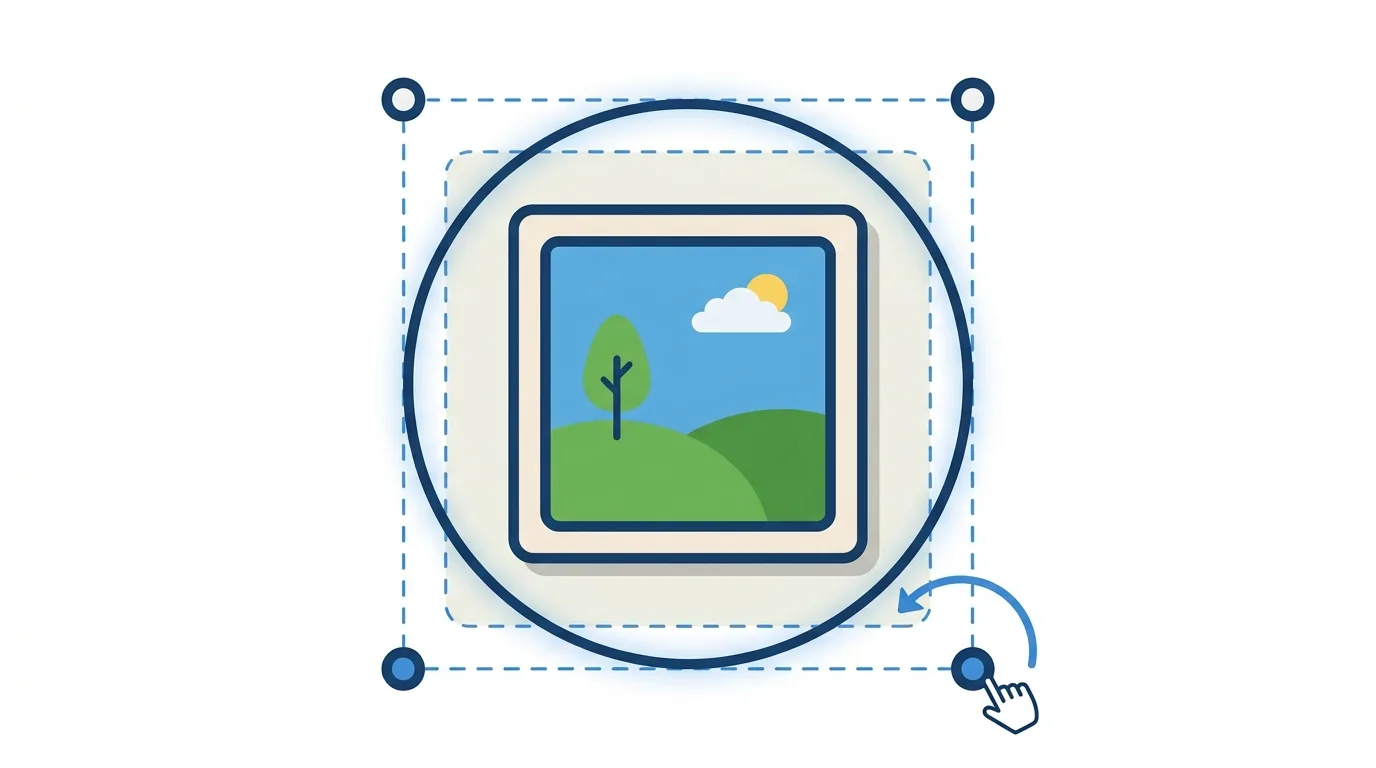
- Instagram will prompt you to crop and position your selected image within the circular frame.
- Pinch to zoom or drag to reposition until you’re satisfied with the framing.
- Tap Done or the checkmark to confirm.
Action step: Center your face or logo within the crop area, since Instagram displays profile pictures in a circular format that can cut off content positioned near the edges of a square image.
Step 5: Confirm the Change
Once confirmed, your new profile picture updates immediately across your account, including on past posts and comments.
Using AI Tools to Create or Enhance Your Profile Picture

Some users turn to AI photo editing tools to enhance lighting, remove backgrounds, or generate a stylized version of their photo before uploading.
Action step: If using an AI-enhanced or generated image, keep it recognizable as genuinely you (or your actual brand, for business accounts), since overly altered profile pictures can create a disconnect between your online presence and real-world recognition, particularly for accounts where trust and authenticity matter.
Setting a Profile Picture for a Business or Creator Account
Business and creator accounts benefit from slightly different considerations than personal accounts.
Action step: Use your logo or a consistent, professional headshot rather than a casual personal photo, since business accounts benefit from the kind of brand consistency that helps customers quickly recognize your account across different contexts — search results, tagged posts, comments — without needing to read the account name each time.
How Profile Picture Changes Appear to Followers
When you update your profile picture, Instagram doesn’t send a direct notification to your followers about the change specifically.
Action step: If a profile picture update is significant (a rebrand, for example), consider posting about it separately, since followers won’t automatically be alerted to the change through a notification the way they would for a new post.
Privacy Considerations for Profile Pictures
Your profile picture is visible to anyone who can view your profile, including on public accounts where it’s visible to non-followers entirely.
Action step: If privacy is a concern, consider using a less personally identifying image, such as a logo, illustration, or photo that doesn’t clearly show your face, particularly if your account is public and you’re concerned about broader visibility.
How to Change Your Profile Picture on Desktop
Prefer using a browser? Here’s the process:
- Go to Instagram.com and log in.
- Click your profile icon, then Edit profile.
- Click Change profile photo.
- Upload a new image, adjust the crop, and save.
Can You Use a GIF or Video as Your Profile Picture?
No, Instagram profile pictures must be a static image. Animated or video profile pictures aren’t currently supported, unlike some other platforms.
What Happens to Your Old Profile Picture?
Your previous profile picture is not automatically saved anywhere visible to others, but Instagram maintains an internal record for your own reference.
Action step: If you want to keep a copy of your old profile picture before changing it, save it to your camera roll first, since retrieving it later through Instagram directly isn’t straightforward.
Common Issues When Changing Your Profile Picture
New photo not saving? Force close and reopen the app, then try again — this usually resolves temporary sync issues.
Photo appears blurry after uploading? Use a high-resolution image, since Instagram compresses photos during upload, and a low-resolution starting image can appear noticeably blurry after this process.
Crop not displaying correctly? Make sure your original image has enough resolution and appropriate dimensions to crop properly into Instagram’s circular frame without significant quality loss.
Profile Picture Size and Format Recommendations
Recommended specifications:
- Square image, ideally at least 320×320 pixels
- JPG or PNG format
- Clear, high-contrast subject that remains recognizable at small sizes
Action step: Test how your new profile picture looks at actual display size (quite small, especially in Stories and comments) before finalizing, since details that look fine in a large preview can become illegible at the small sizes profile pictures typically appear throughout the app.
Should You Update Your Profile Picture Regularly?
For personal accounts, updating periodically is simply a matter of preference. For business or creator accounts, consistency matters more.
Action step: Business and creator accounts should generally keep a consistent profile picture (typically a logo or consistent headshot) for extended periods, since frequent changes can make an account harder for followers to quickly recognize in a crowded feed.
Threads Adds Trending Topics as It Chases X’s News Audience in 2026
Final Thoughts
Changing your Instagram profile picture takes just a few taps and updates instantly across your account. Choose a clear, well-cropped image that remains recognizable at small sizes, and consider saving your previous photo first if you might want to reference or restore it later.
