If you want to know how to schedule a message on Telegram, the good news is that the feature is built in and free. You write the message now and Telegram sends it at the exact time you choose.
This is useful for birthday wishes, work reminders, channel posts, and messages to people in different time zones. This guide shows you how to schedule, edit, and cancel messages on phone and computer, plus what to do if something goes wrong.
Why Schedule a Message on Telegram?

Scheduling saves you from remembering to hit send at the right moment. It also helps you reach people at a better time, such as the morning in another country.
Common uses include birthday and anniversary greetings, meeting reminders, and polite messages that should not arrive in the middle of the night. Channel owners also use it to publish posts on a steady schedule without being online every time.
What Do You Need Before You Start?
You only need the latest version of Telegram and a chat to write in. Scheduling works in private chats, groups, and channels where you are allowed to post.
Your phone does not need to stay open when the time comes, because the message is stored on Telegram’s servers. Menu names can change slightly between versions, so look for the word Schedule if your screen looks different.
How to Schedule a Message on Telegram for iPhone and Android
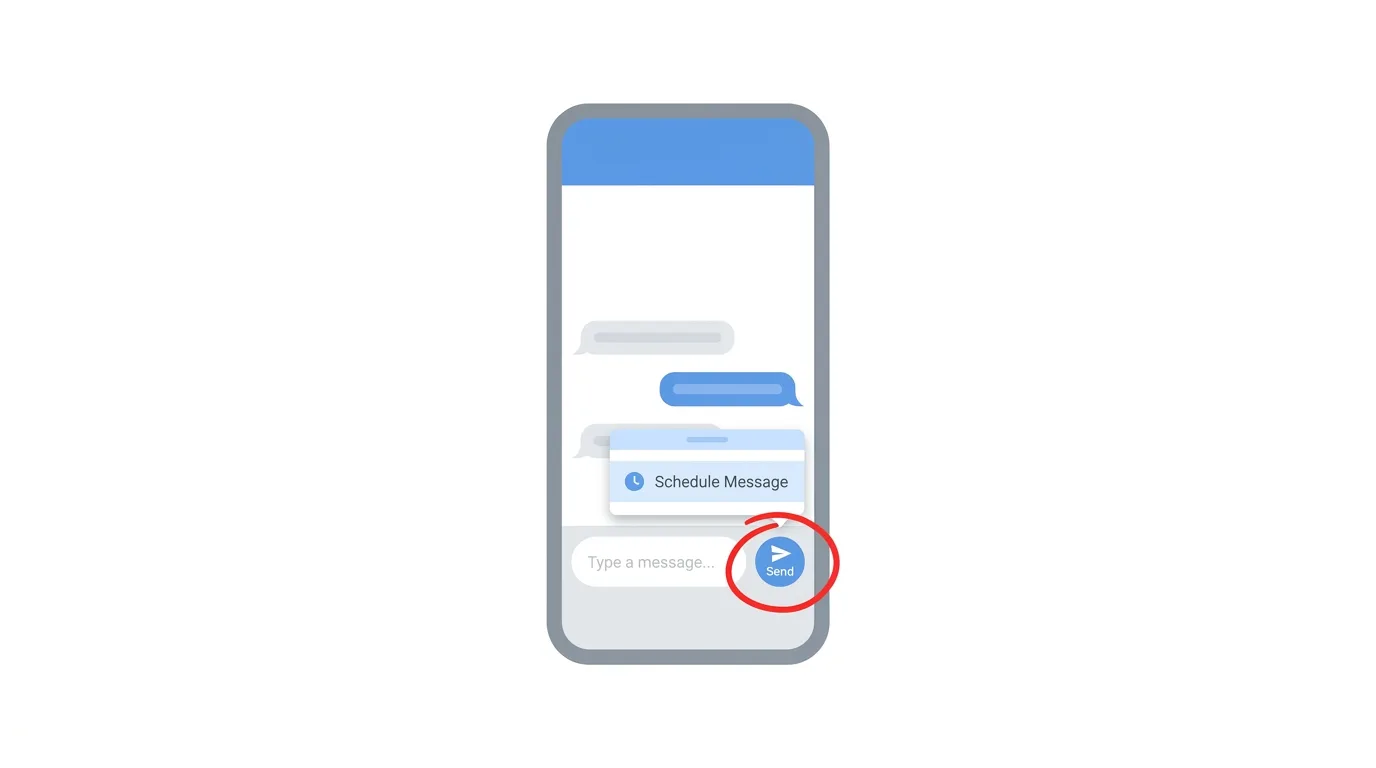
The steps are almost the same on both phones. The trick is to press and hold the send button instead of tapping it.
- Open Telegram and open the chat where you want to send the message.
- Type your message, or attach a photo, video, or file.
- Press and hold the send button (the paper plane or arrow).
- Tap Schedule Message.
- Choose the date and time, then tap Schedule or Send on [date and time].
Your message now waits in a scheduled list and is not visible to the other person yet. When the time arrives, Telegram sends it automatically.
How to Schedule a Message on Telegram Desktop
You can also schedule messages from a computer. The idea is the same as on a phone.
- Open Telegram Desktop and open the chat.
- Type your message or attach a file.
- Right-click the send button, or hold it down.
- Click Schedule Message.
- Pick the date and time, then confirm.
Scheduled messages are saved to your account, so you can see them on your phone too.
What Is “Send When Online”?
In private chats, Telegram may offer a second option called Send When Online. It holds your message until the other person opens Telegram.
This is handy when you do not want the message to arrive while they are away from the app. It is not available in every chat, so you may only see it in one-to-one conversations.
How to See Your Scheduled Messages

Once you schedule something, a small clock or calendar icon appears near the message box in that chat. Tap it to open a list of everything waiting to be sent.
Each scheduled message shows its planned date and time. You can scroll through the list just like a normal chat.
How to Edit, Reschedule, or Send a Scheduled Message Early
Plans change, and Telegram makes it easy to adjust. Open the scheduled list, then press and hold the message you want to change.
You will usually see options to Edit, Reschedule, Send Now, or Delete. Choose Reschedule to pick a new time, or Send Now to deliver it immediately.
How to Cancel a Scheduled Message
If you no longer want to send it, open the scheduled list and press and hold the message. Tap Delete to remove it before it goes out.
Once it has been sent, a scheduled message becomes a normal message. At that point you can delete it like any other message in the chat.
How to Schedule Posts in a Telegram Channel

Channel admins can use the same method to schedule posts. Open your channel, write the post, press and hold the send button, and choose Schedule Message.
This is ideal for news channels, businesses, and creators who want a steady posting rhythm. Check that your admin account has permission to post before you start.
How Far Ahead Can You Schedule?
Telegram lets you pick a future date and time. There is a limit on how far ahead you can go, and on how many messages can wait in one chat.
Because those limits can change, check what your app allows when you pick the date. If you need to plan a long series, schedule a few at a time.
Time Zones and Accuracy
Telegram uses your device’s time zone when you pick a time. If you travel or change your phone’s time zone, double-check the scheduled times in your list.
To reach someone in another country, calculate their local time first. Then pick the matching time on your own clock.
Tips for Using Scheduled Messages Well
A scheduled message works best when it is clear and complete. Add context, since the person will read it later and may not remember the situation.
For reminders, include the date, time, and place. For greetings, add a personal line so it does not feel automatic.
Troubleshooting: Scheduled Message Not Working
If you cannot schedule or the message does not appear, try these quick fixes:
- Update Telegram. An older version may not show the schedule option.
- Press and hold longer. A quick tap just sends the message right away.
- Check the chat type. Some chats, such as secret chats, may not support scheduling.
- Check your permissions. In groups and channels, you need permission to post.
- Check your connection. The app needs to reach Telegram when you create the schedule.
- Check the time. Make sure the date and time are in the future.
Frequently Asked Questions
Can you schedule a message on Telegram?
Yes. Press and hold the send button, tap Schedule Message, choose a date and time, and confirm.
Do I need to keep Telegram open?
No. The message is stored on Telegram’s servers and sent at the chosen time.
Can I schedule messages in a group or channel?
Yes, if you have permission to post there.
Can I edit a scheduled message?
Yes. Open the scheduled list, press and hold the message, and choose Edit.
Can I cancel a scheduled message?
Yes. Delete it from the scheduled list before it is sent.
Does the other person see my scheduled message early?
No. It stays hidden until the planned time.
Is scheduling free?
Yes. It is a standard Telegram feature.
X Raises Its Media Limit From 4 to 20 Photos and Videos Per Post (2026 News)
Final Thoughts
Scheduling a message on Telegram takes just a few taps and helps you stay on time without being online. Press and hold the send button, pick a date and time, and check your scheduled list when you need to make changes.
