Whether you’re dealing with harassment, spam, or simply want to stop seeing a specific account’s content, blocking on X takes just a few taps.
This guide walks through exactly how to block someone on X in 2026.
Step 1: Go to the Account’s Profile
- Open the X app and navigate to the profile of the account you want to block.
- You can search for their username directly if you’re not already viewing their profile.
Step 2: Access the Block Option
- Tap the three-dot menu on their profile page.
- Select Block @[username] from the menu.
Step 3: Confirm the Block
- X will show a confirmation prompt explaining what blocking does.
- Tap Block to confirm.
Once blocked, that account can no longer follow you, view your posts (unless your account is public and they view it while logged out), or send you direct messages.
How to Block Someone on Desktop
Prefer using a browser? Here’s the process:
- Go to X.com and navigate to the account’s profile.
- Click the three-dot menu near their profile.
- Select Block @[username] and confirm.
What Actually Happens When You Block Someone?
Understanding the full effect of blocking helps set the right expectations.
When you block someone:
- They’re automatically unfollowed from both directions.
- They can’t see your posts, replies, or likes while logged into their account.
- They can’t send you direct messages.
- They won’t be notified directly that you’ve blocked them, though they may notice they can no longer access your profile normally.
Action step: Understand that a blocked account can still view your public posts if they log out or use a different account, since blocking doesn’t prevent all possible ways someone could view public content — for stronger privacy, consider making your account private in addition to blocking specific individuals.
Blocking From Within a Direct Message
If someone is sending you unwanted direct messages specifically, you can block them directly from the conversation without navigating to their profile first.
- Open the conversation in your Messages.
- Tap the person’s name or the info icon at the top.
- Select Block from the available options.
Action step: Use this shortcut when the primary issue is unwanted messages specifically, since it saves the extra step of navigating away from the conversation to their full profile.
Does Blocking Affect Group Conversations?
If you block someone who’s also part of a group direct message conversation with you, the effect can be more limited than a typical one-on-one interaction.
Action step: Understand that blocking within a group conversation context may not fully remove that person’s ability to see messages within the shared group thread, since group dynamics differ from direct one-on-one blocking — if a group conversation is the core issue, consider leaving the group entirely instead.
Reporting vs. Blocking: When to Do Both
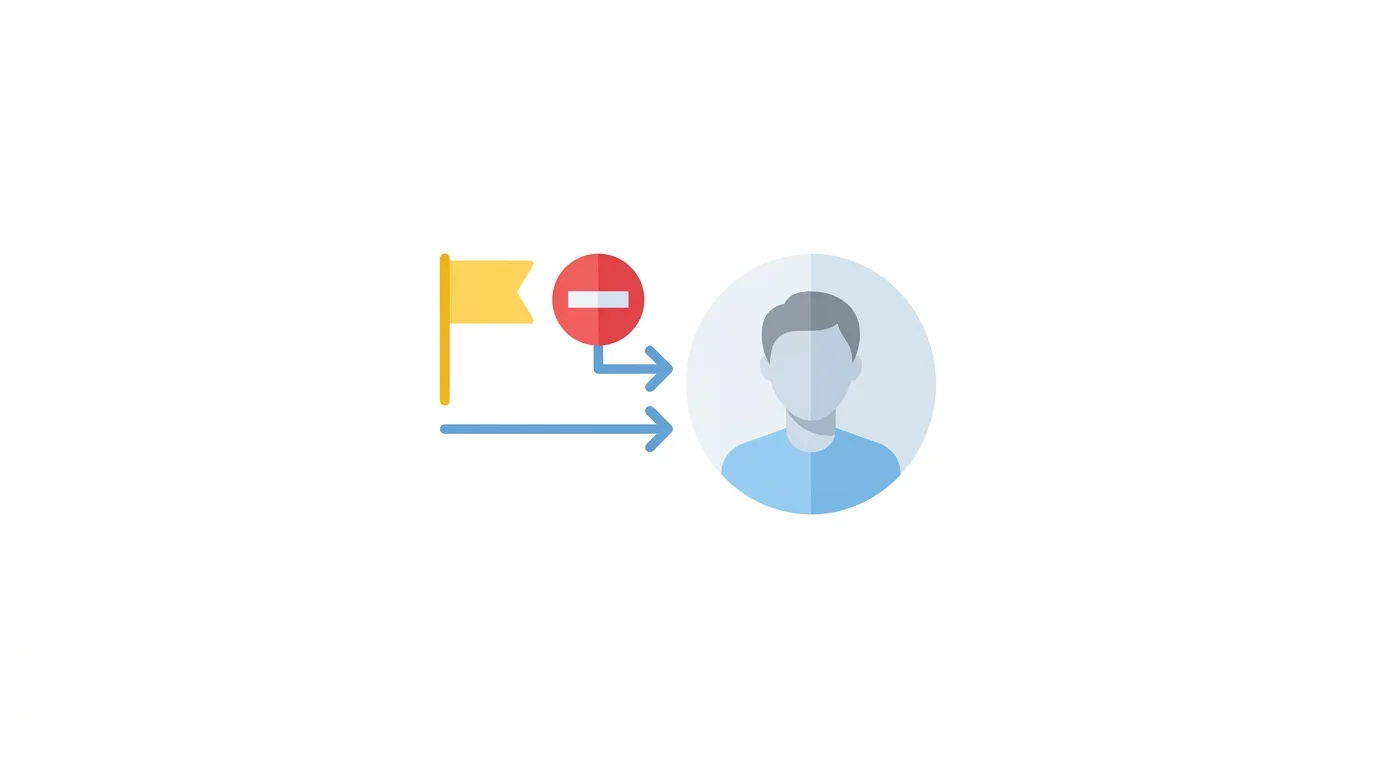
Blocking stops future interaction, but doesn’t address content that may violate X’s policies.
Action step: For serious harassment or policy-violating content, report the account in addition to blocking, using the Report option available from the same three-dot menu, since reporting alerts X’s moderation team while blocking only protects your own personal experience going forward.
How to View and Manage Your Blocked Accounts List
X keeps a record of everyone you’ve blocked, accessible for review or unblocking later.
- Go to Settings and privacy → Privacy and safety → Blocked accounts.
- Review your full list of blocked accounts.
Action step: Periodically review this list if you block accounts often, since you may want to unblock someone later once a situation has resolved, and this centralized list makes that easy without needing to remember specific usernames.
How to Unblock Someone
If you change your mind, unblocking is just as simple as blocking.
- Go to your Blocked accounts list, or visit their profile directly.
- Tap Unblock.
Action step: Note that unblocking doesn’t automatically restore a previous following relationship — if you were following each other before the block, you’ll need to follow them again manually if desired.
Blocking vs. Muting: Which Should You Use?
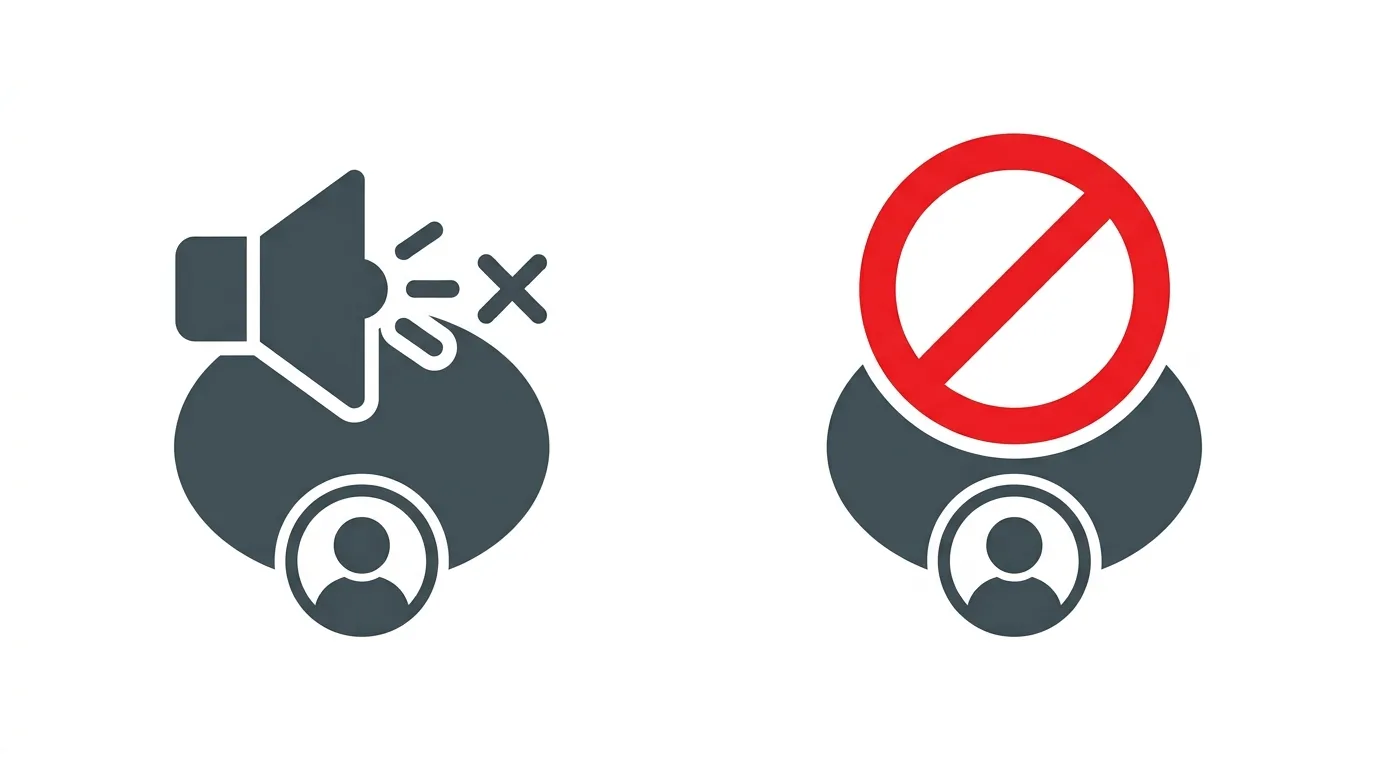
X offers both blocking and muting, which serve different purposes.
Blocking prevents the account from interacting with you or seeing your content while logged in, and is generally used for harassment, spam, or accounts you want no relationship with.
Muting hides their content from your feed without them knowing, useful for reducing exposure to someone without the more definitive social signal blocking sends.
Action step: Use muting for cases where you want reduced visibility without an obvious signal, and reserve blocking for situations involving harassment, spam, or accounts you want to prevent from interacting with your content entirely.
Can Someone Tell If You’ve Blocked Them?
X doesn’t send a direct notification when you block someone, but the effects are usually noticeable.
Action step: Understand that while there’s no explicit notification, a blocked account will typically notice they can no longer view your profile normally or interact with your content, making the block reasonably apparent even without a direct alert.
Common Issues When Blocking Someone
Block option not appearing?
Make sure you’re tapping the three-dot menu on their actual profile page, not within an individual post.
Blocked account still appearing in search results?
This is expected — blocking prevents interaction and content visibility while logged in, but doesn’t remove the account from X’s search index entirely.
Need to block multiple accounts at once?
Currently, X requires blocking accounts individually — there’s no bulk blocking feature for multiple accounts simultaneously.
How To Change Your Password on Instagram (2026 Guide)
Final Thoughts
Blocking someone on X takes just a few taps and immediately prevents them from following, messaging, or interacting with your content while logged in. If you’re looking for a lighter-touch option, consider muting instead, and remember that blocking doesn’t guarantee complete invisibility from someone determined to view your public content while logged out.
