If you want to know how to change your email address on Instagram, the process takes only a few minutes.
You may have switched to a new email, lost access to an old one, or simply want your account linked to a more secure address.
Your email matters more than most people realize.
Instagram uses it to send login codes, security alerts, and password reset links.
This guide shows you exactly how to update your Instagram email on phone and computer, how to verify it, and what to do if something goes wrong.
Why Should You Update Your Instagram Email?
Your email is one of the main keys to your account.
If it is out of date, you could miss important messages or lose the ability to recover your account.
Common reasons to change it include:
- You stopped using your old email address.
- You want to use a more secure email provider.
- You are moving your account to a business email.
- You suspect someone else has access to your old email.
- You changed jobs or schools and lost access to that address.
Keeping your email current is one of the simplest ways to protect your account.
What Do You Need Before You Start?
Have these ready:
- The latest version of the Instagram app, or a web browser.
- Your Instagram account logged in.
- Access to the new email address, because Instagram sends a confirmation code to it.
Make sure you can open the new inbox right away, so you can enter the code before it expires.
Menu names can change slightly between app versions, so look for the words Contact information or Email if your screen looks different.
How to Change Your Email Address on Instagram for iPhone and Android
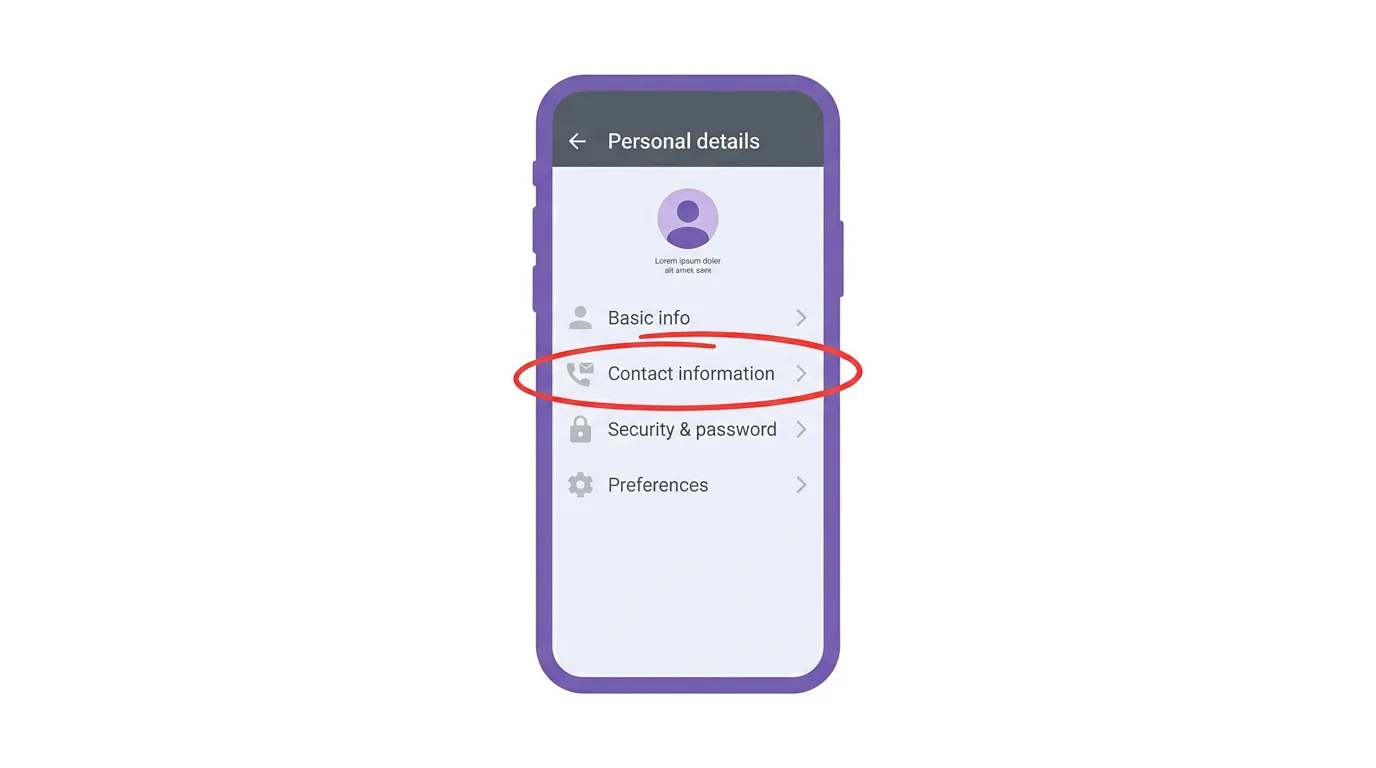
Instagram now manages email and phone details through Accounts Center, a shared settings area used by Meta apps.
- Open the Instagram app and tap your profile picture at the bottom right.
- Tap the three-line menu at the top right, then tap Accounts Center.
- Tap Personal details.
- Tap Contact information.
- Choose your Instagram account if more than one account is shown.
- Tap Add new contact and choose Add email, or tap your current email address to edit it.
- Type your new email address and tap Next.
- Open your new inbox, find the confirmation code from Instagram, and type it in the app.
- Tap Next or Done to finish.
Your new email is now linked to your account.
On some versions of the app, you can also reach this setting by tapping Edit profile, then Personal information settings, then Email address.
How to Change Your Email Address on Instagram Desktop
You can also change it from a computer.
- Go to instagram.com and log in.
- Click More in the left sidebar, then click Settings.
- Click Accounts Center.
- Click Personal details, then Contact information.
- Click Add new contact, choose Add email, and type your new address.
- Enter the confirmation code that Instagram sends to the new email.
- Click Done.
The change is saved to your account, so it shows on your phone as well.
What Happens After You Change Your Email?
After you confirm, Instagram uses the new address for login codes, security alerts, and password resets.
You can sign in with your username, your phone number, or your new email address.
Your posts, followers, messages, and settings stay exactly the same.
You may receive a notice at your old email saying that the address was removed from your account.
This is a security feature, and it helps you spot changes you did not make.
Do You Need to Remove the Old Email?
Not always.
Instagram may let you keep more than one contact method on the same account.
If you no longer use the old email, it is a good idea to remove it.
Open Contact information, tap the old address, and choose Delete.
Instagram may stop you from deleting your only contact method, because you need at least one way to recover your account.
Add the new email first, then remove the old one.
What If You Did Not Receive the Confirmation Code?
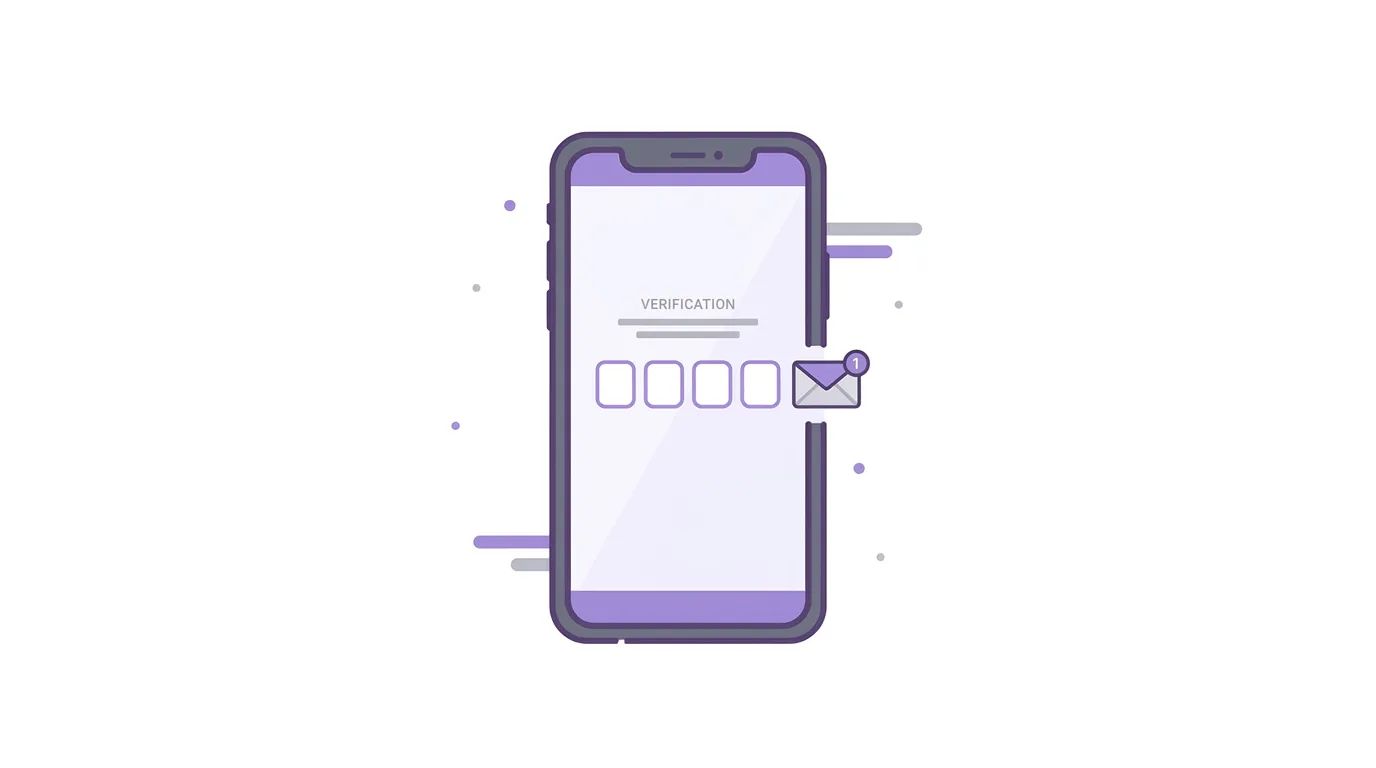
Codes sometimes arrive late.
Wait a minute or two, then check your spam, junk, and promotions folders.
Make sure the email address was typed without mistakes.
Request a new code if the first one expires.
If you still cannot get a code, try a different email provider, or check that your inbox is not full.
Avoid asking for codes many times in a row, because too many requests can temporarily block you.
What If You Cannot Access Your Old Email?
You do not need access to your old email to add a new one, as long as you can log in to Instagram.
If you are already logged in, follow the steps above and add the new address.
If you are logged out and cannot get into your old email, use the Forgot password option and choose another recovery method, such as your phone number.
Instagram may also offer an identity check if it cannot confirm that you own the account.
How to Keep Your Account Secure After Changing Email
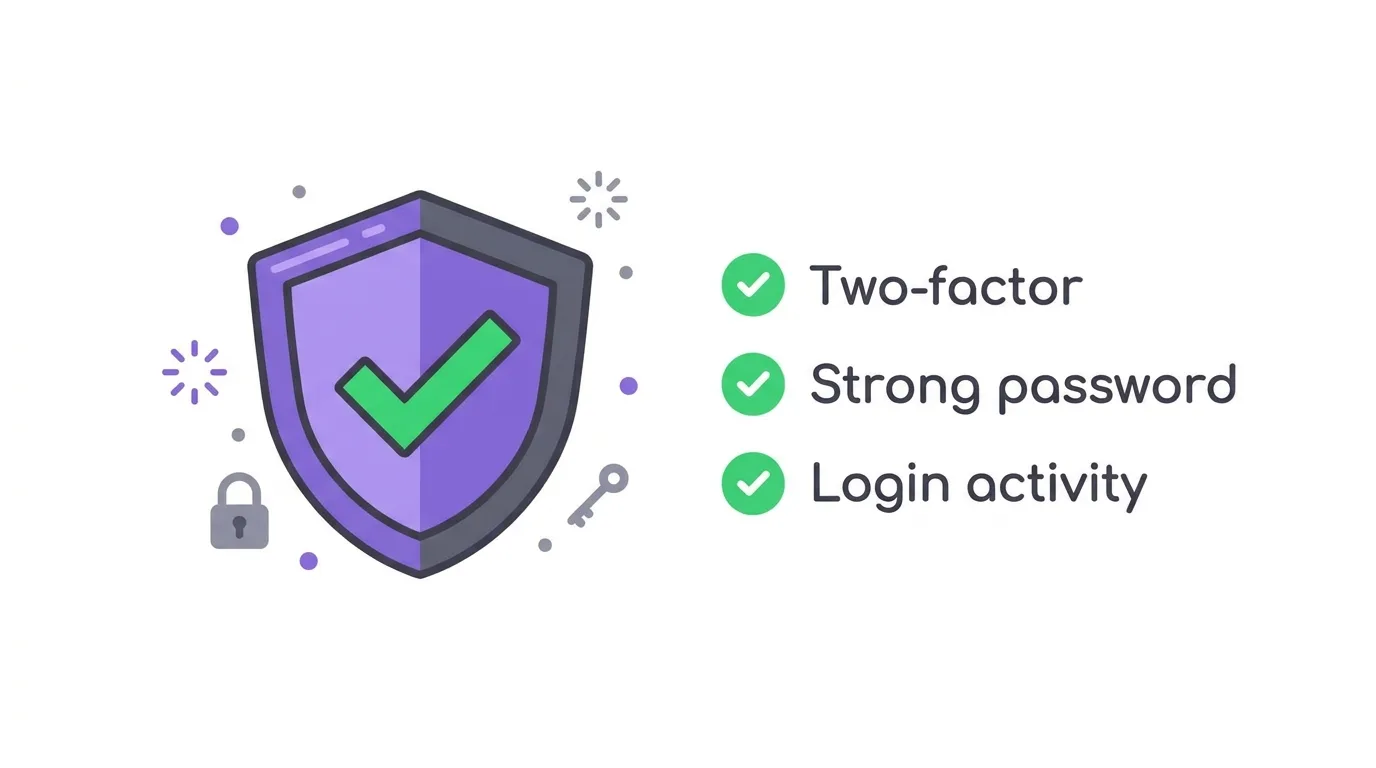
A new email is a good time to review your security.
Turn on two-factor authentication, and use an authentication app instead of text messages if you can.
Choose a strong, unique password that you do not use anywhere else.
Review your login activity, and log out of devices you do not recognize.
Make sure the email account itself is protected with a strong password and two-factor authentication, since anyone who controls your email may be able to reset your Instagram password.
Changing Your Email on a Business or Creator Account
Business and creator accounts follow the same steps.
The email you add in Accounts Center is separate from the public contact email shown on your profile.
To change the public business email, open Edit profile, then Contact options, and update the email there.
Keep both addresses current so customers and Instagram can reach you.
Troubleshooting: Cannot Change Your Email
If something goes wrong, try these quick fixes:
- Update the app. An older version may use a different menu.
- Log out and back in. This clears many small glitches.
- Check the email format. Make sure there are no extra spaces or typing errors.
- Email already in use. The address may be linked to another Instagram account, so choose a different one or remove it from the old account first.
- Code not arriving. Check your spam folder and try again after a few minutes.
- Option missing. Look in Accounts Center or Personal information settings, since Instagram moves menus from time to time.
- Account restricted. If Instagram asks for extra verification, follow the on-screen instructions.
Frequently Asked Questions
How do I change my email on Instagram?
Go to Accounts Center, then Personal details, then Contact information, add your new email, and confirm the code.
Can I change my Instagram email on a computer?
Yes.
Log in at instagram.com, open Settings, then Accounts Center, and update your contact information.
Will changing my email affect my followers or posts?
No.
Your posts, followers, and messages stay the same.
Do I need to confirm the new email?
Yes.
Instagram sends a code to the new address, and you must enter it to finish.
Can I use the same email on two Instagram accounts?
Instagram may not allow the same email on more than one account, so you may need to use a different address.
Can I remove my email and use only my phone number?
Often yes, as long as you keep at least one contact method on the account.
What if I did not make the change myself?
Check your old email for a security message, change your password right away, turn on two-factor authentication, and review your login activity.
Reddit Plans a Primarily Logged-In Experience, Starting Outside the US (2026 News)
Final Thoughts
Changing your email on Instagram takes just a few minutes and helps keep your account secure and recoverable. Add the new email first, confirm the code, then remove the old address if you no longer use it. Finish by turning on two-factor authentication and checking your login activity.
