Seeing exact like counts on every post — yours and everyone else’s — can create pressure that has nothing to do with the actual content.
Instagram lets you turn this off individually or by default. This guide walks through exactly how to hide like counts on Instagram in 2026.
Step 1: Open Instagram Settings
- Open the Instagram app and tap your profile picture.
- Tap the three-line menu, then Settings and Privacy.
Step 2: Access Posts Settings
- Scroll down and tap Posts (sometimes labeled under Content preferences depending on your app version).
- Look for Hide like and view counts.
Step 3: Toggle the Setting On
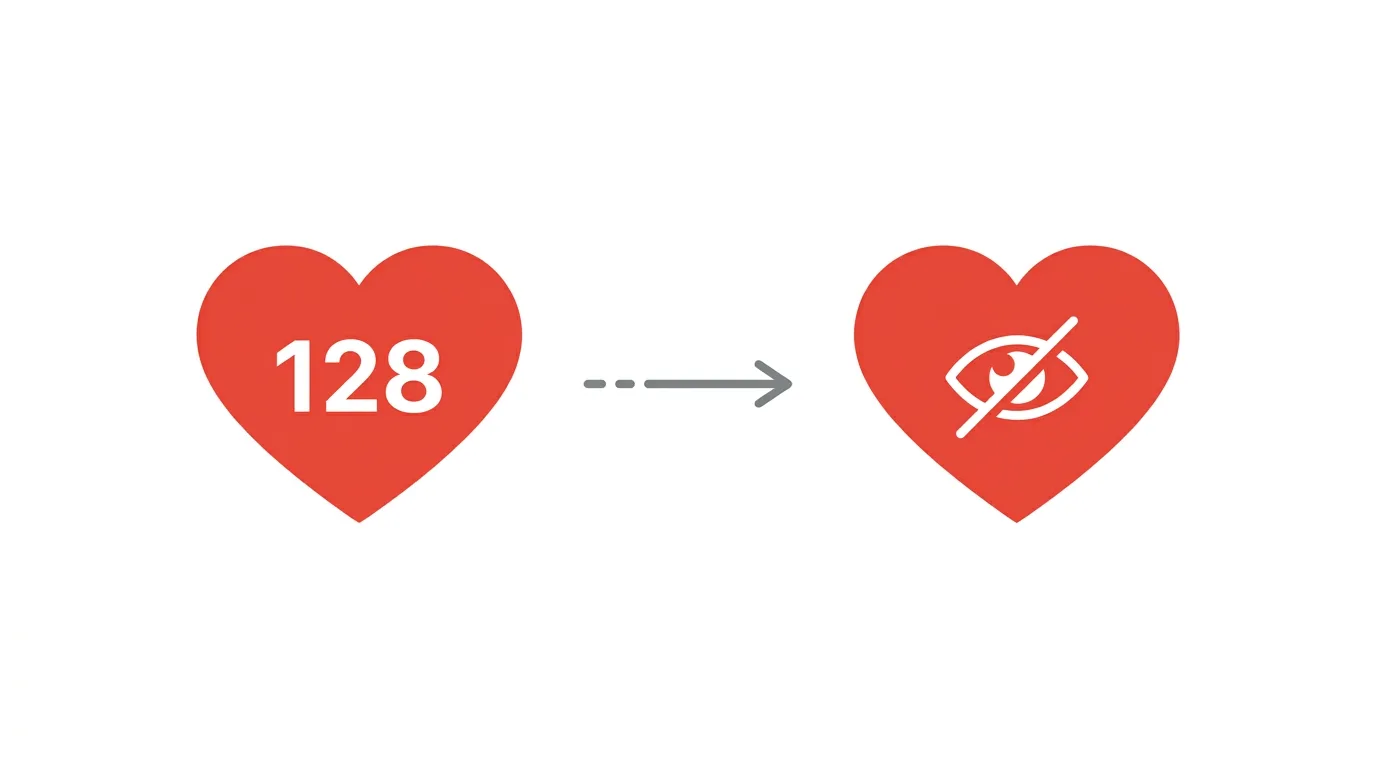
- Toggle on Hide like and view counts on this account.
- Confirm your choice if prompted.
This hides like counts on both your own posts and other people’s posts within your feed, though you’ll still be able to see your own individual post’s like count if you specifically tap to view it.
What This Setting Actually Changes
Understanding the full scope of this toggle helps set the right expectations.
When enabled, this setting:
- Hides the total like count displayed under posts in your feed for other accounts.
- Hides the like count on your own posts as seen by other users.
- Still allows you to view your own post’s exact like count if you specifically tap to see it.
Action step: Understand that this is an account-wide setting affecting how you see others’ content and how others see yours — it’s not a way to selectively hide counts on just specific individual posts.
Does This Setting Affect Reels Differently Than Regular Posts?
Reels and standard feed posts are generally covered by the same account-wide setting, though it’s worth confirming behavior hasn’t shifted with recent updates.
Action step: If you notice like counts still visible on Reels specifically after enabling the account-wide toggle, check for a separate Reels-specific setting, since Instagram has occasionally treated video content slightly differently from static posts in various privacy and display settings.
How This Setting Interacts With Business and Creator Accounts
Business and creator accounts have access to Insights showing detailed engagement metrics regardless of the public-facing like count setting.
Action step: Understand that hiding public like counts doesn’t limit your own access to detailed performance data through Insights — this setting only controls what’s visible to other users viewing your content, not your own analytics dashboard.
Comparing Instagram’s Approach to Other Platforms
Several major platforms have experimented with hiding or making engagement metrics optional over the years, reflecting a broader industry conversation about metric-driven social pressure.
Action step: If you’ve adjusted similar settings on other platforms (like hiding view counts elsewhere), consider applying a consistent approach across your accounts if reducing metric visibility broadly aligns with your personal social media wellbeing goals.
Can You Hide Like Counts on Just One Specific Post?

Yes, Instagram also allows this at an individual post level, separate from the account-wide setting.
- When creating a new post, tap Advanced settings before sharing.
- Toggle on Hide like and view counts on this post.
Action step: Use the per-post option if you only want to hide counts on specific content (like a particularly personal or sensitive post) while keeping counts visible elsewhere, rather than changing your entire account’s behavior.
How to Hide Like Counts on an Already-Published Post
If you want to apply this to a post you’ve already shared, you can adjust it after the fact.
- Open the specific post.
- Tap the three-dot menu.
- Select Hide like count from the available options.
Why People Choose to Hide Like Counts
Common reasons include:
- Reducing social comparison and validation-seeking behavior tied to visible metrics
- Shifting focus toward content quality rather than popularity signals
- General preference for a calmer, less metrics-driven browsing experience
Action step: Consider whether hiding counts genuinely changes your relationship with the platform positively, since some users report reduced anxiety around posting, while others find it doesn’t meaningfully change their experience either way — this is a personal preference worth testing directly.
Does Hiding Like Counts Affect the Algorithm?
No, hiding like counts is purely a display setting. Instagram’s algorithm continues to factor in actual engagement (likes, comments, shares) regardless of whether counts are visible to users.
Action step: Don’t expect hiding like counts to change your content’s reach or performance — this setting only affects what’s visually displayed, not how the underlying algorithm evaluates and distributes your content.
Common Issues When Hiding Like Counts
Setting not applying to all posts?
Confirm you’ve adjusted the account-wide setting if you want this applied broadly, rather than relying only on the per-post option, which only affects individually adjusted posts.
Still seeing your own like count after enabling the setting?
This is expected — you can still view your own exact count by tapping on it, even with the setting enabled; the toggle primarily controls what others see.
Setting reverted unexpectedly?
Double-check the toggle after any major app update, since occasionally settings can require re-confirmation following significant Instagram updates.
Pinterest Launches an AI Shopping Assistant for Visual Search in 2026
Final Thoughts
Hiding like counts on Instagram takes just a couple of taps, whether you want it applied account-wide or just to specific individual posts, and this control extends consistently across Reels and standard posts alike. Remember this only changes visual display, not algorithmic performance or your own access to Insights, so it’s worth adopting specifically for the psychological and social benefits some users report rather than expecting any change in your content’s actual reach.
