Whether you want a backup of your photos and posts, need your data for a specific purpose, or are just curious what Instagram has stored, requesting your full data archive takes just a few steps.
This guide walks through exactly how to download your data from Instagram in 2026.
Step 1: Open Instagram Settings
- Open the Instagram app on your phone.
- Tap your profile picture, then the three-line menu.
- Select Settings and Privacy.
Step 2: Navigate to Your Information and Permissions
- Tap Accounts Center.
- Select Your information and permissions.
- Tap Download your information.
Step 3: Select What Data You Want
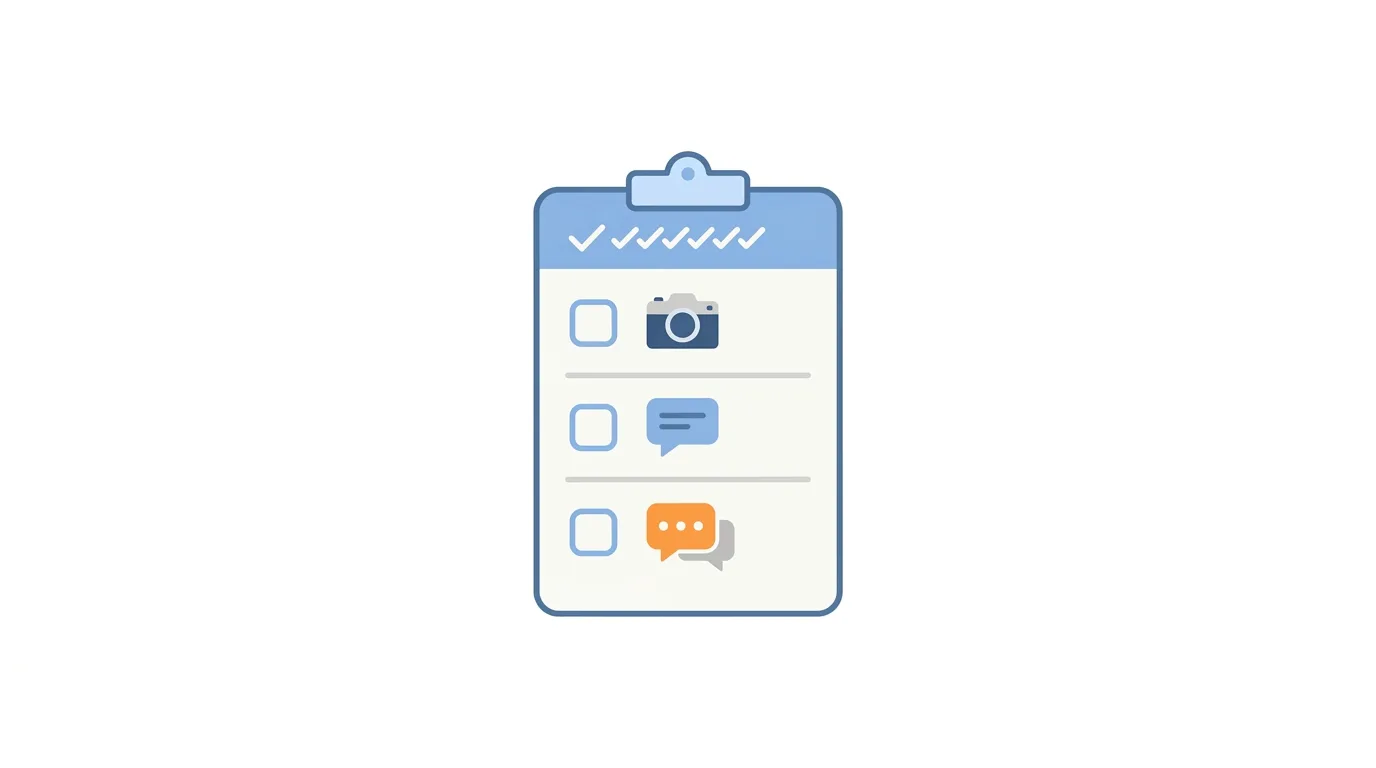
- Choose whether you want all available information or select specific types (posts, Stories, messages, etc.).
- Select your preferred date range if you don’t want your entire history.
Action step: If you only need specific content (like your posts and photos, not your full activity log), select specific data types rather than requesting everything, since a targeted request typically processes faster than a full account export.
Step 4: Choose Your File Format and Delivery Method
- Select your preferred format (HTML for easy browser viewing, or JSON for a more technical, machine-readable format).
- Choose to receive the download via email or directly in the app.
Action step: Choose HTML format if you simply want to browse your data casually, and JSON specifically if you plan to process or analyze the data using another tool or script.
Step 5: Submit Your Request
- Confirm your selections and submit the request.
- Instagram will begin preparing your data, which can take anywhere from a few minutes to several days depending on the amount of data requested.
Action step: Larger requests covering your entire account history typically take longer to prepare than smaller, date-restricted requests, so plan accordingly if you need the data by a specific deadline.
Step 6: Download Your Data Once Ready
- You’ll receive a notification or email once your data is ready.
- Follow the provided link to download the file before it expires.
Action step: Download your file promptly once notified, since Instagram typically only keeps the prepared archive available for a limited time before it expires and requires a new request.
Understanding Data Privacy Implications of Your Download
Your downloaded data file contains genuinely sensitive personal information, worth handling carefully once received.
Action step: Store your downloaded data archive securely, ideally in an encrypted location or password-protected folder, since the file contains comprehensive personal information including private messages and activity history that you’d want protected from unauthorized access.
Using Your Downloaded Data Before Account Deletion
If you’re planning to delete your Instagram account, downloading your data first is a commonly recommended step.
Action step: Complete your data download and verify the file downloaded successfully before proceeding with any account deletion, since this information becomes permanently inaccessible once your account is deleted, unlike the more limited recovery window some other account actions offer.
How Long Does Instagram Keep Your Download Request Active?
Understanding the typical timeline helps you plan around this process.
Action step: Expect most standard requests to complete within 48 hours for typical account sizes, though very large accounts with years of extensive posting history and media may take longer — if your request seems unusually delayed beyond a few days, consider submitting a new, more narrowly scoped request instead of continuing to wait indefinitely.
What’s Actually Included in Your Data Download
Your Instagram data archive typically includes a comprehensive range of information tied to your account.
Commonly included data:
- Posts, photos, and videos you’ve shared
- Direct messages and conversation history
- Comments and likes you’ve made
- Search history and ad interaction data
- Account information and login activity
Action step: Review the full list of available data categories before submitting your request, since you may not need or want every category included, particularly if you’re specifically trying to minimize processing time.
How to Download Data on Desktop
Prefer using a browser? Here’s the process:
- Go to Instagram.com and log in.
- Click your profile icon, then Settings and privacy.
- Select Accounts Center → Your information and permissions → Download your information.
- Follow the same selection and submission process as the mobile app.
Common Reasons to Download Your Instagram Data
Common use cases include:
- Creating a personal backup of your content before deleting your account
- Reviewing what data Instagram has collected about your activity and ad targeting
- Migrating content to another platform or personal archive
- Investigating account activity for security or personal record purposes
Common Issues When Downloading Your Data
Request taking longer than expected?
Larger accounts with extensive history and media naturally take longer to process — this is normal and not indicative of a problem with your request.
Download link expired before you accessed it?
Submit a new request, since expired links typically can’t be extended or reactivated — you’ll need to go through the request process again.
File format confusing to open or read?
HTML format opens directly in a web browser like a webpage, while JSON format requires either technical familiarity or a JSON viewer tool to read comfortably.
How To Turn On Dark Mode on WhatsApp (2026 Guide)
Final Thoughts
Downloading your Instagram data takes just a few steps to request, though the actual processing time can range from minutes to several days depending on how much data you’re requesting. Choose HTML format for casual browsing or JSON for technical processing, and download your file promptly once it’s ready, since the link typically expires after a limited window.
