
Managing a personal profile and a business or creator account separately shouldn’t mean constantly logging out and back in.
Instagram lets you add and switch between multiple accounts instantly. This guide walks through exactly how to add a second account on Instagram in 2026.
Step 1: Open Your Profile
- Open the Instagram app and tap your profile picture in the bottom right corner.
Step 2: Access Account Switching
- Tap your username at the top of your profile screen.
- A dropdown menu will appear showing any existing linked accounts.
Step 3: Add a New Account
- Select Add account from the dropdown menu.
- Choose to log into an existing account or create a new account.
Step 4: Log In or Create the New Account
If logging into an existing account:
- Enter the username and password for that account.
- Tap Log In.
If creating a brand-new account:
- Follow the standard sign-up process with a new email or phone number.
- Complete the profile setup steps.
Once added, both accounts are now linked and accessible from the same app installation.
Setting a Default Account for App Launch
If you use one account far more frequently than others, you can control which one opens by default when you launch the app.
Action step: Instagram generally opens to whichever account you last used before closing the app, so if you want a specific account to be your consistent default, make a habit of switching back to it before closing Instagram each session.
Using Multiple Accounts on the Same vs. Different Devices
Understanding how account linking works across different devices helps clarify expectations for multi-device users.
Action step: Know that linking accounts on one device (like your phone) doesn’t automatically link them on another device (like a tablet) — you’ll need to repeat the “Add account” process separately on each device where you want quick-switching access.
Security Considerations for Multiple Linked Accounts
Having several accounts readily accessible from one device carries some security tradeoffs worth considering.
Action step: Enable two-factor authentication on each linked account individually, since having multiple accounts easily switchable on one device means a compromised device could potentially expose access to all of them simultaneously without this additional protection layer.
How to Switch Between Accounts
Once you’ve added a second account, switching back and forth takes just one tap.
- Tap your username at the top of your profile.
- Select the account you want to switch to from the dropdown list.
Action step: Instagram remembers all linked accounts, so switching becomes instant after this initial setup — you won’t need to re-enter passwords each time you toggle between them.
How Many Accounts Can You Add?
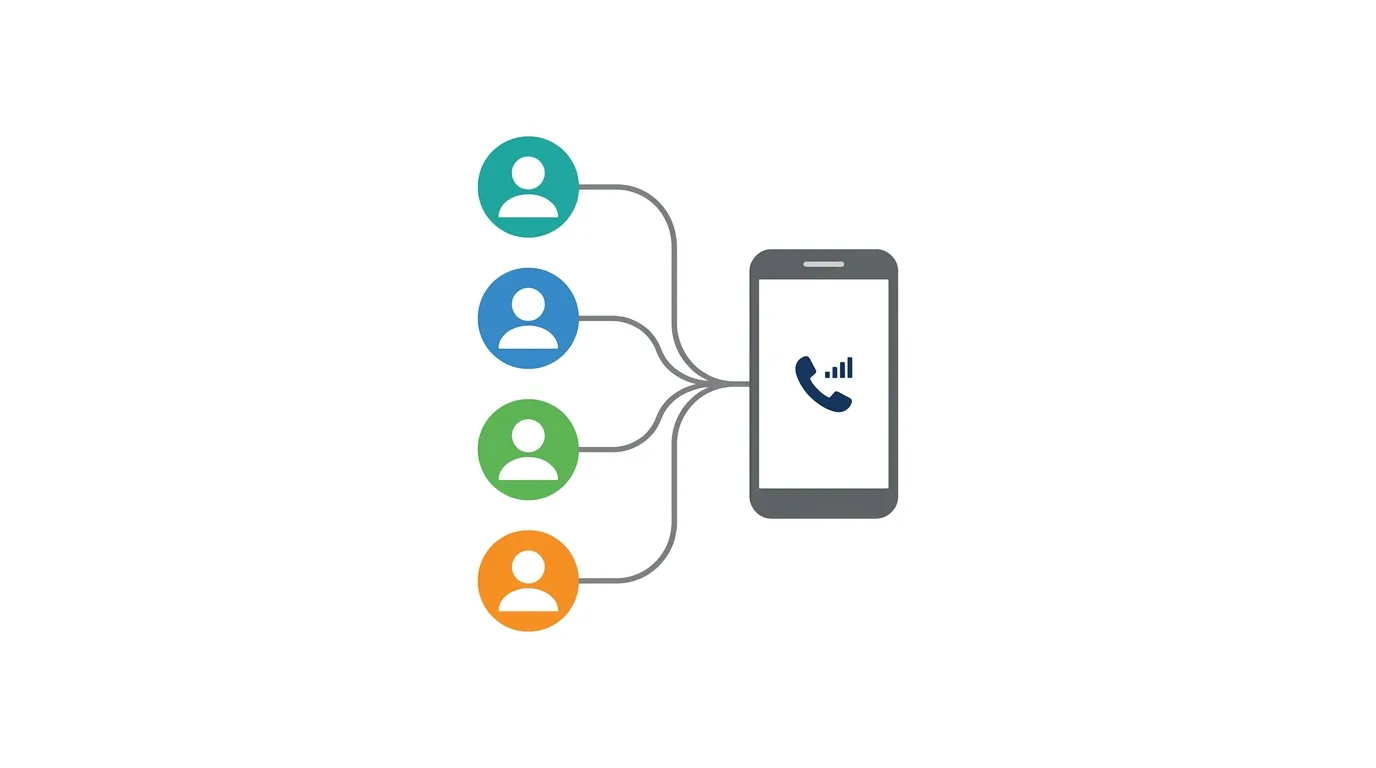
Instagram allows linking multiple accounts to a single app installation, well beyond just two.
Action step: If you manage several accounts — personal, business, and perhaps a side project — add them all through this same process, since Instagram supports managing multiple accounts simultaneously rather than limiting you to just one additional profile.
Managing Notifications Across Multiple Accounts
Each linked account maintains its own separate notification settings.
Action step: Review notification preferences individually for each account under its own Settings and Privacy menu, since these don’t share a unified configuration — what you set for your personal account doesn’t automatically apply to a linked business account.
Does Switching Accounts Log You Out of the Other One?
No, switching between linked accounts doesn’t log you out of the others — all linked accounts remain signed in simultaneously in the background.
Action step: Understand that “switching” simply changes which account’s content and activity you’re currently viewing and interacting with, rather than requiring a fresh login each time, which is what makes this feature convenient for frequent switching.
How to Remove a Linked Account
If you no longer want an account linked to your app, removing it is straightforward.
- Tap your username, then the three-line menu at the bottom of the account list.
- Find the account you want to remove and select the option to log out of that specific account.
Action step: Removing a linked account only signs it out of this specific device — it doesn’t delete or deactivate the account itself, which remains fully intact and accessible by logging in again later.
Managing Multiple Accounts as a Business or Creator
For businesses or creators juggling both a personal and professional presence, this feature specifically streamlines daily workflow.
Action step: Consider linking your business account alongside your personal one specifically to quickly cross-post, respond to messages, or check analytics without needing separate devices or constant logging in and out.
Common Issues When Adding a Second Account
Login failing for the account you’re trying to add?
Double-check your username and password are correct for that specific account, and use the password reset option if needed before attempting to add it again.
Can’t find the “Add Account” option?
Make sure you’re tapping directly on your username at the top of your profile, since this specific interaction reveals the account-switching dropdown menu.
Notifications mixing up between accounts?
Review each account’s notification settings individually, since accidentally configured settings on the wrong account is a common source of confusion when managing several profiles.
How To Turn On Dark Mode on Douyin
Final Thoughts
Adding a second account on Instagram takes just a few taps and enables instant switching without needing to log out and back in repeatedly. This is particularly useful for anyone managing both a personal profile and a business or creator account, letting you move fluidly between them throughout the day.
