Bright white screens at night can strain your eyes and drain your battery faster than you’d expect.
Douyin, the Chinese version of TikTok, includes a built-in dark mode that switches the entire interface to a black background with light text.
It’s a small change, but it makes scrolling in low light far more comfortable, and it can extend battery life on phones with OLED screens.
This guide shows you exactly how to turn on dark mode on Douyin, along with what to do if the option isn’t showing up for you.
Why Dark Mode Matters on Douyin
Douyin is a video-heavy app, which means your screen stays on and bright for long stretches at a time.
A pure white interface at 100% brightness in a dark room isn’t just uncomfortable, it can also disrupt your eyes’ adjustment to low light.
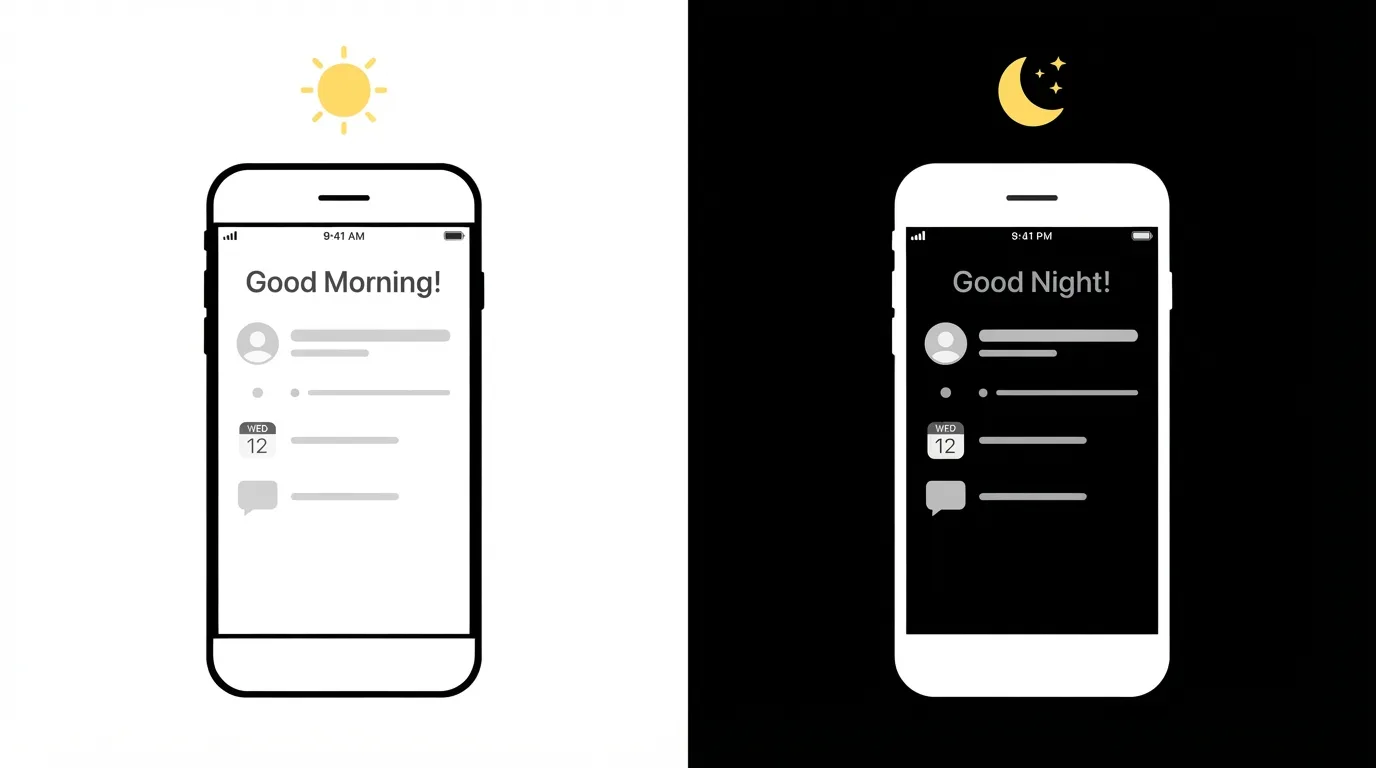
Dark mode replaces the bright white backgrounds behind menus, comments, and profile pages with black or near-black tones.
The video content itself doesn’t change, since videos already play against a black background by default, but everything around the video does.
How to Turn On Dark Mode on Douyin (In-App Setting)
Douyin has its own dark mode toggle, separate from your phone’s system setting.
Step 1. Open the Douyin app.
Step 2. Tap Me in the bottom right corner to open your profile.
Step 3. Tap the three horizontal lines in the top right corner of your profile page.
Step 4. Tap Settings.
Step 5. Tap General.
Step 6. Look for Dark Mode or Theme and tap it.
Step 7. Select Dark from the options shown.
The interface switches immediately. No restart is needed.
How to Turn On Dark Mode Through Your Phone’s System Settings
If you don’t see a dedicated toggle inside Douyin, your version of the app may be set to follow your phone’s system-wide theme instead.
On Android
Step 1. Open your phone’s Settings app.
Step 2. Tap Display.
Step 3. Turn on Dark theme or Dark mode.
Step 4. Reopen Douyin. The app should switch to dark automatically.
On iPhone
Step 1. Open the Settings app.
Step 2. Tap Display & Brightness.
Step 3. Select Dark.
Step 4. Reopen Douyin to see the change take effect.
Setting Dark Mode to Follow a Schedule
Some versions of Douyin, along with most phone operating systems, let you schedule dark mode rather than switching it manually every time.
On iPhone, inside Display & Brightness, tap Automatic and set a schedule based on sunset-to-sunrise or custom hours.
On Android, inside Display, look for Dark theme settings, where you can turn on a schedule with custom start and end times.
Once scheduled, your screen will switch to dark mode automatically in the evening and back to light mode in the morning, without you needing to open any settings menu.
What Changes and What Doesn’t
Dark mode affects the interface elements around your content.
This includes the background of your For You feed panels, the comment section, your profile page, and the settings menus.
It does not change the videos themselves, since Douyin videos are typically already viewed against a black frame.
Icons and text also shift to lighter colors so they remain readable against the darker background.
[IMAGE PROMPT 3 — place after “What Changes and What Doesn’t”]
Troubleshooting: Dark Mode Option Missing
If you can’t find a dark mode toggle inside the app, try these steps in order.
Update the app. Older versions of Douyin may not include the in-app toggle at all. Check your app store for a pending update.
Check your phone’s system theme. As covered above, some builds of Douyin only follow your phone’s overall theme rather than offering an independent switch.
Restart the app. After changing your system theme, fully close Douyin and reopen it rather than just switching apps in the background.
Reinstall as a last resort. If none of the above works, uninstalling and reinstalling Douyin can resolve display settings that failed to load correctly.
Switching Back to Light Mode
If you decide dark mode isn’t for you, reversing it is just as quick.
Go back to Me → Settings → General → Dark Mode, and select Light instead of Dark.
If you’re following your phone’s system theme, simply turn off Dark theme or Dark mode in your phone’s Display settings, and Douyin will follow along.
How To Turn On Two-Step Verification on Telegram
Final Thoughts
Dark mode on Douyin is a simple visual adjustment that makes a real difference during evening or nighttime scrolling.
Whether you set it manually or let it follow your phone’s schedule, the switch takes under a minute and can be reversed just as easily.
If your app doesn’t show the option yet, a quick update usually solves it.
