Your Discord username is often the first thing people see before they ever read a single message from you.
Maybe you picked it years ago and it no longer fits, or maybe you just want something cleaner. Either way, Discord makes changing it simple.
This guide covers exactly how to change your username on Discord, the rules Discord enforces around usernames, and the difference between your username and your display name, which often trips people up.
Username vs. Display Name: Know the Difference First
Before changing anything, it helps to understand that Discord actually has two separate name fields.
Your username is your permanent handle, formatted like name with a unique combination that identifies your account across all of Discord. It’s used for things like friend requests via username search.
Your display name is the name shown in servers and chats. It can be changed freely, doesn’t need to be unique, and can even be different in every server you’re in.
If you just want people to see a different name in chat, you may only need to change your display name, which is a separate, even quicker process covered near the end of this guide.
How to Change Your Username on Discord (Mobile App)
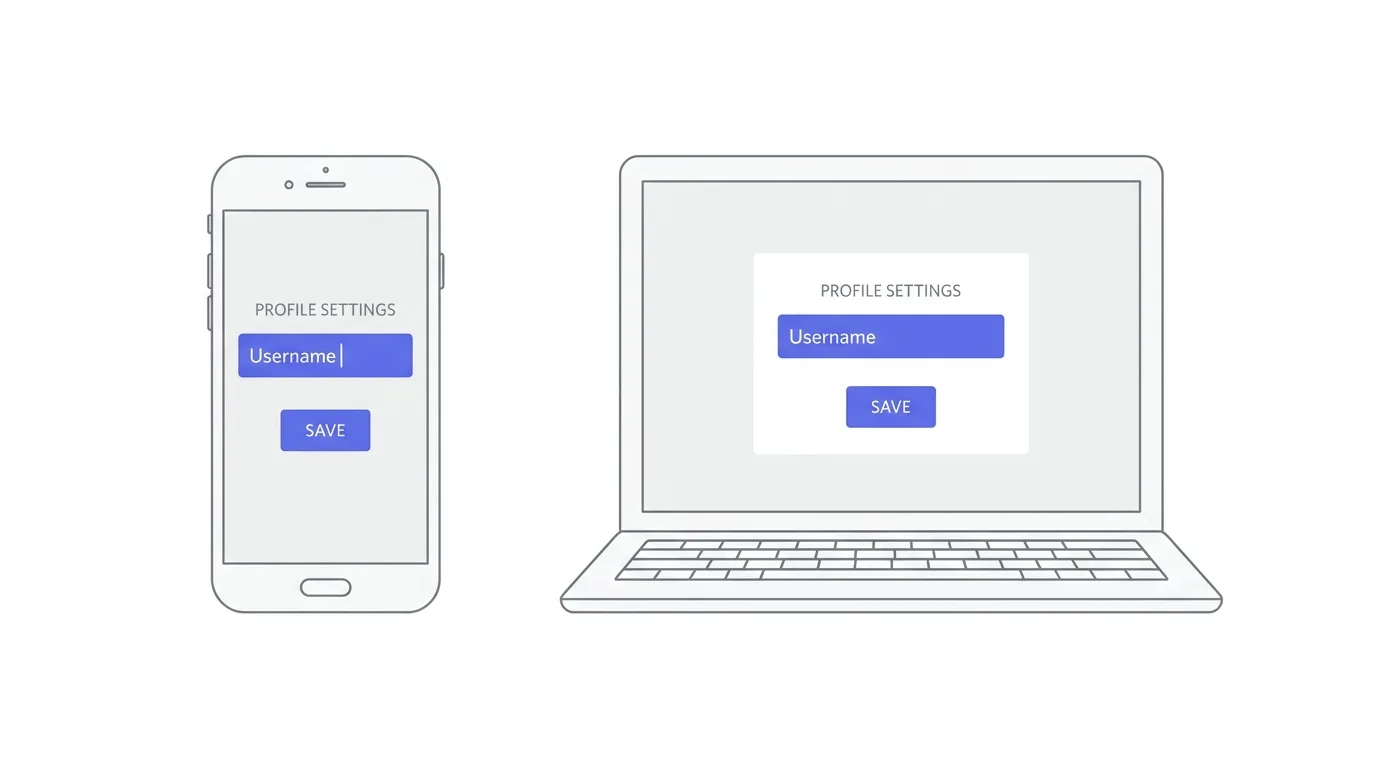
Step 1. Open the Discord app on your phone.
Step 2. Tap your profile icon in the bottom right corner.
Step 3. Tap Edit Profile or the pencil icon next to your name.
Step 4. Tap on your current username field.
Step 5. Type your new desired username.
Step 6. Enter your account password to confirm the change.
Step 7. Tap Save or Done.
If the username you want is already taken, Discord will let you know immediately so you can try a different one.
How to Change Your Username on Discord (Desktop)
Step 1. Open Discord on your computer.
Step 2. Click the gear icon near the bottom left corner to open User Settings.
Step 3. Stay on the My Account tab.
Step 4. Click Edit User Profile, or click directly on your username field.
Step 5. Type in your new username.
Step 6. Confirm the change with your password if prompted.
Step 7. Click Save Changes.
The desktop and mobile flows land on the same account settings, so the result is identical either way.
Discord’s Username Rules
Discord enforces a few rules on what your username can contain.
Usernames must be between 2 and 32 characters.
Only lowercase letters, numbers, underscores, and periods are allowed. Uppercase letters and most special characters or spaces aren’t permitted in the username field itself.
Since Discord moved away from the old four-digit tag system, usernames must now be unique across the entire platform, so a name that’s already taken by someone else won’t be available to you.
If your desired name is taken, try adding a period, underscore, or number to make it unique.
How Often Can You Change Your Username
Discord limits how frequently you can change your username to prevent abuse.
You can typically change it up to twice within a short rolling period before you’re temporarily blocked from changing it again.
If you hit that limit, Discord will show a message telling you when you’ll be able to change it next, so plan your new username carefully rather than testing several options back to back.
How to Change Your Display Name Instead
If your goal is simply to appear differently in chats without touching your actual account handle, changing your display name is faster and has no cooldown restrictions in most cases.
Step 1. Go to User Settings (the gear icon on desktop, or your profile icon on mobile).
Step 2. Find the Display Name field, separate from the username field.
Step 3. Type your new display name.
Step 4. Save the change.
Your display name updates instantly across every server you’re in, and unlike your username, it doesn’t need to be unique.
Setting a Per-Server Nickname
Discord also allows a third layer of naming: a nickname specific to just one server.
Step 1. Open the server where you want a custom name.
Step 2. Click on your own name or avatar in the member list.
Step 3. Select Edit Server Profile or right-click your name and choose Change Nickname.
Step 4. Enter the nickname and save.
This nickname only shows in that particular server, letting you use a different identity in a gaming server than in a work or community server, for example.
Troubleshooting: Username Change Not Saving
If your new username isn’t saving, check these common causes.
The name is already taken. Discord requires globally unique usernames, so try adding numbers or underscores.
You’ve hit the change limit. Wait for the cooldown period Discord specifies before trying again.
You didn’t confirm with your password. Some changes require a fresh password entry as a security check before they finalize.
The app needs an update. Older versions of the Discord app occasionally have bugs in the settings menu. Update through your app store and try again.
How To Change Your Password on VK
Final Thoughts
Changing your username on Discord takes under a minute, as long as your desired name is available and you haven’t hit the recent change limit.
If you just want a different look in chat without a permanent handle change, the display name or per-server nickname options give you that flexibility without any restrictions.
Pick a name you’ll be happy with for a while, since frequent changes are capped, and Discord will let you know right away if your first choice is already in use.
