Whether your photo is out of date, you want a more professional look, or you are preparing for a job search, changing your LinkedIn profile picture takes just a few taps.
This guide walks through exactly how to change your profile picture on LinkedIn in 2026.
Why Your LinkedIn Profile Picture Matters

Your photo is often the first thing people notice on your profile.
Recruiters, clients, and colleagues all see it in search results, messages, and comments.
A clear, friendly photo helps you:
- Look approachable and trustworthy.
- Stand out in search results.
- Make a strong first impression.
- Get more profile views and connection requests.
Profiles with a photo generally get noticed more than profiles without one.
Before You Start
Have these ready before you begin:
- A clear photo saved on your phone or computer.
- The latest version of the LinkedIn app, or a web browser.
- Your LinkedIn account logged in.
For best results, use a photo that follows LinkedIn’s usual guidelines:
- A JPG or PNG file.
- A clear, well-lit face shot.
- A square-friendly image, since LinkedIn displays photos in a circle.
- A file size within LinkedIn’s limit, which is around 8 MB.
Step 1: Open Your Profile on Mobile
On iPhone and Android:
- Open the LinkedIn app.
- Tap your profile picture at the top left of the screen.
- Tap View profile.
This opens your main profile page.
Step 2: Tap Your Current Photo
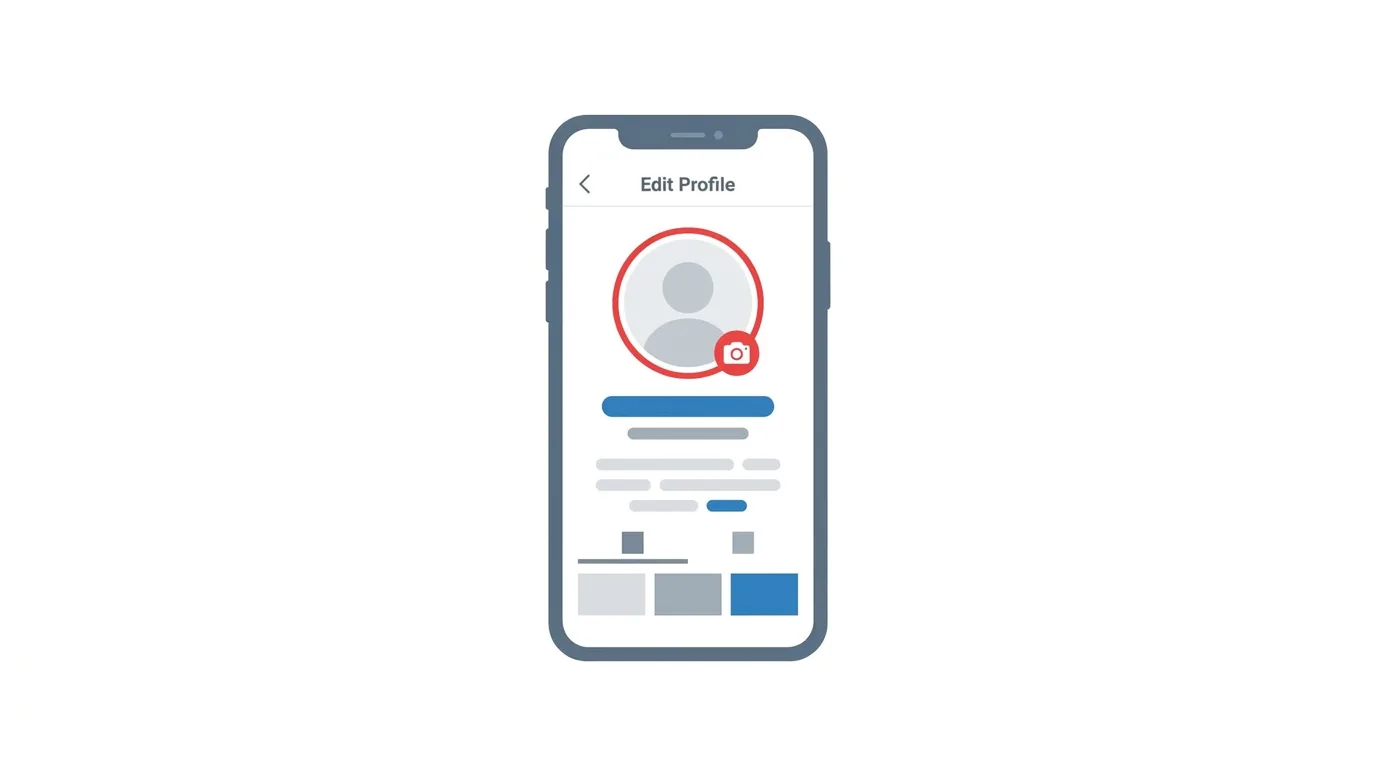
- Tap your profile photo at the top of your profile.
- Look for the Edit option, the camera icon, or Add photo.
If you have no photo yet, you will see a button to add one.
Menu names can change slightly between app versions.
If your screen looks different, look for your photo and the word Edit.
Step 3: Choose a New Photo
- Tap Choose photo or Upload photo.
- Pick an image from your phone’s gallery, or take a new one with your camera.
- Allow LinkedIn to access your photos if your phone asks.
Step 4: Adjust and Save
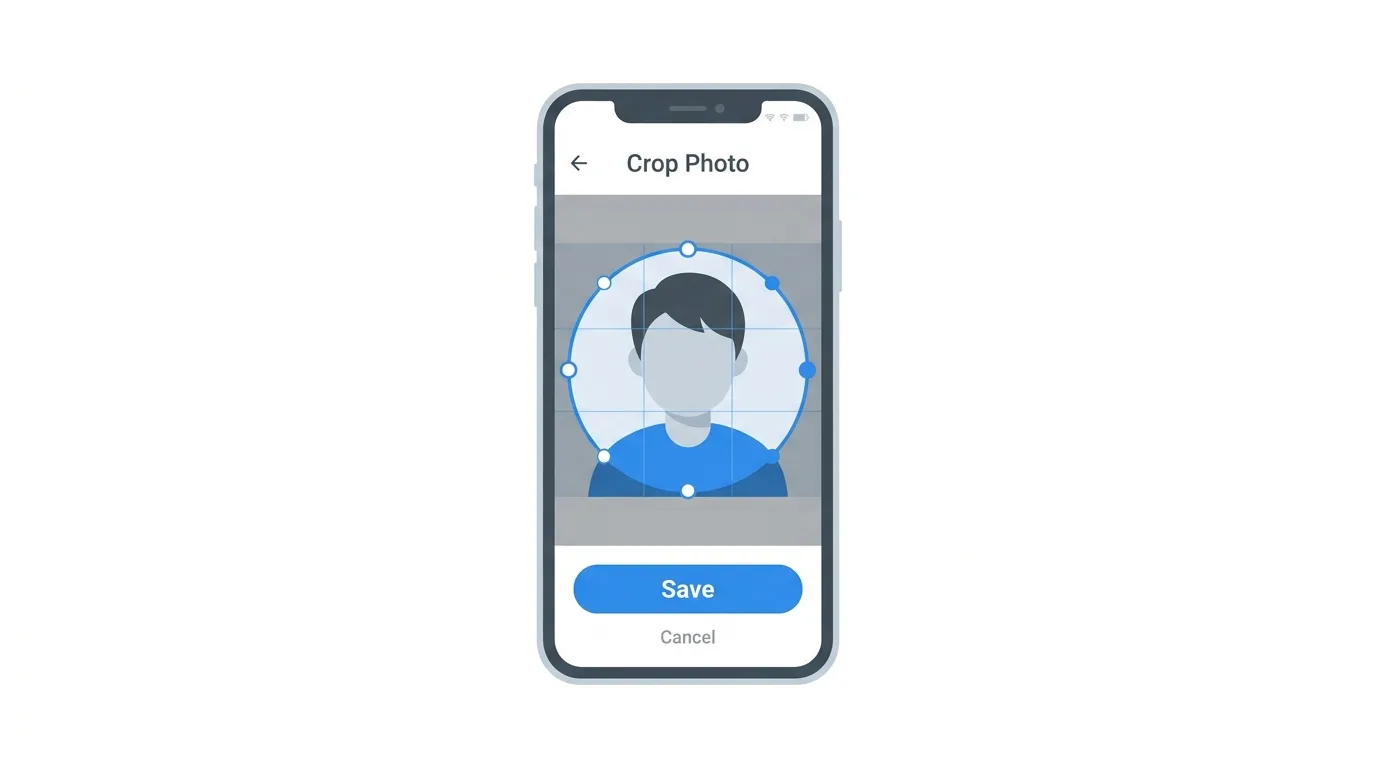
- Move and zoom the photo so your face sits in the center of the circle.
- Use the available filters or adjustments if you like.
- Tap Save or Done.
Your new profile picture appears right away.
It may take a few minutes to show everywhere on LinkedIn.
How to Change Your Profile Picture on Desktop
Prefer using your computer? Here’s the process:
- Go to linkedin.com and log in.
- Click Me at the top of the page, then View profile.
- Click your profile photo.
- Click Edit or Add photo, then Upload photo.
- Choose an image from your computer.
- Crop, zoom, and adjust the photo.
- Click Save.
You can also click the pencil icon next to your profile to edit more details.
How to Choose Who Can See Your Profile Photo
You can control who sees your photo.
Action step: Open Settings, then Visibility, then look for Profile photo visibility. Choose between your connections, your network, or all LinkedIn members. If you are job hunting, All LinkedIn members usually gives you the most reach.
What Makes a Good LinkedIn Profile Photo?
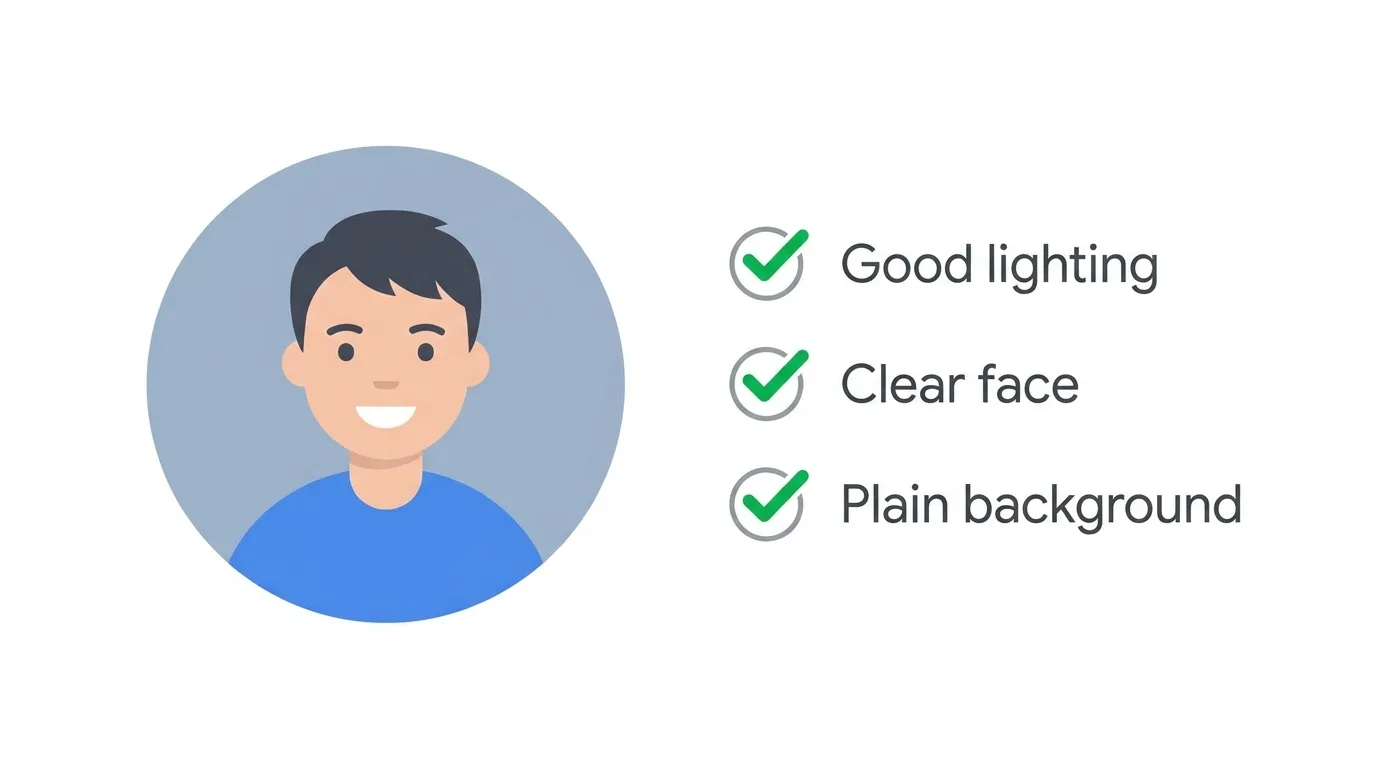
A good photo is simple and professional.
Action step: Use a recent photo where your face fills most of the frame. Choose a plain or lightly blurred background, wear what you would wear to work, and smile naturally. Avoid group photos, heavy filters, sunglasses, and cropped-out friends.
How to Take a Good Profile Photo With Your Phone
You do not need a studio.
Action step: Stand near a window with the light in front of you, hold your phone at eye level, and use the back camera if you can. Ask a friend to take the photo, or use a timer. Check that the image is sharp before you upload.
How to Add a Profile Photo Frame
LinkedIn offers optional frames on your photo.
Action step: After you upload your photo, look for the Frames option, if your account offers it. Choose a frame such as Open to Work, but remember that some recruiters and professionals prefer a plain photo. Pick what fits your goals.
How to Change Your Background Photo Too
Your profile has a second image behind your photo.
Action step: Tap the pencil icon on your background banner, then choose Upload photo. A simple banner that matches your industry makes your profile feel complete and polished.
How to Remove Your LinkedIn Profile Photo
You can also remove it, though this is usually not recommended.
- Open your profile and tap your photo.
- Tap Edit or the camera icon.
- Choose Delete photo or Remove.
- Confirm your choice.
Action step: Keep in mind that profiles without photos are often viewed less. Consider uploading a new photo instead of leaving it blank.
Why Is My New LinkedIn Photo Not Showing?
Sometimes it takes a moment.
Action step: Wait a few minutes, then close and reopen the app or refresh the page. Other people may still see the old photo briefly because of caching. Clearing your browser cache can also help on desktop.
Common Issues When Changing Your Profile Picture
Cannot find the Edit option?
Tap your photo directly on your profile page, or tap the pencil icon. Update the app if it is still missing.
Upload failed?
Check that your file is a JPG or PNG and under the size limit. Try a smaller image, then upload again.
Photo looks blurry or cropped?
Choose a higher quality image and center your face in the circle before saving.
Photo not updating?
Wait a few minutes, refresh the page, or close and reopen the app.
Photo rejected by LinkedIn?
LinkedIn may reject photos that break its rules, such as images without a clear face. Upload a different, clearer photo.
Cannot access your gallery?
Open your phone’s settings and allow LinkedIn to access your photos.
How To Turn On Dark Mode on Snapchat (2026 Guide)
Final Thoughts
Changing your profile picture on LinkedIn takes just a few taps and gives your profile an instant refresh. Remember to choose a clear, professional photo, set your visibility to suit your goals, and refresh the app if your new image does not show right away.
