Whether you picked a random handle when you signed up, you are rebranding your business, or you simply want something cleaner, changing your Pinterest username takes just a few taps.
This guide walks through exactly how to change your username on Pinterest in 2026.
Username vs. Display Name on Pinterest
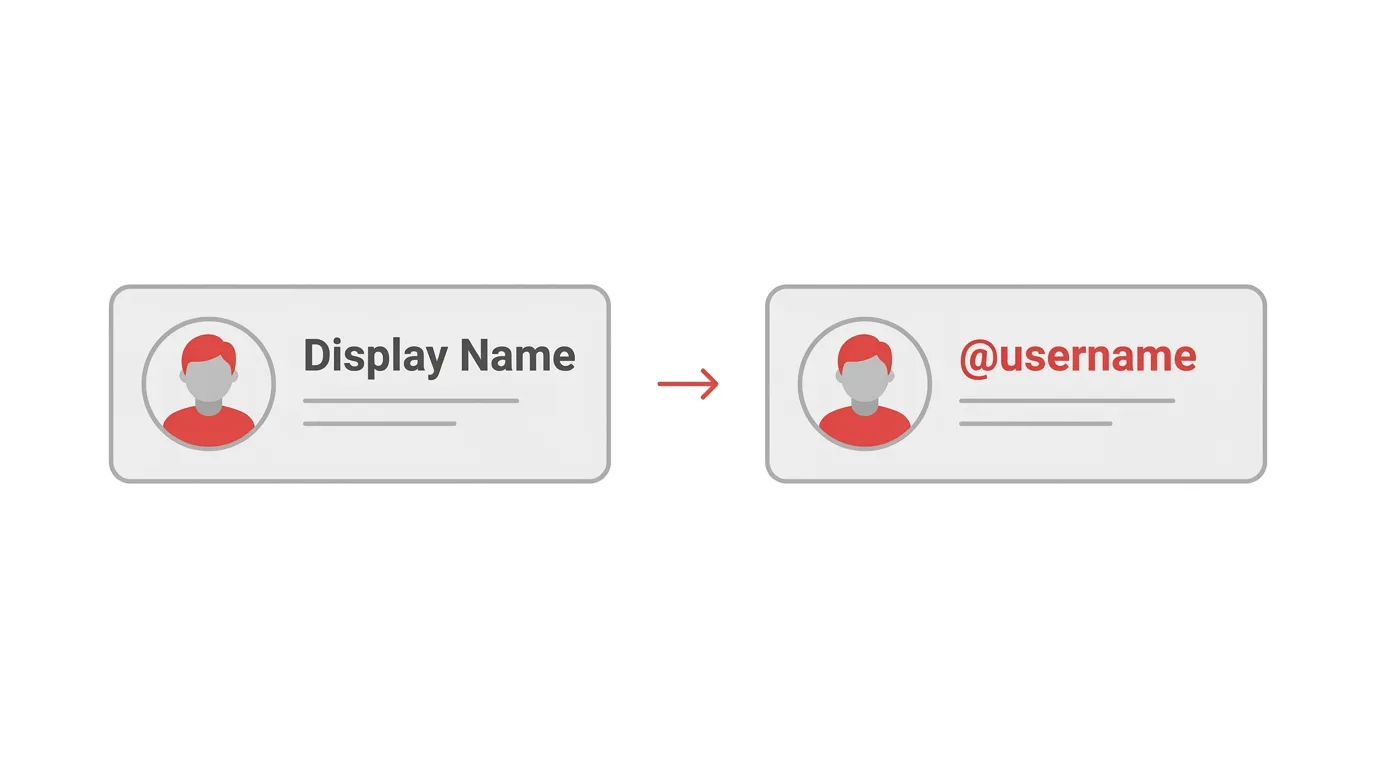
Many people mix these two up, so it helps to know the difference first.
Your display name is the name shown at the top of your profile. It can be your real name or a brand name, and it does not need to be unique.
Your username is your unique handle. It appears in your profile link, and no two people can have the same one.
You can change one without touching the other.
Why Change Your Pinterest Username?
There are plenty of good reasons to update it:
- You are rebranding your blog, shop, or business.
- Your old username is hard to spell or remember.
- You want a handle that matches your other social accounts.
- You want a cleaner profile link to share.
- You want your username to match your website or brand name.
Before You Start
Have these ready before you begin:
- The latest version of the Pinterest app, or a web browser.
- Your Pinterest account logged in.
- A few username ideas, in case your first choice is taken.
Changing your username is free.
Pinterest Username Rules
Your new username must follow Pinterest’s rules.
These can change over time, but usually:
- It must be unique, so nobody else can already be using it.
- It must be within a length limit, usually between 3 and 30 characters.
- It should use letters and numbers, without spaces.
- Some special characters are not allowed.
If Pinterest rejects a name, it will tell you why.
Step 1: Open Your Profile on Mobile
On iPhone and Android:
- Open the Pinterest app.
- Tap your profile picture at the bottom right of the screen.
This opens your profile page.
Step 2: Open Edit Profile
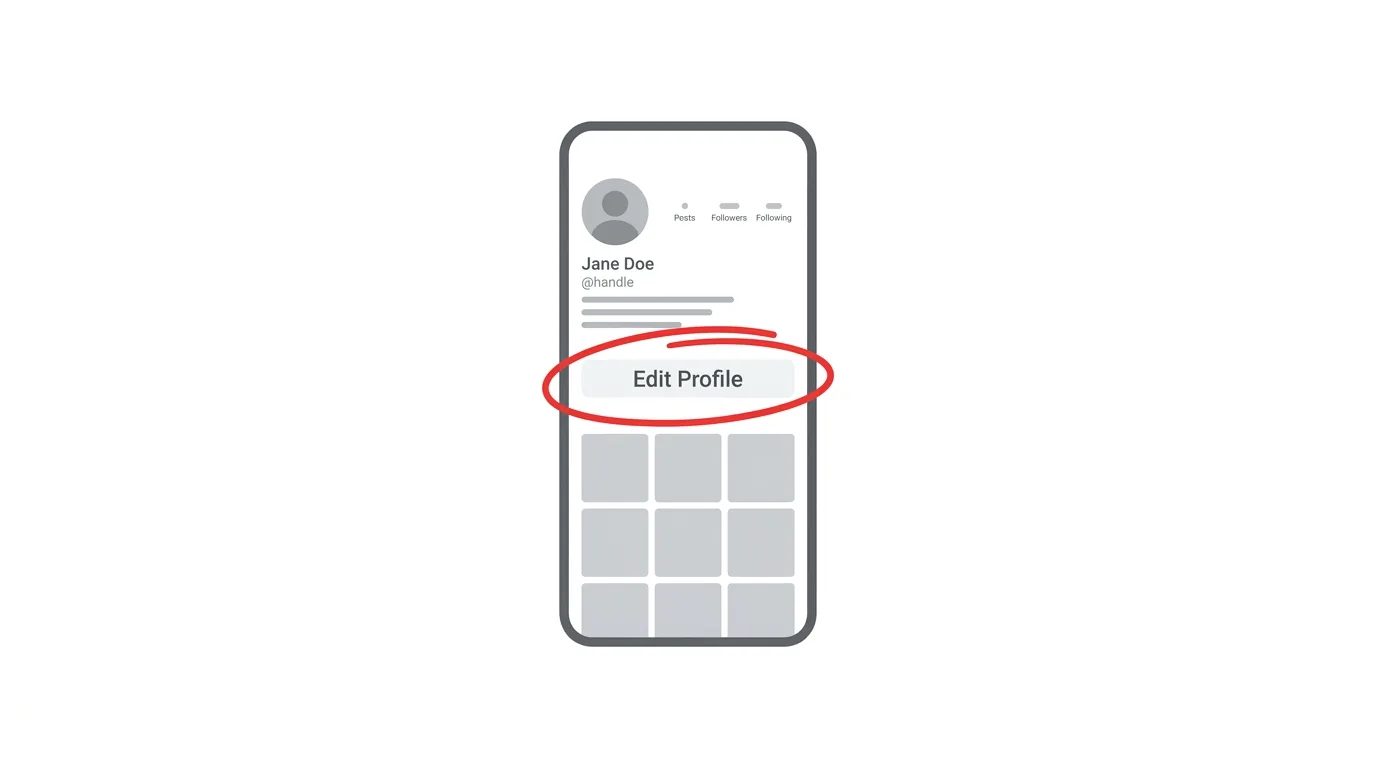
- Tap the three-dot icon or the gear icon near the top of your profile.
- Tap Edit profile or Settings, then Edit profile.
Menu names can change slightly between app versions.
If your screen looks different, look for the words Edit profile.
Step 3: Edit Your Username
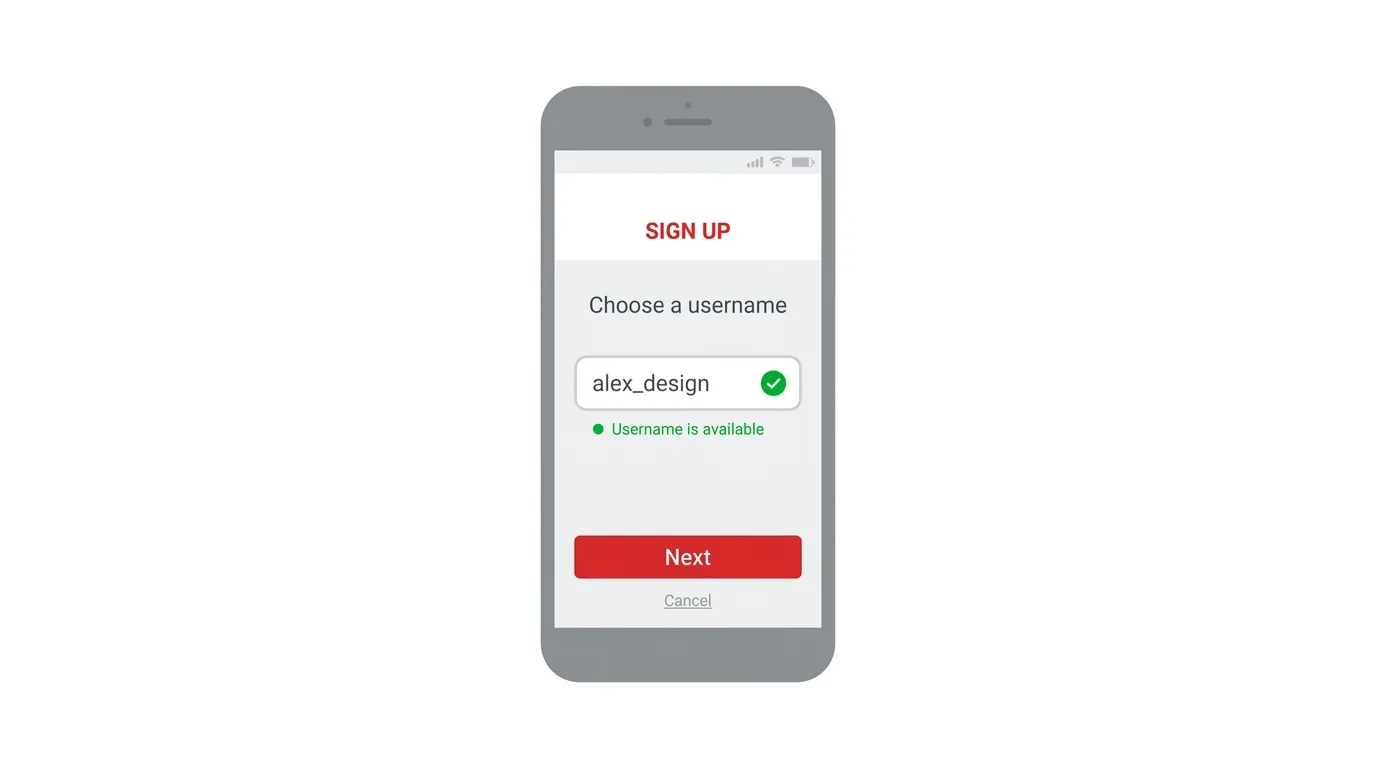
- Find the Username field.
- Delete your old username.
- Type your new username.
- Wait for Pinterest to check if it is available.
If the name is taken, try a small variation.
Step 4: Save Your Changes
- Tap Done or Save.
- Wait for the confirmation message.
Your new username is saved right away.
Your profile link updates to match.
How to Change Your Username on Desktop
Prefer using a browser? Here’s the process:
- Go to pinterest.com and log in.
- Click your profile picture at the top right, then click your name to open your profile.
- Click Edit profile, or open Settings from the menu.
- Find the Username field and type your new name.
- Click Save.
You can also reach this from Settings, then Edit profile.
What Happens to Your Old Pinterest Link?
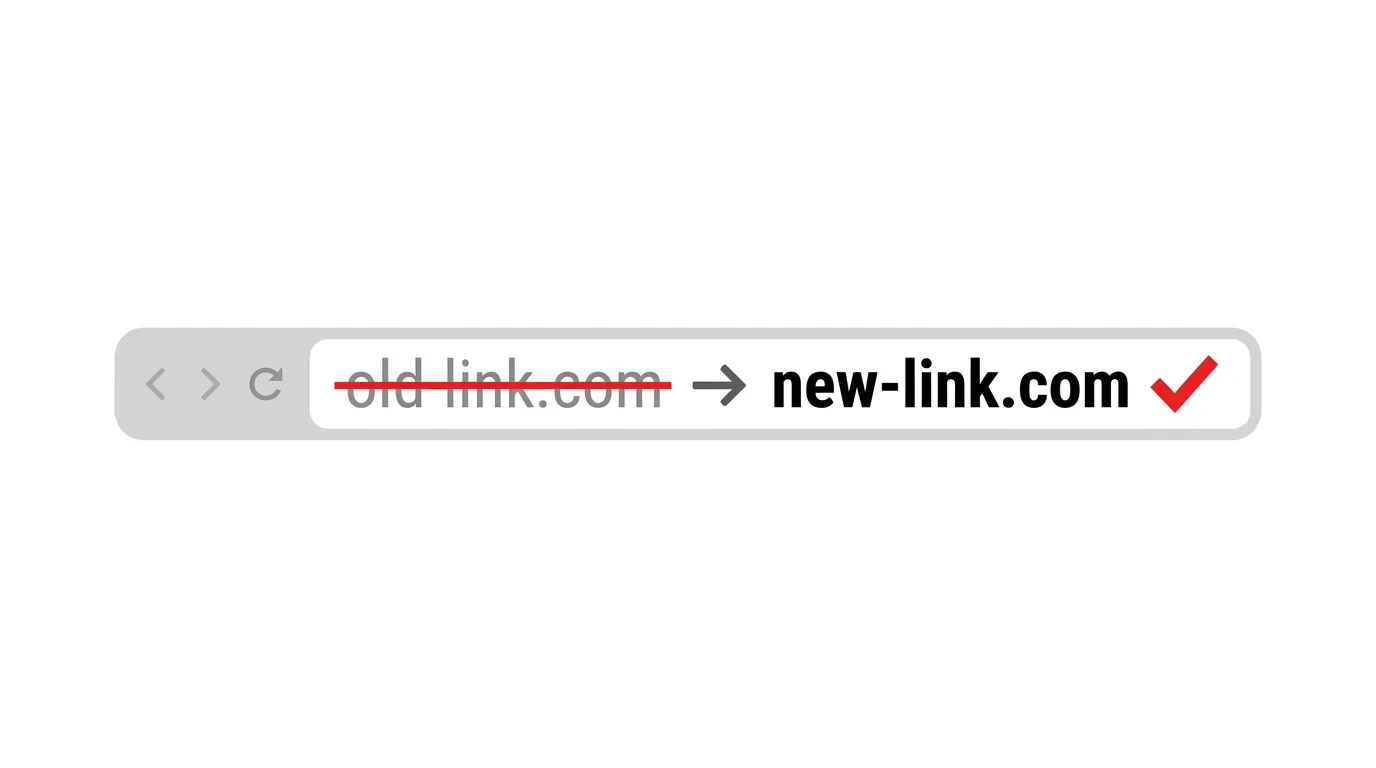
Your profile link usually looks like this: pinterest.com/yourusername
When you change your username, the link changes too.
Action step: Update your old link everywhere you shared it, such as your website, email signature, blog, and other social profiles. The old link may stop working after the change, so people who saved it may not find you.
Do Your Pins and Boards Change?
No.
Action step: Know that your Pins, boards, followers, and saved content all stay exactly as they were. Only your handle and profile link change, so you do not need to rebuild anything.
How to Change Your Display Name Too
You may want your name to match your new username.
Action step: On the same Edit profile page, find the Name fields. Update them to your new name or brand name, then save. A matching display name and username help visitors recognize you.
How to Change Your Username on a Business Account
Business accounts work almost the same way.
Action step: Open Settings, then Edit profile, and update your username there. If you also have a claimed website, check that your profile still links to it after the change, so your business information stays connected.
Tips for Choosing a Good Pinterest Username
A strong username is short, clear, and easy to remember.
Action step: Use your brand name or real name, keep it short, and avoid long strings of numbers. If your first choice is taken, add a simple word such as shop, studio, or official instead of random numbers.
Keeping Your Branding Consistent
If you use several platforms, a matching handle makes you easier to find.
Action step: Check whether the same name is free on Instagram, TikTok, YouTube, and X before you pick it. A matching handle across platforms builds a recognizable personal brand and saves followers from guessing.
How Often Can You Change Your Username?
Pinterest does not always publish a clear limit.
Action step: Avoid changing your username again and again. If you change it too often, Pinterest may limit further changes for a while, and followers may get confused by a handle that keeps moving.
Common Issues When Changing Your Username
Username already taken? Try adding a number, a word, or a small variation, then check again.
Username rejected? Check for spaces, special characters, or a name that is too short or too long. Use simple letters and numbers.
Cannot find the Username field? Open Edit profile from your profile page. Update the app if it is still missing.
Changes not saving? Check your internet connection, then close and reopen the app and try again.
Old username still showing? Wait a few minutes, then refresh the page or restart the app. Other people may still see the old name briefly.
Link not working after the change? Share your new profile link, since the old one may no longer point to you.
How To Change Your Profile Picture on LinkedIn (2026 Guide)
Final Thoughts
Changing your username on Pinterest takes just a few taps and gives your profile a fresh, cleaner handle. Remember to update your old link everywhere you shared it, and keep your username consistent across your other platforms.
