Your bio link is one of the few clickable pathways off Instagram directly to your website, store, or wherever you actually want to send visitors.
This guide walks through exactly how to add a link to your Instagram bio in 2026.
Step 1: Open Your Profile
- Open the Instagram app and tap your profile picture.
Step 2: Tap Edit Profile
- Tap Edit profile below your bio.
Step 3: Add Your Link
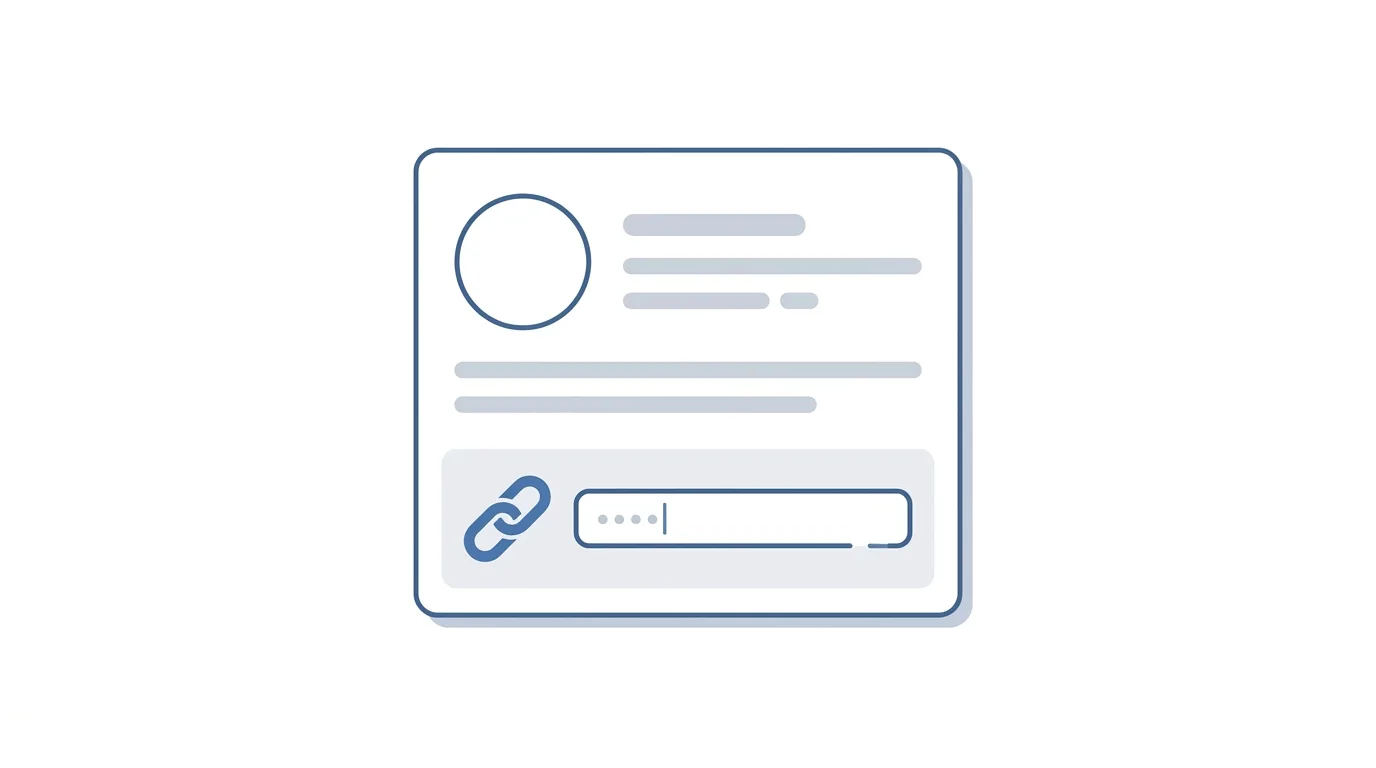
- Tap the Links field (sometimes labeled “Website” on personal accounts).
- Tap Add link.
- Enter the URL you want to add, including “https://” at the start.
- Tap Done or Save.
Action step: Double-check your link works correctly by copying it directly from your browser’s address bar rather than typing it manually, since small typos in URLs are a common reason bio links fail to work properly.
Tracking Clicks on Your Bio Link

Understanding how well your bio link performs helps inform whether it’s actually driving meaningful traffic.
Action step: Use a link shortener or UTM parameters on your bio link URL specifically, since this lets you track click volume through your website analytics or the shortening service’s dashboard, giving you visibility Instagram itself doesn’t natively provide for standard bio links.
Business Accounts and Insights Into Link Clicks
Business and Creator accounts have access to some additional profile visit and website click data through Instagram Insights.
Action step: Check your account Insights under Professional dashboard for website click data specifically, since this native metric gives you at least a basic sense of bio link engagement without needing external tracking tools, though third-party tools typically offer more detailed breakdowns.
Choosing What to Link Based on Your Goals
The most effective bio link destination depends entirely on what you’re actually trying to achieve.
Action step: Match your bio link to your current primary goal — a specific product page during a sale, your main website normally, or a link-in-bio hub if you have multiple ongoing priorities — rather than defaulting to the same generic homepage link indefinitely without considering what would actually convert best right now.
Can You Add Multiple Links?
Yes, Instagram allows adding multiple links to your bio, not just a single URL.
Action step: If you have several important destinations (a website, a shop, a specific campaign page), add each as a separate link entry rather than trying to combine them, since Instagram displays multiple bio links as distinct, individually clickable entries.
Using a Link-in-Bio Tool for Multiple Destinations
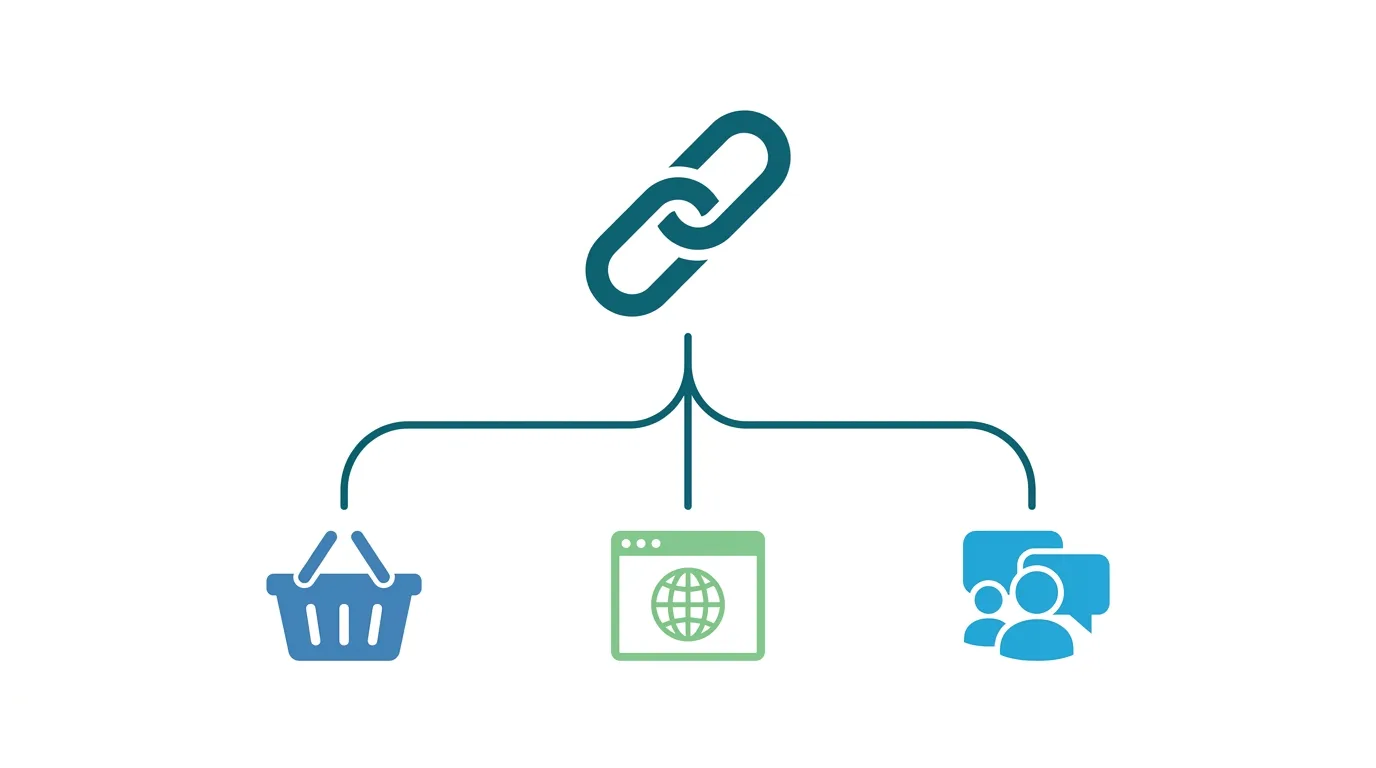
If you want to share more destinations than Instagram’s native multiple-link feature comfortably supports, a dedicated link-in-bio tool can help.
Action step: Consider using a tool like Linktree, Beacons, or a similar service if you need to direct visitors to many different destinations (multiple products, social profiles, articles) through a single, organized landing page, rather than cluttering your native bio links.
How to Edit or Remove an Existing Bio Link
If you need to update or remove a link you’ve already added, the process is just as simple as adding one.
- Go to Edit profile → Links.
- Tap the existing link you want to change.
- Edit the URL directly, or tap the remove icon to delete it entirely.
Adding a Link on Business or Creator Accounts
Business and Creator accounts have access to the same link features as personal accounts, with some additional context around how links integrate with other business tools.
Action step: If you’re running ads or promotions, make sure your bio link aligns with your current campaign destination, since this is one of the most direct paths driving traffic from your profile to a specific landing page relevant to what you’re actively promoting.
Can You Add Links Within Individual Post Captions?
Standard Instagram posts don’t support clickable links within captions — URLs typed into a caption appear as plain, non-clickable text.
Action step: Direct followers to “link in bio” specifically when referencing a link within your post captions, since this remains the standard workaround for Instagram’s lack of clickable caption links on regular feed posts.
Do Stories Support Links Differently?
Yes, Instagram Stories support a dedicated link sticker, functioning differently from the bio link and allowing direct, swipe-up style access to a specific URL.
Action step: Use the Story link sticker for time-sensitive or Story-specific promotions, since this gives followers a direct path to a specific link without needing to visit your profile and find your bio link separately.
Common Issues When Adding a Bio Link
Link not saving? Confirm the URL includes “https://” or “http://” at the beginning, since Instagram sometimes requires this specific formatting to properly recognize and save the link.
Link appears but isn’t clickable? Force close and reopen the app, then check again — this usually resolves temporary display issues following a save.
Multiple links not displaying as expected? Double-check each link was saved individually rather than combined into a single field, since Instagram’s multiple link feature requires separate entries to display correctly as distinct clickable items.
X Rolls Out End-to-End Encrypted Messaging for All Users in 2026
Final Thoughts
Adding a link to your Instagram bio takes just a few taps and remains one of the most direct ways to drive traffic from your profile to a website, store, or specific campaign page. Use multiple links or a dedicated link-in-bio tool if you have several destinations to share, and remember that Stories offer a separate, direct link sticker option distinct from your permanent bio link.
