A password alone isn’t enough protection anymore, especially for an account tied to years of photos, messages, and personal connections.
This guide walks through exactly how to turn on two-factor authentication on Facebook in 2026.
Step 1: Open Facebook Settings
- Open the Facebook app and tap your profile picture.
- Tap the three-line menu, then Settings & privacy.
- Select Settings.
Step 2: Access Password and Security Settings
- Tap Accounts Center.
- Select Password and security.
Step 3: Turn On Two-Factor Authentication
- Tap Two-factor authentication.
- Select the account you want to secure (if you have multiple linked accounts).
- Tap Use two-factor authentication or Get started.
Step 4: Choose Your Verification Method
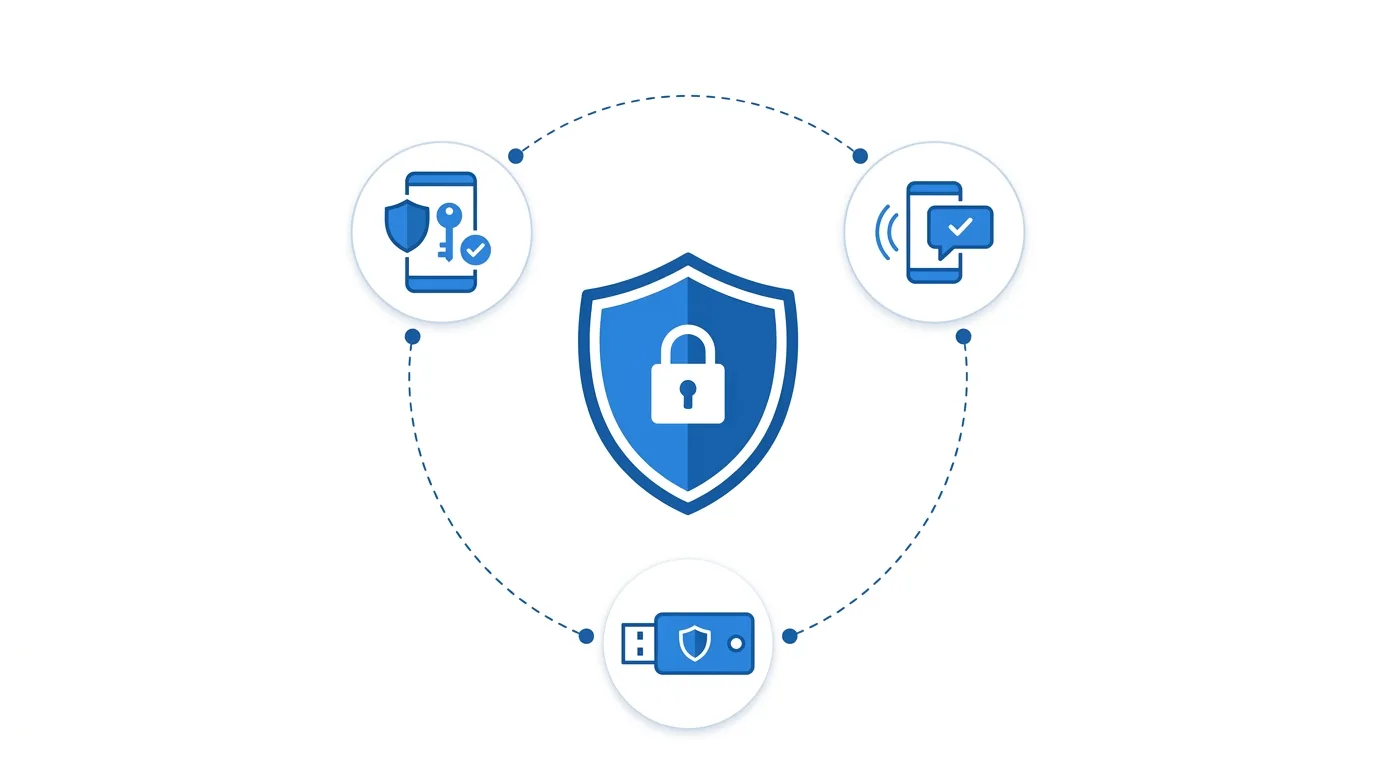
Facebook offers several methods for the second verification step.
Available options typically include:
- Authentication app (like Google Authenticator or Authy) — generates time-based codes
- Text message (SMS) — sends a code to your registered phone number
- Security key — a physical hardware key for the highest level of security
Action step: Choose an authentication app over SMS when possible, since text messages can potentially be intercepted through SIM-swapping attacks, while authentication apps generate codes locally on your device without relying on your phone’s cellular network.
Step 5: Complete Setup
If using an authentication app:
- Scan the displayed QR code using your chosen authentication app.
- Enter the generated code to confirm the connection.
If using SMS:
- Confirm your phone number.
- Enter the code sent to you via text message.
Once confirmed, two-factor authentication is active on your account.
Step 6: Save Your Recovery Codes
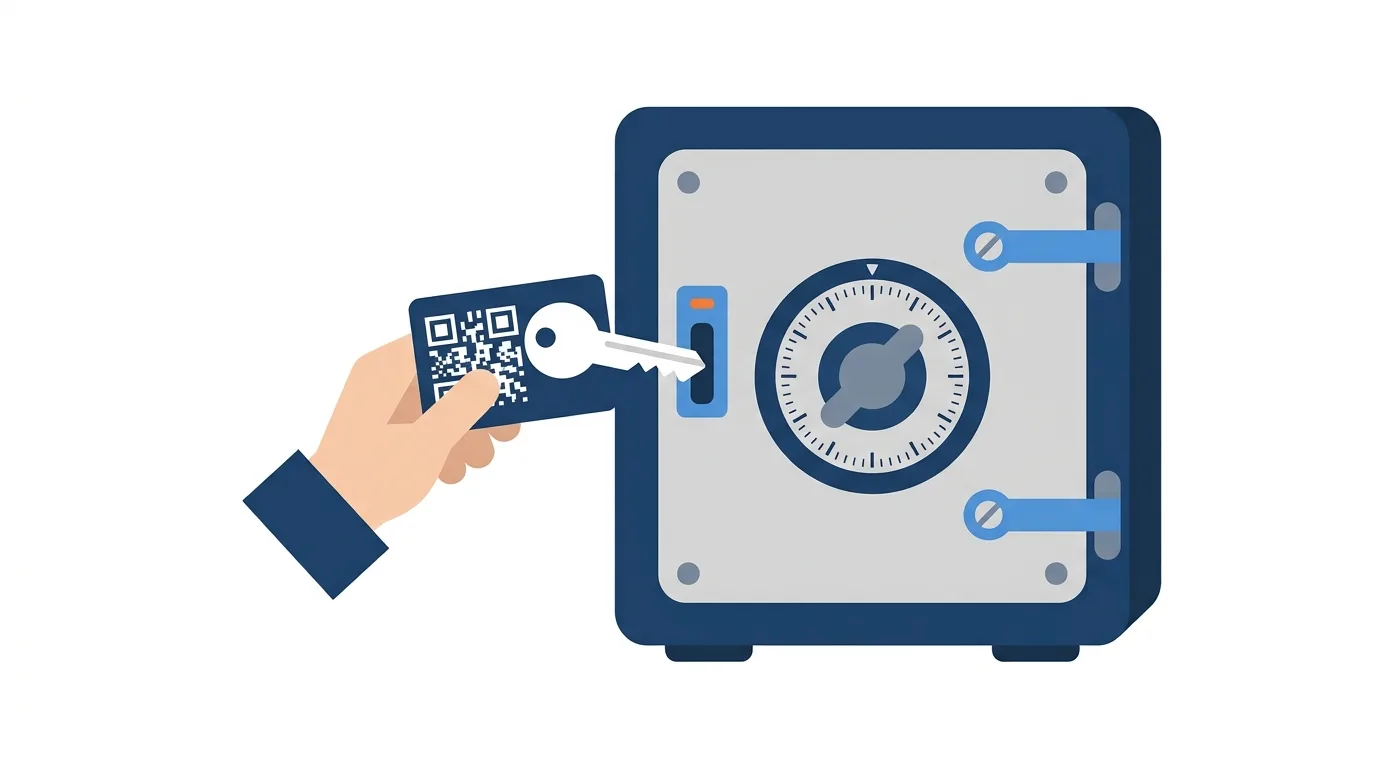
Facebook provides backup recovery codes in case you lose access to your primary two-factor method.
Action step: Save these recovery codes somewhere secure, like a password manager, rather than just a screenshot on your phone, since losing both your primary two-factor method and these codes simultaneously could lock you out of your account entirely.
Reviewing Your Active Login Sessions
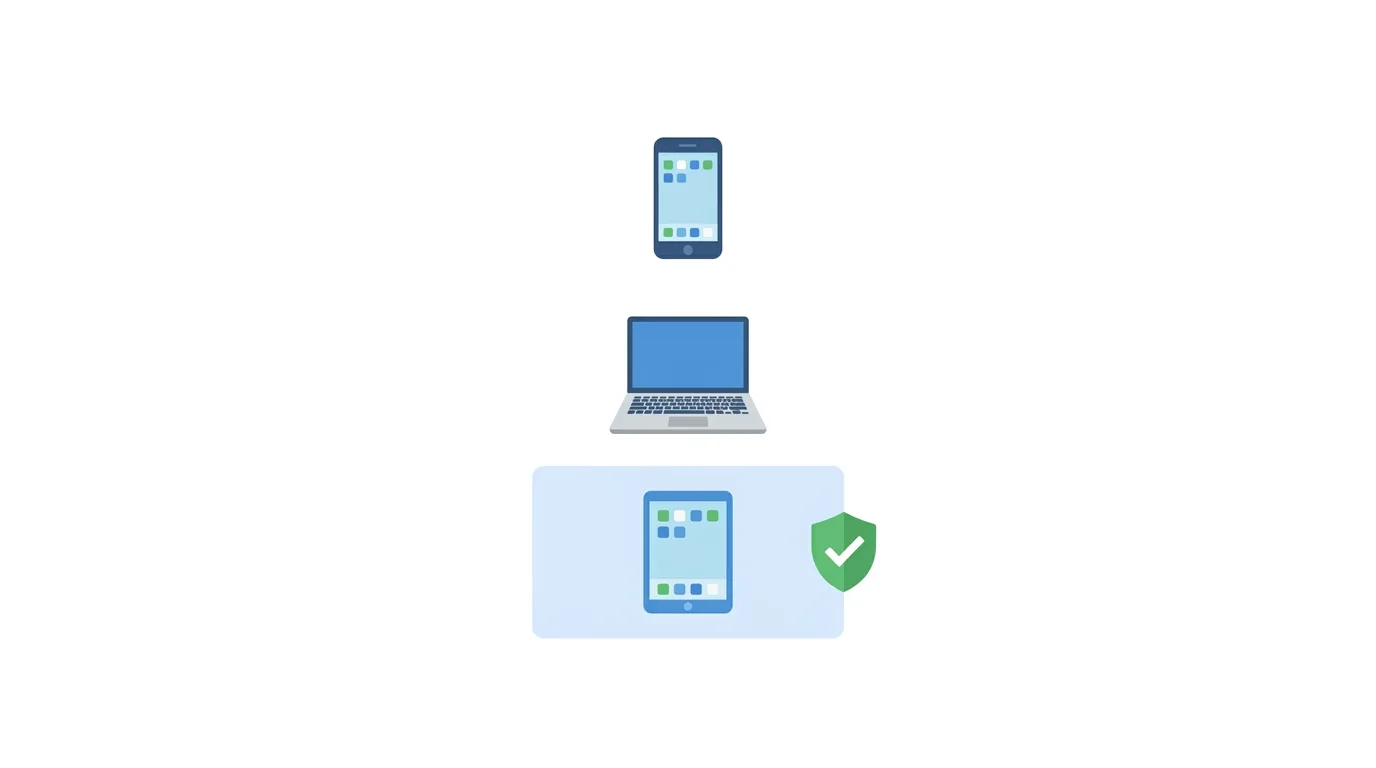
Once two-factor authentication is enabled, it’s also worth reviewing where your account is currently logged in.
Action step: Go to Password and security → Where you’re logged in to review all active sessions, logging out of any devices or locations you don’t recognize, since combining this review with two-factor authentication setup gives you a more complete security check in one sitting.
How This Affects Linked Apps and Third-Party Logins
If you’ve used “Log in with Facebook” for other apps and services, understand how two-factor authentication interacts with these connections.
Action step: Review your connected apps under Accounts Center → Apps and websites, since two-factor authentication protects your core Facebook login, but it’s worth periodically auditing which third-party services still have access to your account through this connection.
Setting Up Two-Factor Authentication for Business Pages You Manage
If you’re an admin for Facebook Business Pages, understand that this personal account security setting also protects the Pages you manage, since Page access ties back to your personal account login.
Action step: Prioritize enabling two-factor authentication especially if you manage business Pages with significant following or advertising spend, since a compromised personal account can directly expose valuable business assets tied to it.
How to Turn On Two-Factor Authentication on Desktop
Prefer using a browser? Here’s the process:
- Go to Facebook.com and log in.
- Click your profile icon, then Settings & privacy → Settings.
- Select Accounts Center → Password and security → Two-factor authentication.
- Follow the same setup steps as the mobile app.
What Happens When You Log In From a New Device
Once enabled, logging in from an unrecognized device or browser will prompt you for your second verification step, in addition to your password.
Action step: Expect this additional step specifically when logging in from new devices or after clearing your browser data, since Facebook typically remembers trusted devices for a period, reducing how often you’re prompted on devices you use regularly.
Managing Multiple Verification Methods
Facebook allows setting up more than one two-factor method as backup options.
Action step: Consider adding both an authentication app and a backup SMS option, since having multiple verification methods reduces the risk of being locked out if you lose access to your primary method (like getting a new phone without transferring your authentication app data).
Common Issues When Setting Up Two-Factor Authentication
Not receiving SMS codes? Confirm your registered phone number is correct and has active service, and try requesting a new code if the first attempt doesn’t arrive within a few minutes.
Lost access to your authentication app? Use your saved recovery codes to log in, then set up two-factor authentication again with your new device or app.
QR code not scanning properly? Most authentication apps also allow manually entering a setup key instead of scanning — look for this alternative option if the QR code isn’t working.
Why Two-Factor Authentication Matters
Accounts without this extra layer of security are significantly more vulnerable to unauthorized access, especially if you’ve ever reused your Facebook password on another service that experienced a data breach.
Action step: Treat two-factor authentication as one of the single most effective steps you can take to protect your account, since it prevents unauthorized access even if your password becomes compromised through means entirely outside your control, like a breach at an unrelated company.
How To Add a Link to Your Instagram Bio (2026 Guide)
Final Thoughts
Turning on two-factor authentication for Facebook takes just a few minutes but adds a critical layer of protection to an account that often holds years of personal history and connections. Choose an authentication app over SMS when possible, save your recovery codes securely, and consider setting up a backup verification method in case you ever lose access to your primary one.
