
Are you looking for a solution on how to change Pinterest email? If so, then in this artcile i shall explain to you how to change your Pinterest email address on your phone and PC in simple steps.
How To Change Pinterest Email
If you have a problem with your Pinterest email address and want to change it. Then here are the steps on how to change Pinterest email address on your phone and PC.
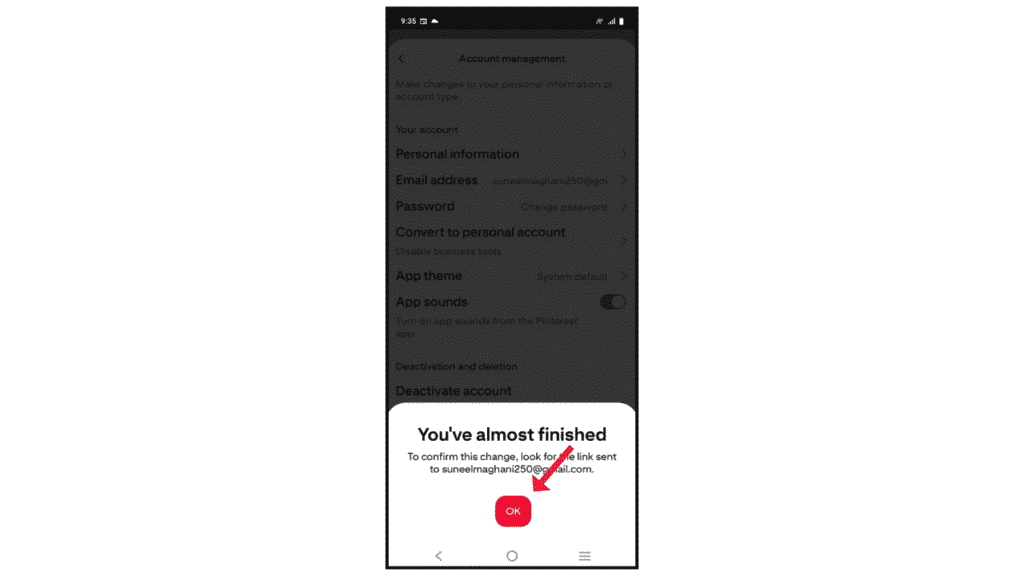
Change Pinterest Email on Phone
- Open your Pinterest on your phone and go to the account management menu.

- Now, click on “Current Email” and enter the new email.

- Now, you will receive a confirmation code on the new email. Enter that and click on the save button.
Change Pinterest Email on PC
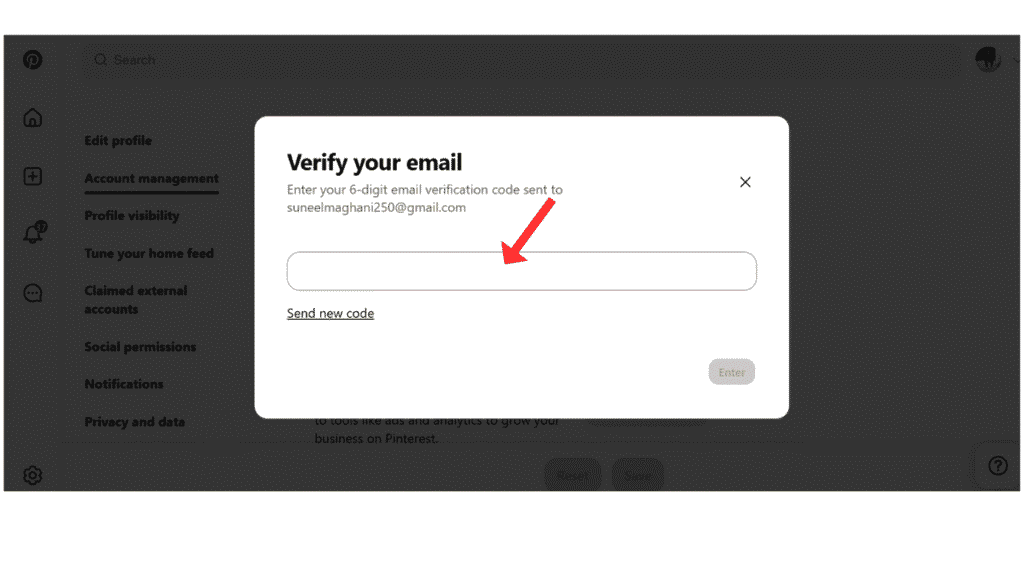
- In the first step, log in to your Pinterest through Google or email and click on profile.
- After that, go to account management settings and change the email address.

- Now, you will receive a code on your new email. Enter the code and click on the save button.
Now, you have successfully changed your Pinterest email address on your phone and PC. Follow each step and change your email.
Also Read: How to Change Pinterest Password and Language
Conclusion:
I am sure you have learned how to change Pinterest email address on your phone and PC. If you have any questions about changing your Pinterest password, email, language, or username, you can contact us by email.
