If you want to know how to change your profile picture on Facebook, the process is quick and works the same way for most accounts.
It takes only a minute, and your new photo shows up across the platform right away.
Your profile picture is the first thing friends, family, and customers notice when they find you in search, comments, or Messenger.
A clear and friendly photo helps people recognize you and trust your account.
This guide shows you exactly how to change your Facebook profile picture on phone and computer, how to use a temporary photo, and what to try if something goes wrong.
Why Your Facebook Profile Picture Matters
Your picture follows you everywhere on Facebook.
It appears next to your posts, comments, group activity, and messages.
It is also one of the few parts of your profile that other people can usually see, even if they are not your friends.
That makes it important for first impressions.
For business owners and creators, it is also part of your brand.
A consistent image across Facebook, Instagram, and your website makes you easier to find and remember.
What Do You Need Before You Start?
Have these ready:
- The latest version of the Facebook app, or a web browser.
- Your Facebook account logged in.
- The photo you want to use, saved on your phone or computer.
If you want a new photo, take it in good light and keep the background simple.
A square photo with your face in the center works best, because Facebook shows profile pictures in a circle.
How to Change Your Facebook Profile Picture on iPhone and Android
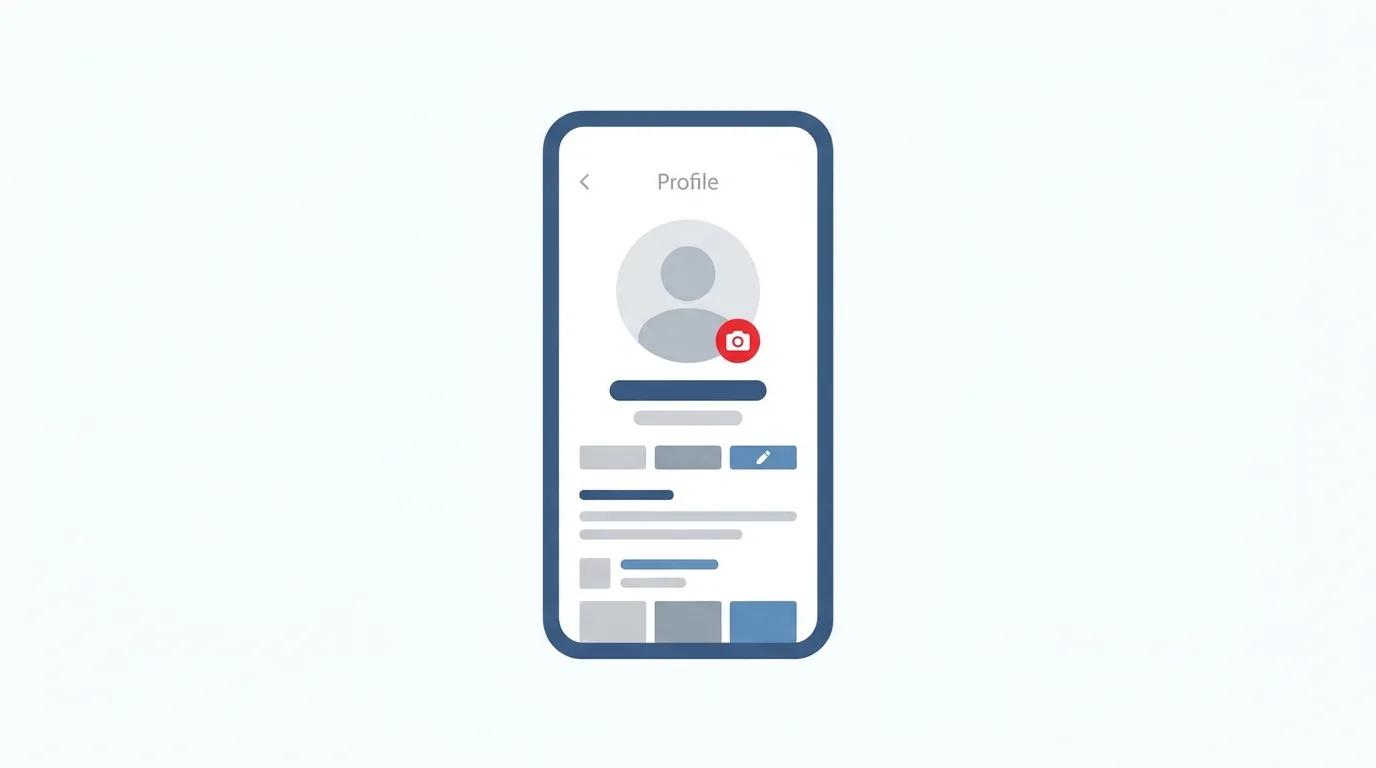
Menu names can change slightly between app versions, so look for your profile picture and the word Profile if your screen looks different.
- Open the Facebook app and tap your profile picture or the menu icon, then tap your name to open your profile.
- Tap your profile picture.
- Tap Select profile picture or Edit.
- Choose a photo from your gallery, or tap the camera icon to take a new one.
- Move and zoom the image so your face is centered inside the circle.
- Tap Save.
Your new profile picture appears on your profile and in your friends’ feeds.
Facebook may also create a post about the change, which you can edit or remove before it goes live.
How to Change Your Facebook Profile Picture on Desktop
You can also do this from a computer.
- Go to facebook.com and log in.
- Click your profile picture at the top right, then click your name to open your profile.
- Click the camera icon on your current profile picture.
- Click Upload photo to choose a picture from your computer, or select one you already uploaded.
- Drag and zoom to adjust the crop.
- Click Save.
The change appears on your phone as well, since it belongs to your account.
How to Make Your Profile Picture Temporary
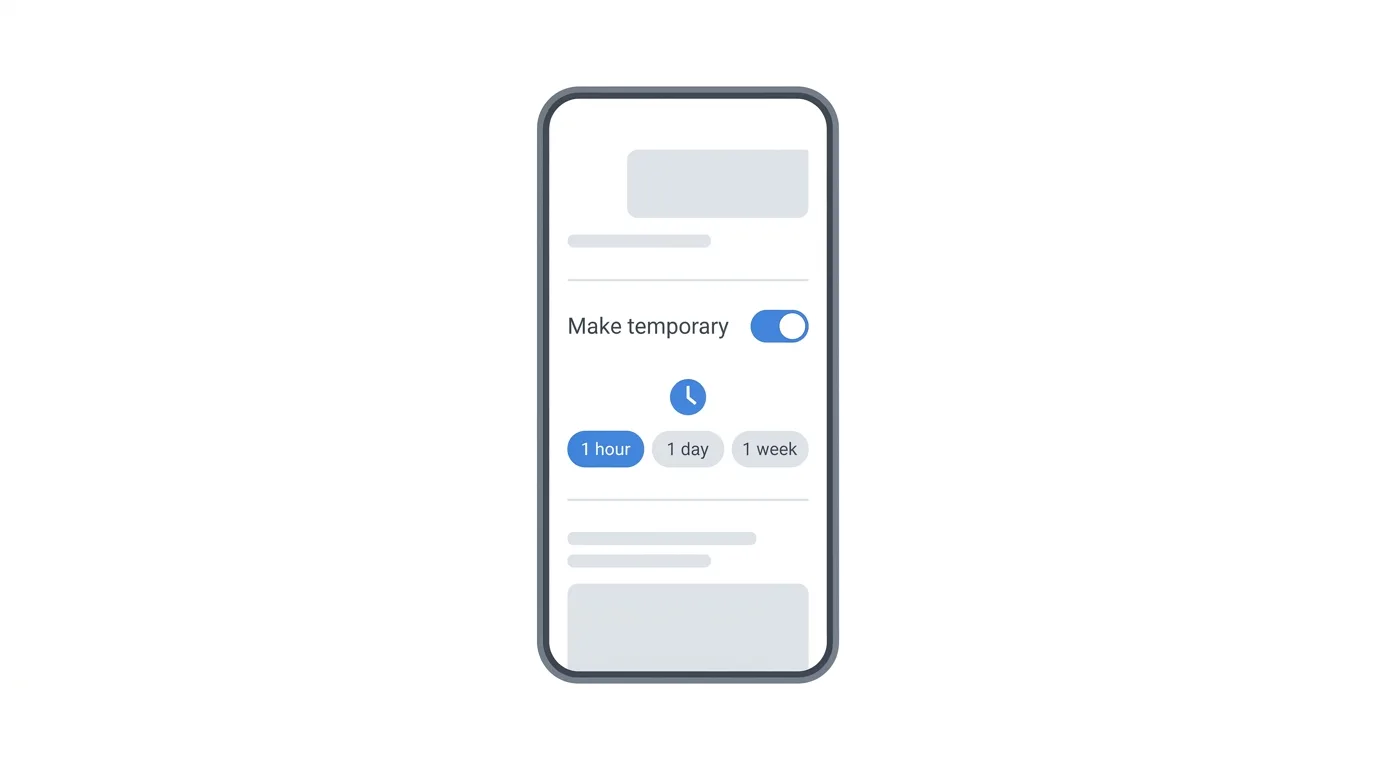
Facebook lets you set a temporary profile picture for a short time.
This is useful for events, holidays, or causes.
When you upload a new picture, look for the option Make temporary.
Choose how long you want it to last, such as one hour, one day, one week, or a custom date.
When the time ends, your previous profile picture comes back automatically.
You can also add a frame, if frames are available for your account.
How to Add a Profile Picture Frame
Frames add a themed border to your photo.
After you pick a new picture, look for Add frame or Frames.
Choose a design from the list, then save your picture.
Frames are often used for causes, sports, holidays, and school events.
Remember that some frames are available for a limited time.
What Makes a Good Facebook Profile Picture?
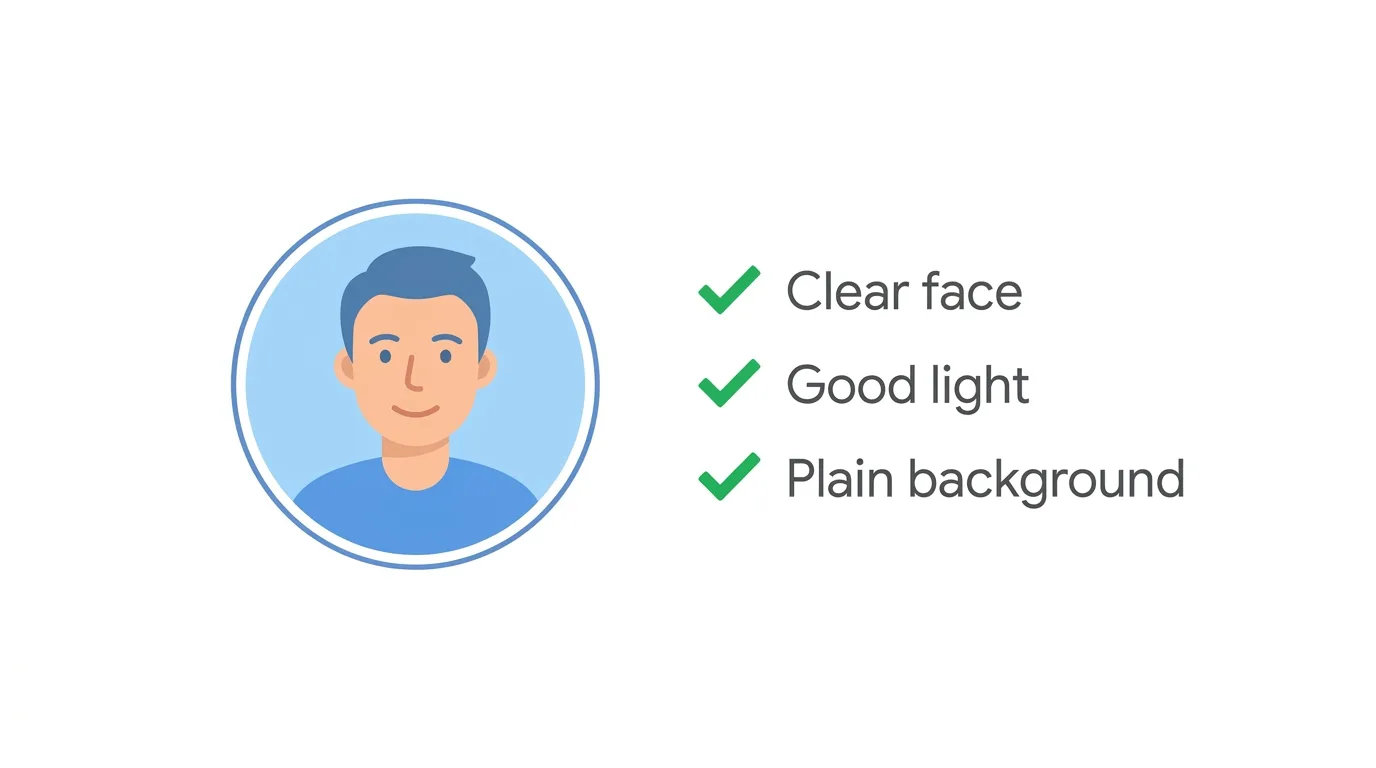
A strong picture is clear, simple, and recognizable at a small size.
Choose a recent photo of your face, or a clean logo if you represent a brand.
Use good lighting, so your features are easy to see.
Keep the background plain, because busy backgrounds make small pictures hard to read.
Avoid group photos, because people will not know which person is you.
Avoid heavy filters, text, and very dark images.
Facebook displays the photo as a small circle, but a larger source image looks sharper, so upload at least 320 by 320 pixels if you can.
Who Can See Your Profile Picture?
Your current profile picture is usually public.
That means people who are not your friends may still see it.
You can control who sees older profile pictures by changing the audience of each photo.
Open the old photo, tap the three-dot menu, and look for Edit privacy or the audience selector.
In some countries, Facebook also offers a profile picture guard or lock option that makes it harder for others to download or share your picture.
Availability depends on your region, so check your profile settings to see if it appears for you.
How to Change Your Profile Picture on a Facebook Page
Business pages work a little differently.
Open your Page, tap the camera icon on the profile picture, and choose a new image.
Many businesses use a simple logo on a solid color, since the picture appears in a small circle.
Make sure the logo is centered, so edges do not get cut off.
You can also update the cover photo to match your brand.
Can You Change Your Facebook Profile Picture as Often as You Like?
Usually, yes.
You can update your photo whenever you want.
However, changing it too often can confuse friends and customers.
If you are rebranding or celebrating something, an update makes sense.
For everyday use, a stable image helps people recognize you.
How to Remove Your Facebook Profile Picture
If you want to remove it, open your profile picture and look for Delete photo or a similar option.
Facebook will then show a default silhouette.
Accounts without a photo can look less trustworthy to other people, so it is better to choose a neutral photo than to leave it blank.
Troubleshooting: Profile Picture Not Changing
If your new picture does not appear, try these quick fixes:
- Wait a few minutes. Updates can take a moment to show everywhere.
- Refresh the app or page. Close Facebook completely and open it again.
- Check your connection. A weak signal can stop the upload.
- Try a smaller image. Very large files may fail to upload.
- Use a JPG or PNG. Common formats upload most reliably.
- Update the app. An older version may have a different layout.
- Allow photo access. If you cannot choose a photo, open your phone’s settings and allow Facebook to access your photos.
- Photo rejected. Facebook may remove images that break its community standards, so choose a different, appropriate picture.
Frequently Asked Questions
How do I change my profile picture on Facebook?
Open your profile, tap your picture, choose a new photo, adjust the crop, and tap Save.
Can I change my Facebook profile picture on a computer?
Yes.
Log in at facebook.com, open your profile, click the camera icon on your picture, and upload a new photo.
Why can’t I change my Facebook profile picture?
It may be a weak connection, an old app version, or a photo that does not meet Facebook’s rules.
Can I make my profile picture temporary?
Yes.
Choose Make temporary when you upload a new photo and pick how long it should last.
Who can see my profile picture?
Your current profile picture is usually public, but you can limit the audience of older photos.
Will my friends be notified when I change it?
Facebook may share the change as a post in your friends’ feeds, and you can edit or remove that post before sharing.
Does changing my picture delete my old ones?
No.
Your older profile pictures stay in your photo albums unless you delete them.
TikTok One Pay Promises Creators Payment Within 30 Days (2026 News)
Final Thoughts
Changing your profile picture on Facebook takes just a minute and instantly refreshes how your account looks. Choose a clear, simple photo that fits your style or brand, and use the temporary option for special events. If the change does not appear right away, refresh the app and check your connection.
