Whether you want a stronger password, suspect someone else knows yours, or simply haven’t updated it in years, changing your password on X takes just a few taps.
This guide walks through exactly how to change your password on X in 2026.
Why You Should Change Your X Password Regularly
Your password is the main lock on your account.
If it is weak, reused, or leaked, someone else can take over your profile.
Changing it is a quick way to close that door.
Consider changing it if:
- You use the same password on other websites.
- You logged in on a shared or public device.
- You got a suspicious login alert.
- You have not changed it in a long time.
Before You Start
Have these ready before you begin:
- Your current password.
- The latest version of the X app, or a web browser.
- A new password you have not used anywhere else.
If you have forgotten your current password, skip down to the reset section below.
Step 1: Open X Settings on Mobile
On iPhone and Android:
- Open the X app and tap your profile picture at the top left.
- Tap Settings and Privacy.
Menu names can change slightly between app updates.
If your screen looks different, look for the word Settings.
Step 2: Open Your Account Settings
- Tap Your account.
- Tap Change your password.
X may ask you to confirm your identity first.
If it does, enter your current password or follow the on-screen prompt.
Step 3: Enter and Save Your New Password
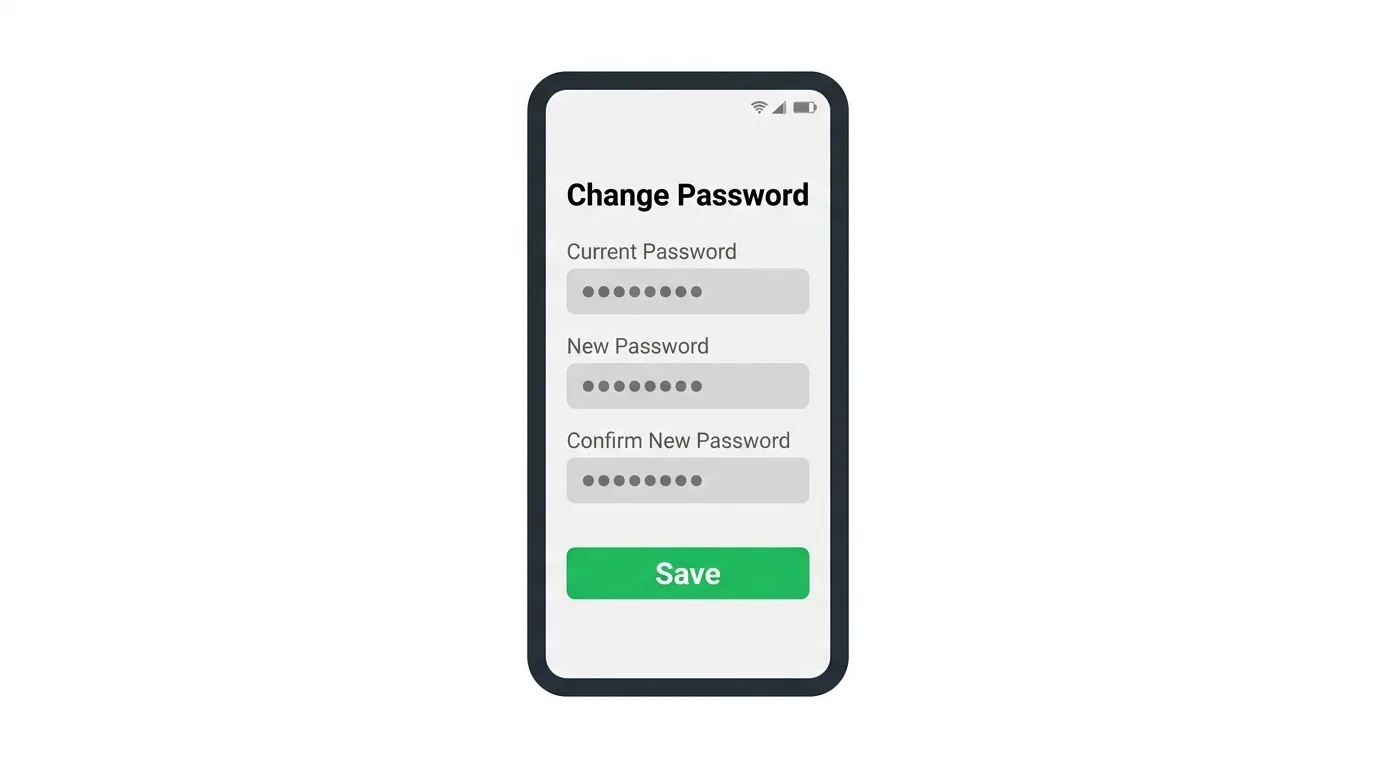
- Type your current password.
- Type your new password.
- Type your new password again to confirm it.
- Tap Save.
Your new password takes effect right away.
You may be asked to log in again on some devices.
How to Change Your Password on Desktop
Prefer using a browser? Here’s the process:
- Go to x.com and log in.
- Click More in the left menu, then Settings and privacy.
- Click Your account, then Change your password.
- Enter your current password, then your new password twice.
- Click Save.
If you do not see More, click the three-dot icon in the left menu.
What Makes a Strong X Password?
A strong password is hard to guess and easy for you to store safely.
Action step: Use at least 12 characters where you can, mixing uppercase letters, lowercase letters, numbers, and symbols. X requires a minimum length, but a longer password is always safer. Avoid names, birthdays, and common words, and never reuse a password from another account.
Use a Password Manager
Remembering a long, unique password for every account is not realistic.
Action step: Consider using a password manager to generate and store strong passwords for you. That way you only need to remember one master password, and each of your accounts gets its own unique one.
Turn On Two-Factor Authentication After Changing Your Password
A new password is good, but a second lock is better.
Action step: After you change your password, go back to Settings and Privacy, then Security and account access, then Security. Look for Two-factor authentication and turn it on. An authentication app or a security key is generally safer than text message codes.
Check Your Logged-In Devices
If you changed your password because you worried someone else had access, check who is still logged in.
Action step: Go to Settings and Privacy, then Security and account access, then Apps and sessions or Sessions. Review the list of devices, and log out of any you do not recognize.
Review Connected Apps
Third-party apps can keep access to your account even after a password change.
Action step: In the same security area, open Connected apps. Remove any app you no longer use or do not recognize. This closes a common gap that a password change alone does not fix.
What If You Forgot Your Current Password?
You can reset it from the login screen.
- Open the X app or go to x.com and tap or click Log in.
- Tap or click Forgot password?
- Enter your email address, phone number, or username.
- Follow the steps to get a reset link or code.
- Create a new password and save it.
Action step: Check your spam or junk folder if the reset email does not arrive within a few minutes. Make sure you are using the email or phone number that is actually linked to your X account.
Does Changing Your Password Log You Out Everywhere?
It can, depending on your account and device.
Action step: After changing your password, open X on each of your devices and check whether you are still logged in. If you are asked to log in again, use your new password. This is normal and helps keep your account secure.
Common Issues When Changing Your Password
Password not saving?
Check your internet connection, then force close and reopen the app and try again.
New password rejected?
Your new password may be too short or too easy to guess. Try a longer one with a mix of letters, numbers, and symbols.
Current password not accepted?
Check for typos and make sure caps lock is off. If it still fails, use the Forgot password? option instead.
Not receiving the reset email?
Check your spam folder, and confirm you are using the right email address. Wait a few minutes and request a new link if needed.
Cannot find the Change your password option?
Update the X app, since an older version may have a different layout. You can also change it from the desktop website.
Suspect your account was hacked?
Change your password right away, turn on two-factor authentication, log out of unknown sessions, and remove connected apps you do not recognize.
How To Turn On Incognito Mode on Tinder
Final Thoughts
Changing your password on X takes just a few taps and protects your account immediately. Remember to pair a strong new password with two-factor authentication, and check your logged-in devices and connected apps, since those are often where unwanted access hides.
