Whether you want a backup of your chats, plan to switch accounts, or simply want a copy of everything you have shared, Telegram lets you export your data in a few clicks.
This guide walks through exactly how to download your data from Telegram in 2026.
Why Download Your Telegram Data?
Telegram stores your chats in the cloud, but a personal copy gives you extra peace of mind.
Common reasons to export your data include:
- Keeping a backup of important conversations.
- Saving photos, videos, and files before deleting your account.
- Moving important information to another service.
- Keeping records of business or customer chats.
- Reviewing what data your account actually holds.
Can You Export Telegram Data on a Phone?
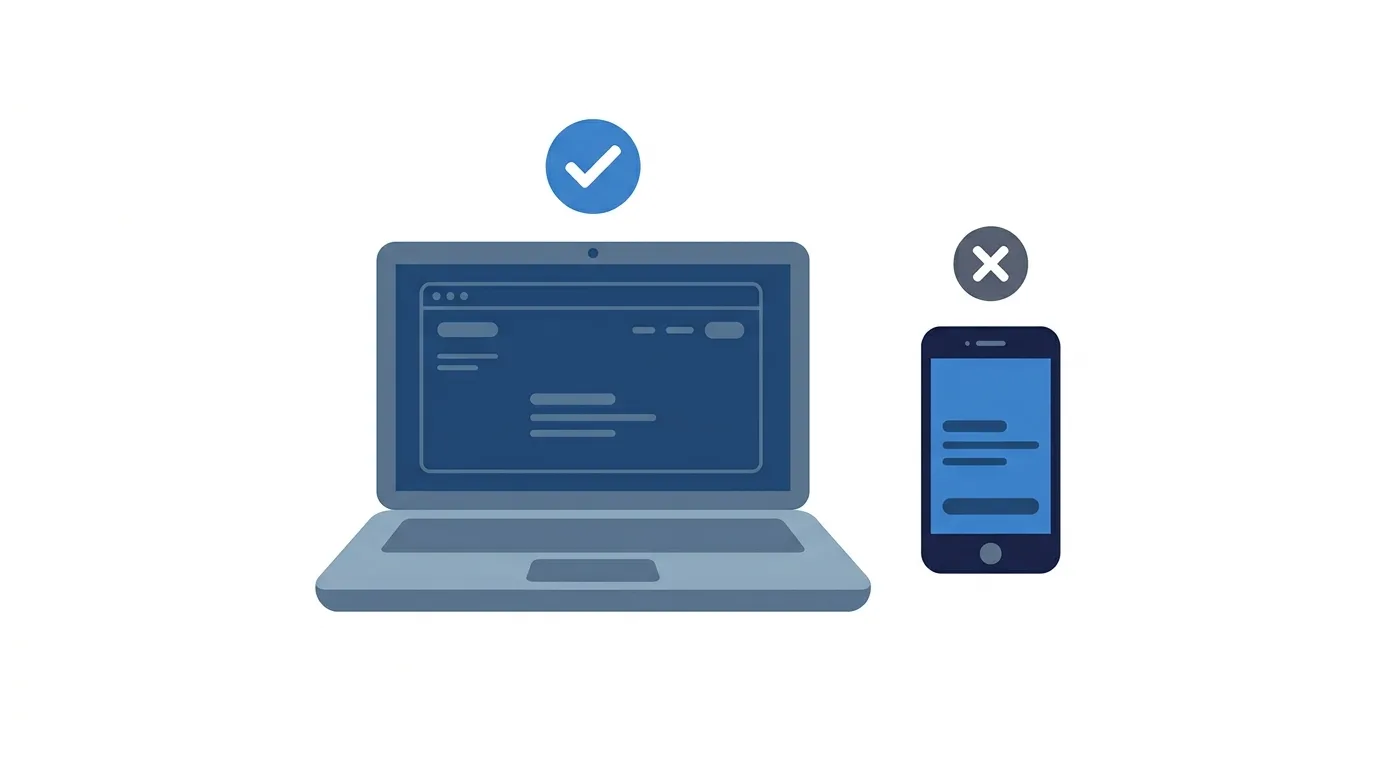
This is the first thing to know.
The built-in export tool is part of Telegram Desktop, the app for Windows, Mac, and Linux.
The iPhone and Android apps do not have the same export option.
Action step: If you only use Telegram on your phone, download Telegram Desktop from the official Telegram website, log in with your phone number, and then follow the steps below.
Before You Start
Have these ready before you begin:
- The latest version of Telegram Desktop installed on your computer.
- Your phone nearby, since Telegram may send you a login code or a confirmation message.
- Enough free storage space, because media files can be large.
Step 1: Open Telegram Desktop Settings
- Open Telegram Desktop on your computer and log in.
- Click the three-line menu at the top left, then click Settings.
On some versions, you may see Settings directly in the menu list.
Step 2: Find the Export Option
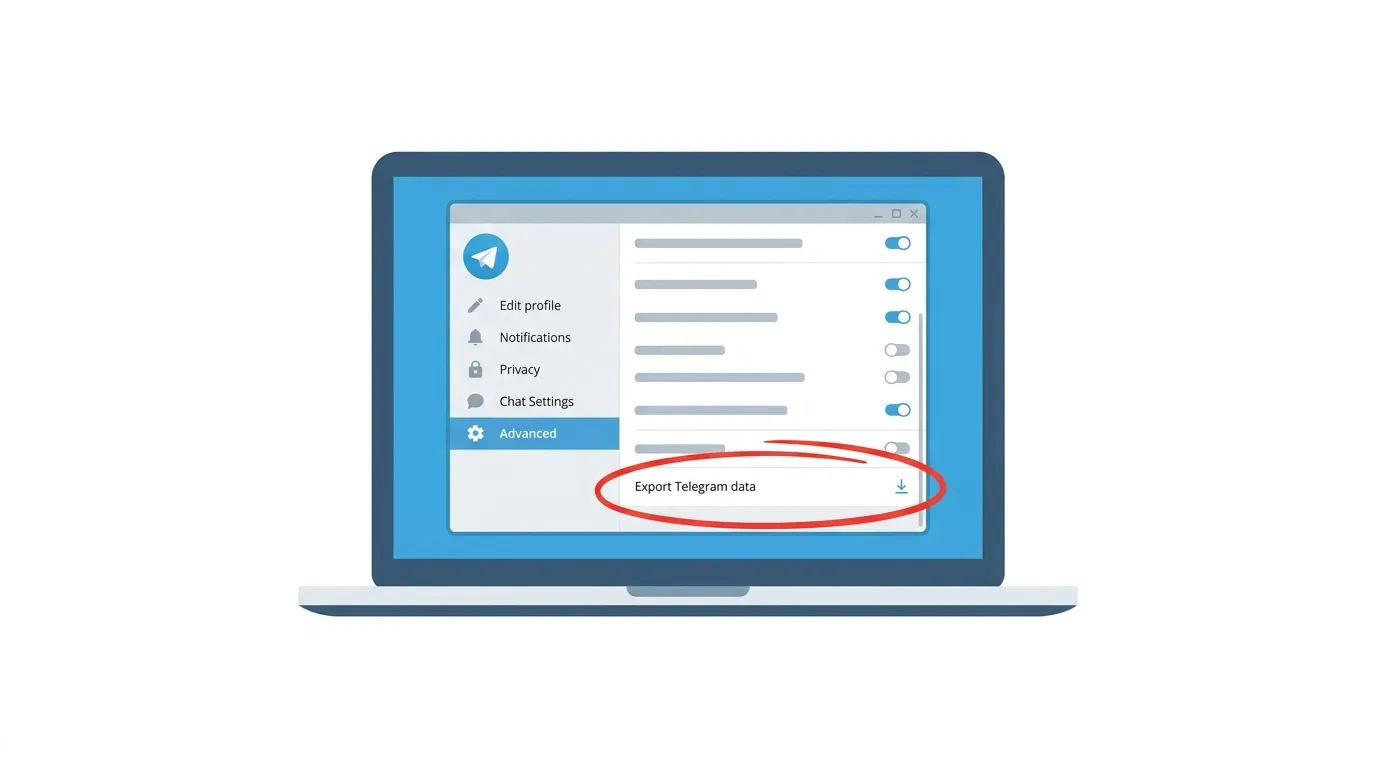
- Click Advanced.
- Scroll down and click Export Telegram data.
Menu names can change slightly between app versions.
If your screen looks different, look for the word Export.
Step 3: Choose What to Export
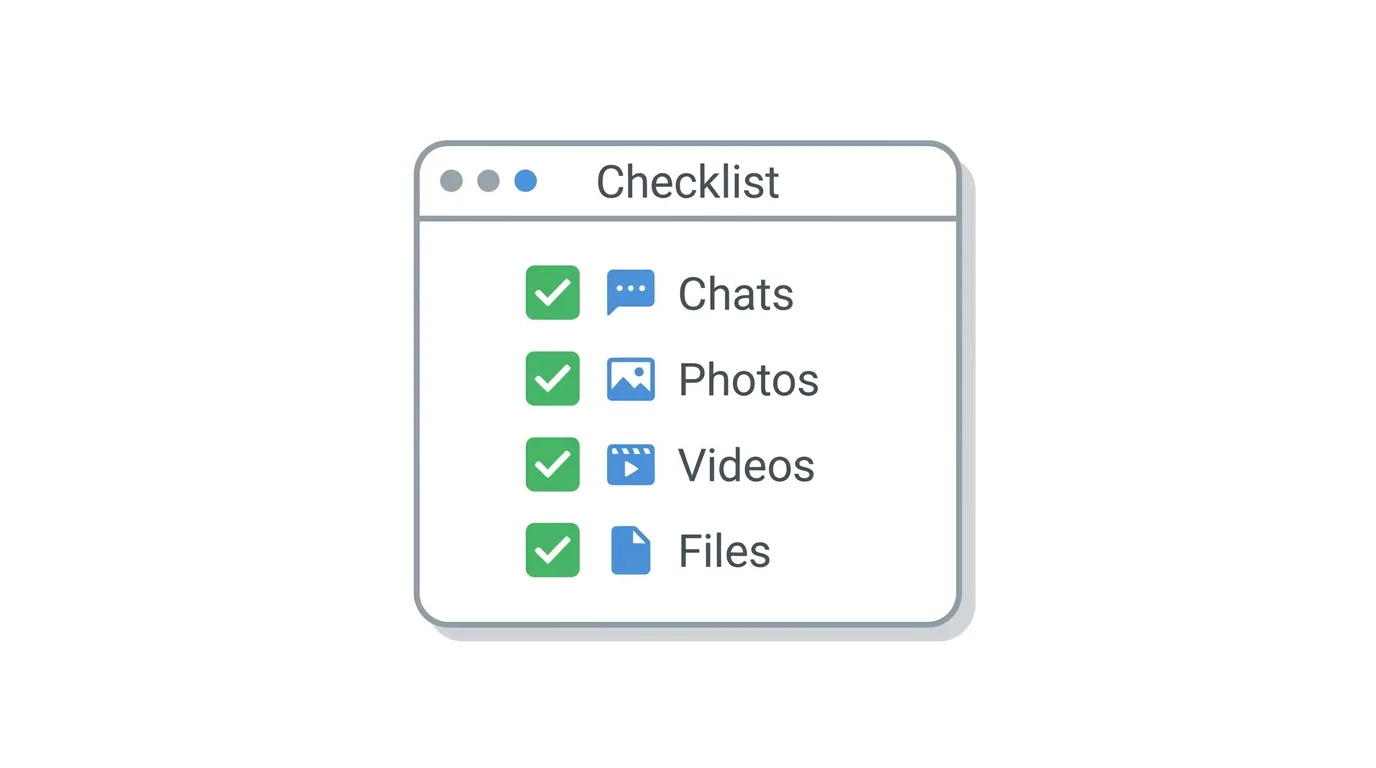
Telegram shows a list of data types you can include.
Common options are:
- Account information
- Contacts list
- Personal chats
- Bot chats
- Private groups
- Public groups and channels you belong to
- Photos, videos, voice messages, and files
- Stickers and GIFs
- Active sessions
Tick the boxes for the data you want, and untick the ones you do not need.
Step 4: Choose Your File Format and Location
- Pick a location on your computer where the export will be saved.
- Choose a format.
You will usually see two choices:
- HTML: easy to open and read in any web browser.
- Machine-readable JSON: better for developers or for moving data into other tools.
If you are unsure, choose HTML.
Step 5: Start the Export
- Click Export.
- Wait while Telegram prepares your files.
You may see a progress screen with the number of items saved.
Large accounts with lots of media can take a long time, so keep the app open until it finishes.
Step 6: Confirm on Another Device If Asked
For security, Telegram may ask you to approve the export.
Action step: If Telegram asks for confirmation, check your phone or another logged-in device for a message from Telegram and approve the request. This stops other people from exporting your data without your permission.
How to Open Your Exported Telegram Data
Once the export is complete, open the folder you selected.
- Open the folder on your computer.
- If you chose HTML, open the file called export_results.html in your browser.
- If you chose JSON, open the result.json file in a text editor.
Your chats, media, and other files are organized into folders.
How to Export Only Specific Chats
You do not always need everything.
Action step: If you only want one conversation, open that chat in Telegram Desktop, click the three-dot menu at the top right, and look for Export chat history. Choose your options and save. This is much faster than exporting your whole account.
How to Limit the Size of Your Export
Media can make the export very large.
Action step: In the export settings, look for a size limit option and set a maximum file size, such as 8 MB or 100 MB, so very large videos are skipped. You can also choose a date range to export only recent messages if your version offers it.
Does Exporting Delete Anything?
No.
Action step: Know that exporting only makes a copy. Your chats, contacts, and media stay on Telegram exactly as they were. If you plan to delete your account afterward, keep the exported folder in a safe place, since it will be your only copy.
How to Keep Your Exported Data Safe
Your export may contain private messages, photos, and phone numbers.
Action step: Store the exported folder somewhere secure, such as an encrypted drive or a password-protected folder. Do not upload it to a public service or share it with people you do not trust.
Are Secret Chats Included in the Export?
Secret chats work differently from normal chats.
Action step: Know that secret chats are stored only on the devices they were started on, so they are not part of a standard cloud-based export. If you need to keep something from a secret chat, save it directly from the device where the chat lives.
Common Issues When Exporting Telegram Data
Cannot find Export Telegram data?
Make sure you are using Telegram Desktop, not the phone app, and update to the latest version.
Export is very slow?
Large amounts of media take time. Keep the app open and make sure your computer does not go to sleep, or limit the media size.
Export stopped partway?
Check your internet connection, then start again. If your version offers it, resume the export from where it left off.
Not sure where the files were saved?
Open the export settings again and look at the folder location, or search your computer for export_results.
Telegram asked for confirmation but nothing arrived?
Open Telegram on your phone and check for a message from the Telegram service account, then try again.
Not enough storage space?
Choose a different drive, or skip photos and videos and export text only.
How To Change Your Password on X (Twitter) (2026 Guide)
Final Thoughts
Downloading your data from Telegram takes just a few clicks in Telegram Desktop and gives you a personal backup that you control. Remember to choose only what you need, keep the app open until the export finishes, and store the files somewhere safe, since they may contain private information.
