
Are you searching for clearing all cache on a Zoom account on a phone? If so, then I shall explain to you how to clear the cache on a Zoom account in simple steps.
How To Clear Cache on Zoom Account
Zoom is the best application for online meetings and presentations. In Zoom, some caches are saved on your Zoom account.
If you want to clear those caches on your Zoom app, then here are the steps on how to clear caches on a Zoom meeting account on your phone.
- In Zoom, tap on the profile icon.
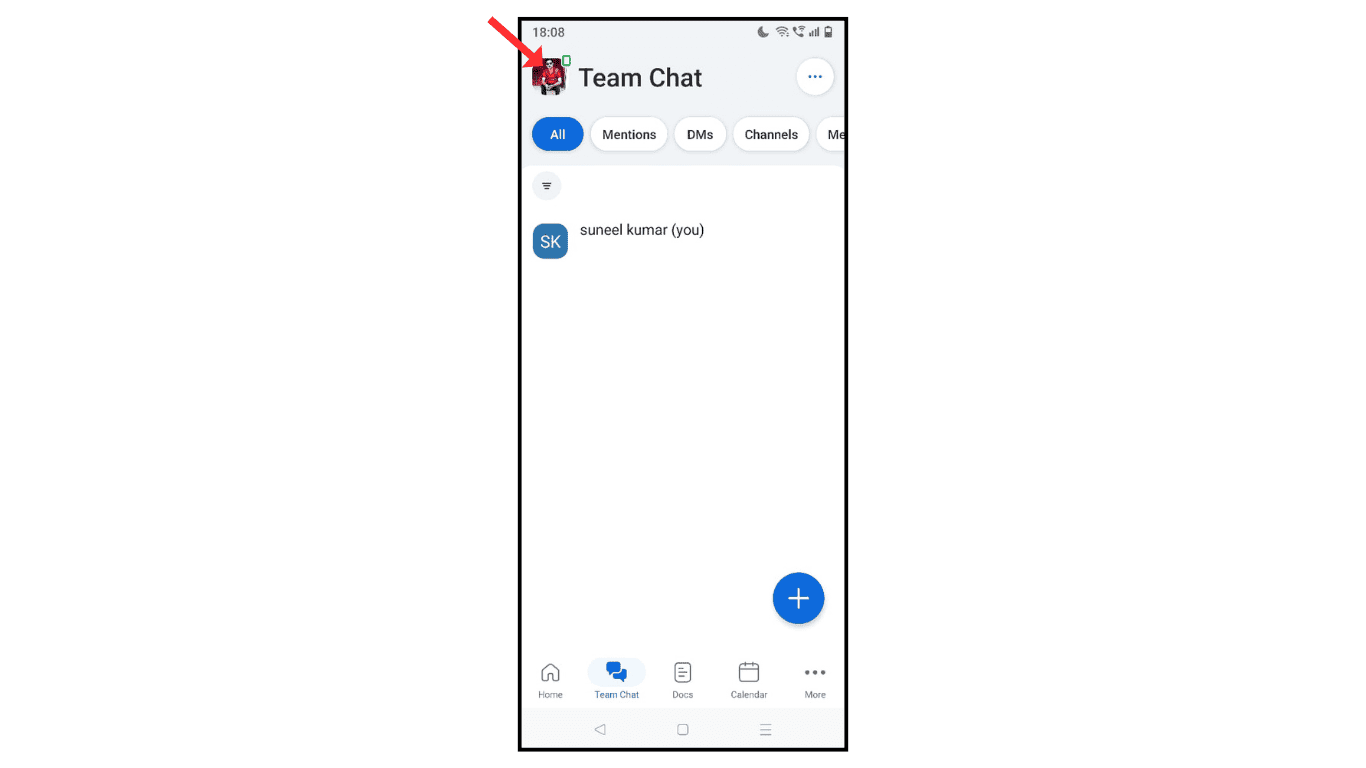
- Now, go to the settings.
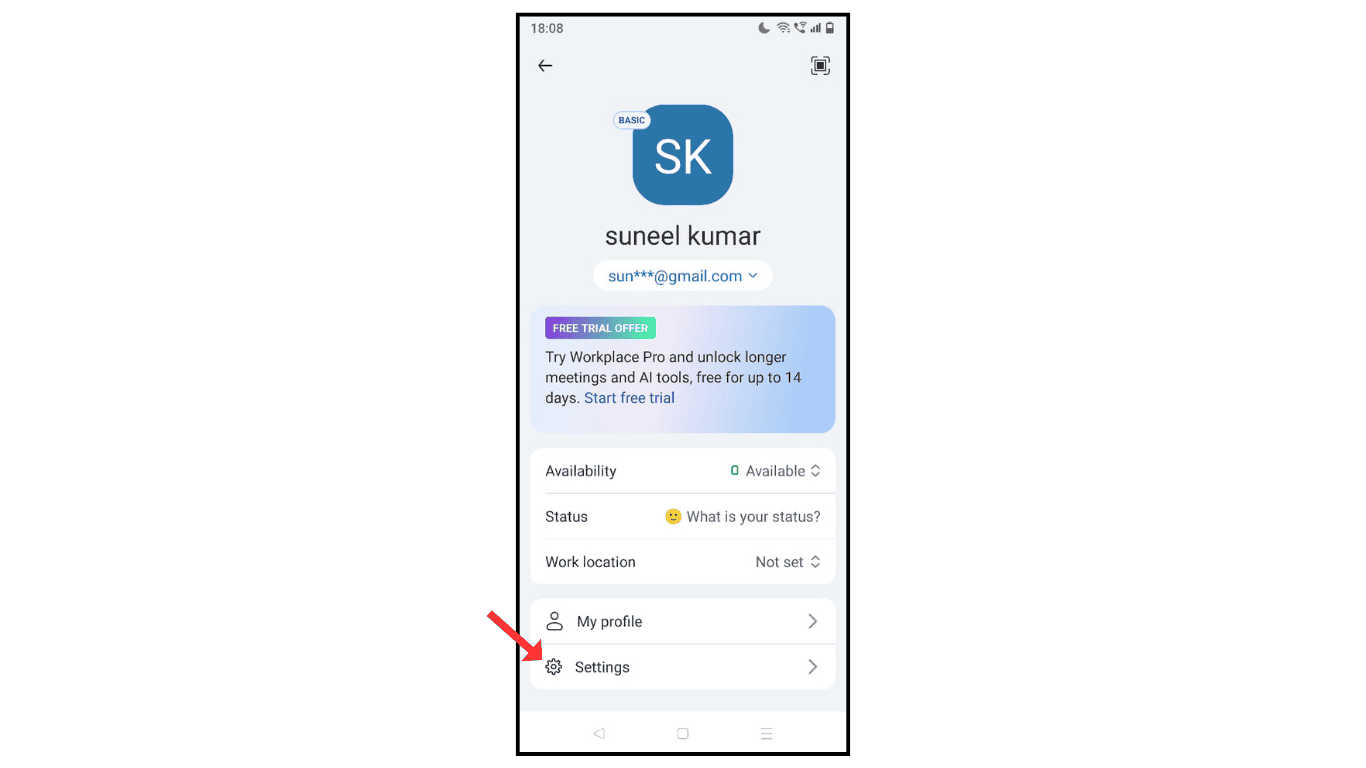
- Click on general settings.

- Tap on Manage Storage.
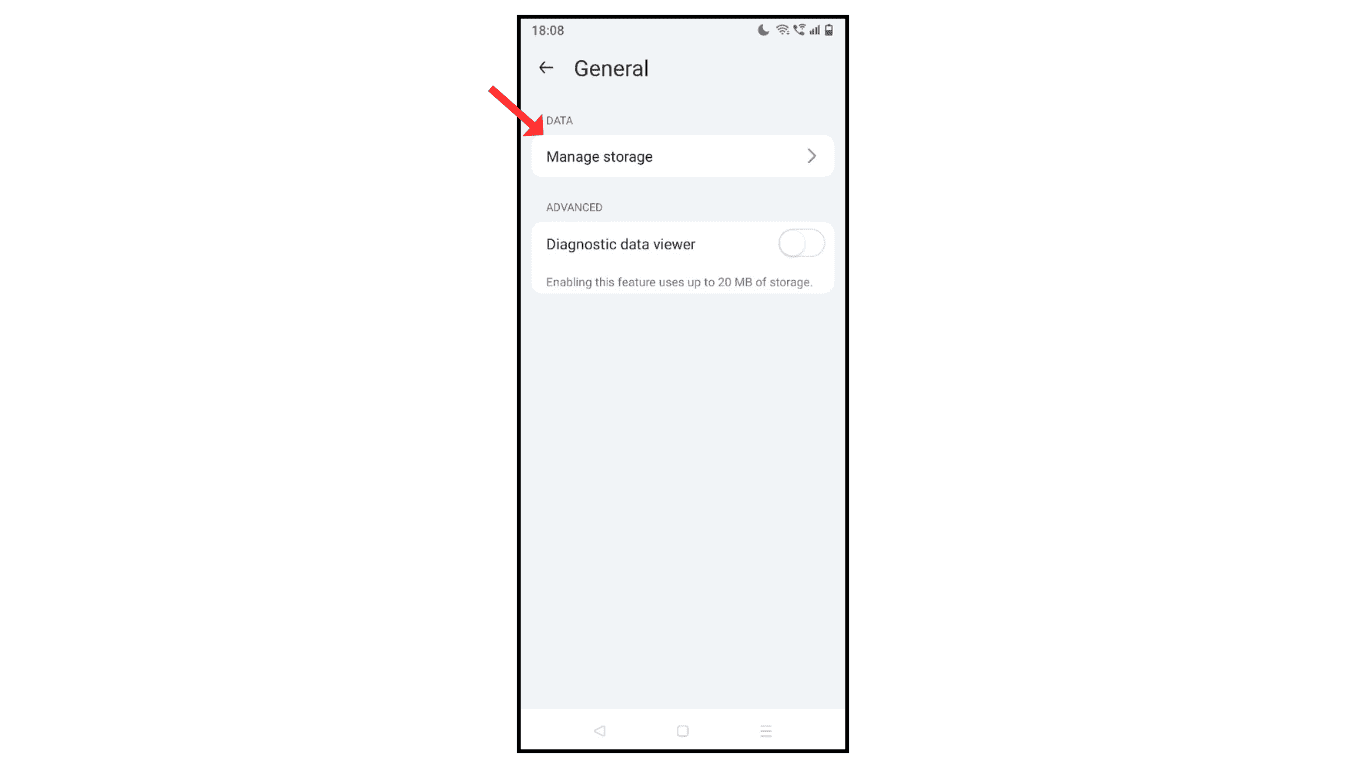
- Click on cache.

- Within seconds, it starts clearing the cache and removes all your Zoom meeting app caches.

Also Read: How To Create Account On Zoom Meeting
Conclusion:
I hope you have successfully learned about how to clear caches on your Zoom account on your phone.
If you have any questions or doubts about clearing caches on your Zoom account, you can contact me by email.
