
Scrolling past dozens of conversations to find the one you check most often wastes time you don’t need to spend.
Telegram lets you pin your most important chats to the top of your list. This guide walks through exactly how to pin a chat on Telegram in 2026.
Step 1: Open Your Chat List
- Open the Telegram app and go to your main chat list.
Step 2: Select the Chat You Want to Pin
- Find the specific chat, group, or channel you want to pin.
- Swipe right on the chat (or long-press, depending on your device).
Step 3: Choose Pin
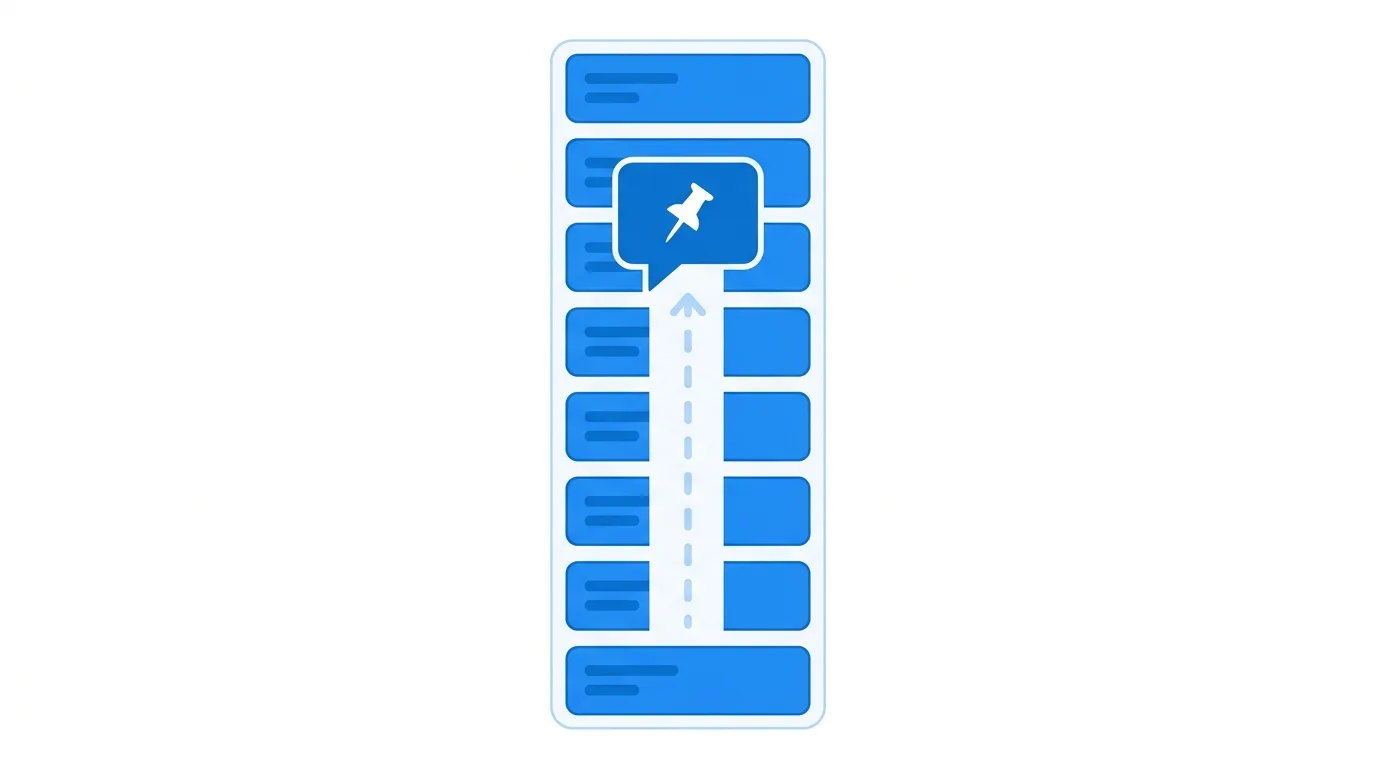
- Select Pin from the options that appear.
- The chat immediately moves to the top of your chat list, marked with a small pin icon.
How to Unpin a Chat
If you want to remove a chat from your pinned section, the process is just as simple.
- Swipe right or long-press on the pinned chat.
- Select Unpin.
How Many Chats Can You Pin?
Telegram allows pinning multiple chats, with the exact limit depending on your account type.
Action step: Standard accounts can typically pin up to 5 chats, while Telegram Premium subscribers get an increased limit — if you’re hitting the standard limit frequently, this is one of several features that might make Premium worth considering.
Reordering Your Pinned Chats
Once you have multiple chats pinned, you can rearrange their order to prioritize the most important ones.
Action step: Press and hold a pinned chat, then drag it to your preferred position within the pinned section, since the order you arrange them in determines how they display at the top of your chat list.
Using Folders Alongside Pinned Chats for Better Organization
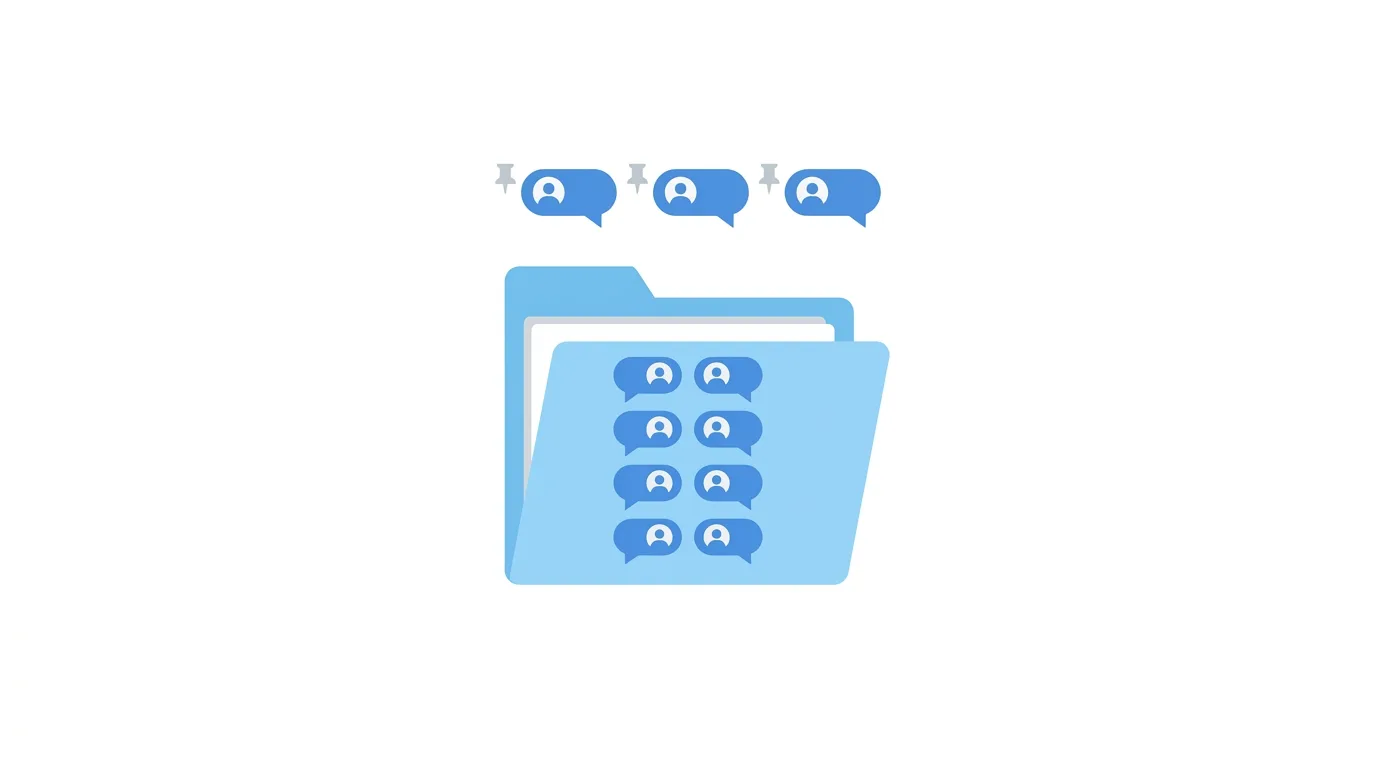
If pinning alone doesn’t fully solve your organization needs, Telegram’s Chat Folders feature can work alongside pinned chats for a more comprehensive system.
Action step: Combine pinned chats for your absolute top priorities with Chat Folders (organizing broader categories like Work, Family, or Channels) for a more scalable organization system, since folders can hold far more conversations than the pin limit allows while still keeping things categorized and easy to navigate.
Pinning Channels You Follow for News or Updates
Beyond personal conversations, many users pin specific channels they check regularly for news, updates, or content from creators they follow closely.
Action step: Consider pinning your most valuable news or content channels alongside personal chats, since this keeps your most important information sources visible at a glance without needing to search for them each time you open the app.
How Pin Behavior Differs Between Personal Chats and Groups
While the pinning mechanism works similarly across personal chats, groups, and channels, it’s worth noting they all share the same overall pin limit.
Action step: Be strategic about mixing personal chats, groups, and channels within your limited pin slots, since Telegram doesn’t offer separate pin allowances for each category — all pinned items count toward the same overall limit regardless of type.
How to Pin a Chat on Desktop
Prefer using Telegram Desktop? The process is slightly different but just as simple.
- Open Telegram Desktop and find the chat in your list.
- Right-click on the chat.
- Select Pin from the context menu.
Pinning Messages Within a Specific Chat

Beyond pinning entire chats to your main list, Telegram also allows pinning specific individual messages within a conversation, which is a separate feature worth understanding.
Action step: Use message pinning (accessed by long-pressing a specific message within a chat and selecting Pin) when you want to highlight important information within an ongoing conversation, distinct from pinning the entire chat to your main list.
Why Pin Chats or Channels
Common reasons include:
- Keeping frequently used group chats or channels easily accessible without scrolling
- Prioritizing important work or family conversations above less urgent ones
- Quickly accessing channels you check regularly for updates or news
Action step: Reserve your limited pin slots for genuinely high-priority, frequently accessed chats rather than pinning everything, since the value of pinning comes from creating a clear priority hierarchy, which gets diluted if too many chats are pinned simultaneously.
Does Pinning Affect Notifications?
Pinning a chat is purely an organizational feature and doesn’t change notification behavior for that conversation.
Action step: If you also want notification priority for a pinned chat, adjust its specific notification settings separately, since pinning alone only affects visual placement in your chat list, not how prominently you’re alerted to new messages.
Common Issues When Pinning Chats
Pin option not appearing?
Make sure you’re swiping in the correct direction or using the appropriate long-press gesture for your specific device and Telegram version.
Reached your pin limit?
Unpin a less important chat to make room, or consider whether Telegram Premium’s increased pin limit would better suit your usage if you consistently need more pinned conversations.
Pinned chats not staying in your preferred order?
Confirm you’re dragging chats specifically within the pinned section — attempting to reorder outside this designated area won’t produce the expected result.
How To Delete a Message for Everyone on WhatsApp (2026 Guide)
Final Thoughts
Pinning a chat on Telegram takes just a couple of taps and offers a simple, effective way to keep your most important conversations easily accessible without scrolling through your entire chat list. Use your available pin slots intentionally for genuinely high-priority conversations, and remember that pinning affects visual placement only, not notification behavior, which requires separate adjustment if that’s also a priority.
