
Whether a busy group chat keeps buzzing your phone, you want a quiet night, or you simply need fewer distractions, turning off notifications on Telegram takes just a few taps.
This guide walks through exactly how to turn off notifications on Telegram in 2026.
Why Turn Off Telegram Notifications?
Telegram is known for large groups, busy channels, and fast chats.
That means your phone can buzz all day long.
Turning off notifications can help you:
- Get uninterrupted sleep and quiet evenings.
- Focus on work or study.
- Silence noisy groups and channels without leaving them.
- Save a little battery by reducing alerts.
- Keep private messages from showing on your lock screen.
You do not have to turn everything off.
Telegram lets you choose exactly what to silence.
Mute One Chat, Group, or Channel
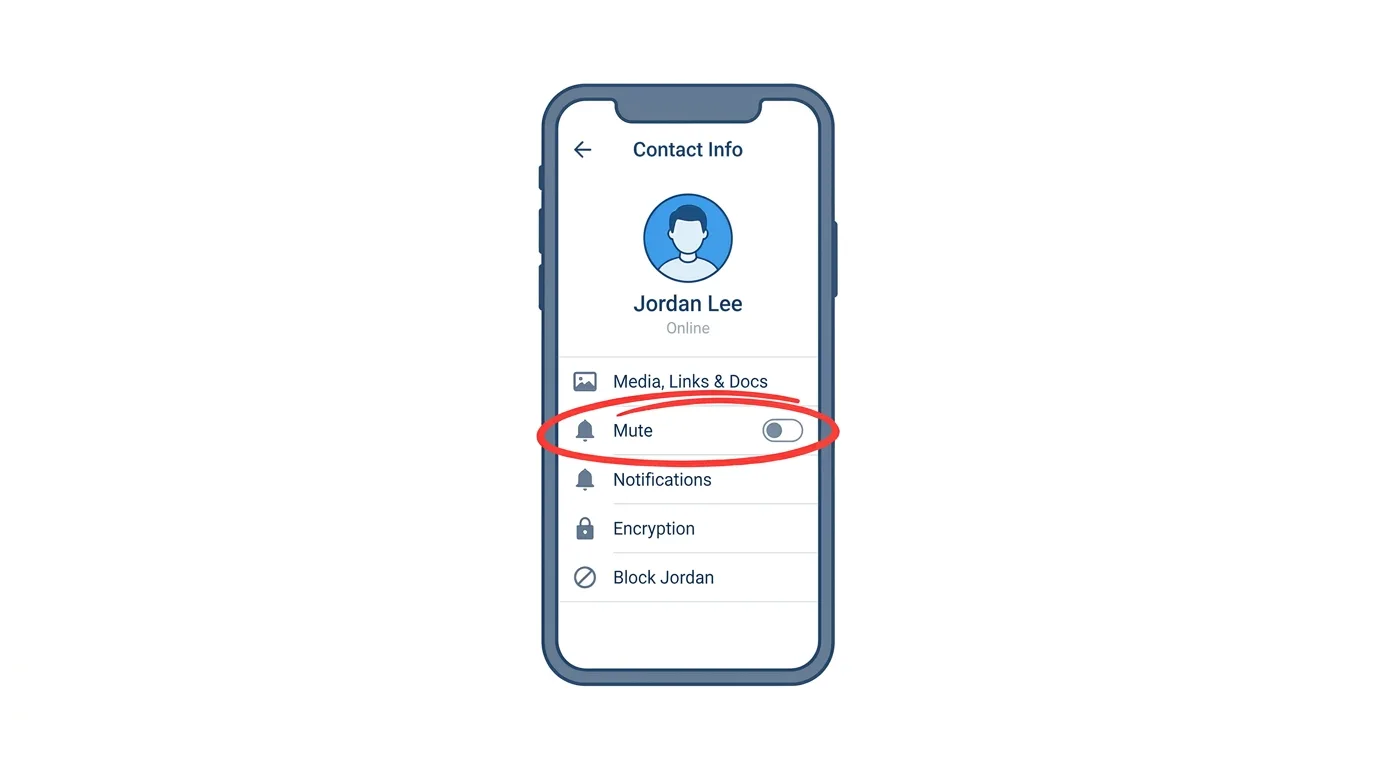
The most popular option is to mute a single chat.
You keep receiving messages, but your phone stays quiet.
On iPhone
- Open Telegram.
- Open the chat, group, or channel you want to mute.
- Tap its name at the top of the screen.
- Tap Mute.
- Choose how long you want it muted.
You will usually see options such as 1 hour, 8 hours, 2 days, or forever.
On Android
- Open Telegram.
- Open the chat, group, or channel.
- Tap the three-dot menu at the top right.
- Tap Mute notifications.
- Choose how long you want it muted.
Menu names can change slightly between app versions.
If your screen looks different, look for the word Mute.
Mute a Chat From Your Chat List
You can also mute without opening the chat.
On iPhone:
- Swipe left on the chat in your chat list.
- Tap Mute.
On Android:
- Press and hold the chat in your chat list.
- Tap the bell icon with a line through it at the top of the screen.
A small mute icon appears beside the chat name once it is muted.
Turn Off Notifications for All Private Chats, Groups, or Channels

Want a bigger change? You can switch off whole categories at once.
- Open Settings in Telegram.
- Tap Notifications and Sounds.
- Tap Private Chats, Groups, or Channels.
- Switch off the notifications or alert toggle.
You can do this for each category separately.
For example, you can silence groups and channels but keep private chats on.
Turn Off Message Previews
Previews show part of a message on your lock screen.
You can hide them and still get a ping.
- Open Settings, then Notifications and Sounds.
- Tap Private Chats, Groups, or Channels.
- Turn off Message Preview.
This is helpful for privacy when other people can see your phone.
Turn Off Notification Sounds
If the buzz is the problem, you can keep the alert but remove the noise.
- Open Settings, then Notifications and Sounds.
- Tap a category, such as Private Chats.
- Tap Sound and choose None.
You can also turn off vibration in the same area on some versions.
Turn Off the Red Badge Counter
The red number on your Telegram icon can be distracting.
Action step: Open Settings, then Notifications and Sounds, and look for Badge Counter or a similar option. Switch it off, or choose which chats count toward the badge. Your icon will look much cleaner.
How to Turn Off Telegram Notifications on Desktop

Prefer using your computer? Here’s the process:
- Open Telegram Desktop and log in.
- Click the three-line menu at the top left, then Settings.
- Click Notifications.
- Turn off Desktop notifications, or adjust the sound and badge options.
To mute one chat, right-click it in your chat list and choose Mute.
Turn Off Notifications Using Your Phone’s Settings
You can also block alerts at the phone level.
On iPhone:
- Open the iPhone Settings app.
- Tap Notifications, then Telegram.
- Switch off Allow Notifications.
On Android:
- Open the Settings app.
- Tap Apps, then Telegram, then Notifications.
- Switch off the notification toggle.
Action step: Use this method only if you want to silence Telegram completely, since you will miss all alerts, including important ones.
Use Do Not Disturb Instead
If you only want quiet for a while, you may not need to change Telegram at all.
Action step: Turn on your phone’s Do Not Disturb or Focus mode for sleep, work, or study. Telegram alerts will stay silent until the mode ends, and you do not have to change any Telegram settings.
Keep Notifications On for Important People
You can silence most chats but keep a few loud.
Action step: After turning off notifications for a whole category, open Settings, then Notifications and Sounds, and look for an Add an Exception or similar option. Add the chats or people you always want to hear from, such as family or your boss.
Mute a Group but Still See Mentions
Large groups are often the noisiest.
Action step: When you mute a group, check the notification options for that chat. Some versions let you keep alerts for mentions and replies while silencing everything else. This way you do not miss messages directed at you.
How to Turn Notifications Back On
Changed your mind? Switching back is simple.
- Open the chat you muted.
- Tap its name, or the three-dot menu on Android.
- Tap Unmute.
For whole categories, go to Settings, then Notifications and Sounds, and switch the toggle back on.
Does Muting a Chat Hide Messages?
No.
Action step: Know that muting only stops alerts. Your messages still arrive and stay in the chat. You will see an unread count, and you can read them any time.
Common Issues When Turning Off Notifications
Still getting notifications from a muted chat? Check that the chat shows the mute icon. Also check your phone’s own notification settings, since a separate setting may allow alerts.
Cannot find Mute? Open the chat and tap its name at the top, or use the three-dot menu on Android. Update the app if it is still missing.
Notifications not turning back on? Check both Telegram’s settings and your phone’s notification settings. Make sure Do Not Disturb is off.
Muted chats still showing a red badge? This is normal. Turn off the badge counter or choose to exclude muted chats from it.
Sound still playing? Check the sound option for that category and for the specific chat, then set it to None.
Settings not saving? Close and reopen the app, then try again.
WhatsApp Adds Parental Controls for Teen Accounts
Final Thoughts
Turning off notifications on Telegram takes just a few taps and gives you back your peace and quiet. Remember you can mute one chat, a whole category, or everything, and you can always turn alerts back on for the people who matter most.
