If you want to know how to turn on dark mode on Facebook, you will be glad to hear it takes less than a minute.
Facebook has a built-in dark theme for its phone apps and its website.
It swaps the bright white background for a dark one, which can be easier to read at night.
This guide shows you exactly where to find the setting, how to make it switch automatically, and what to do if it does not work.
What Does Facebook Dark Mode Do?
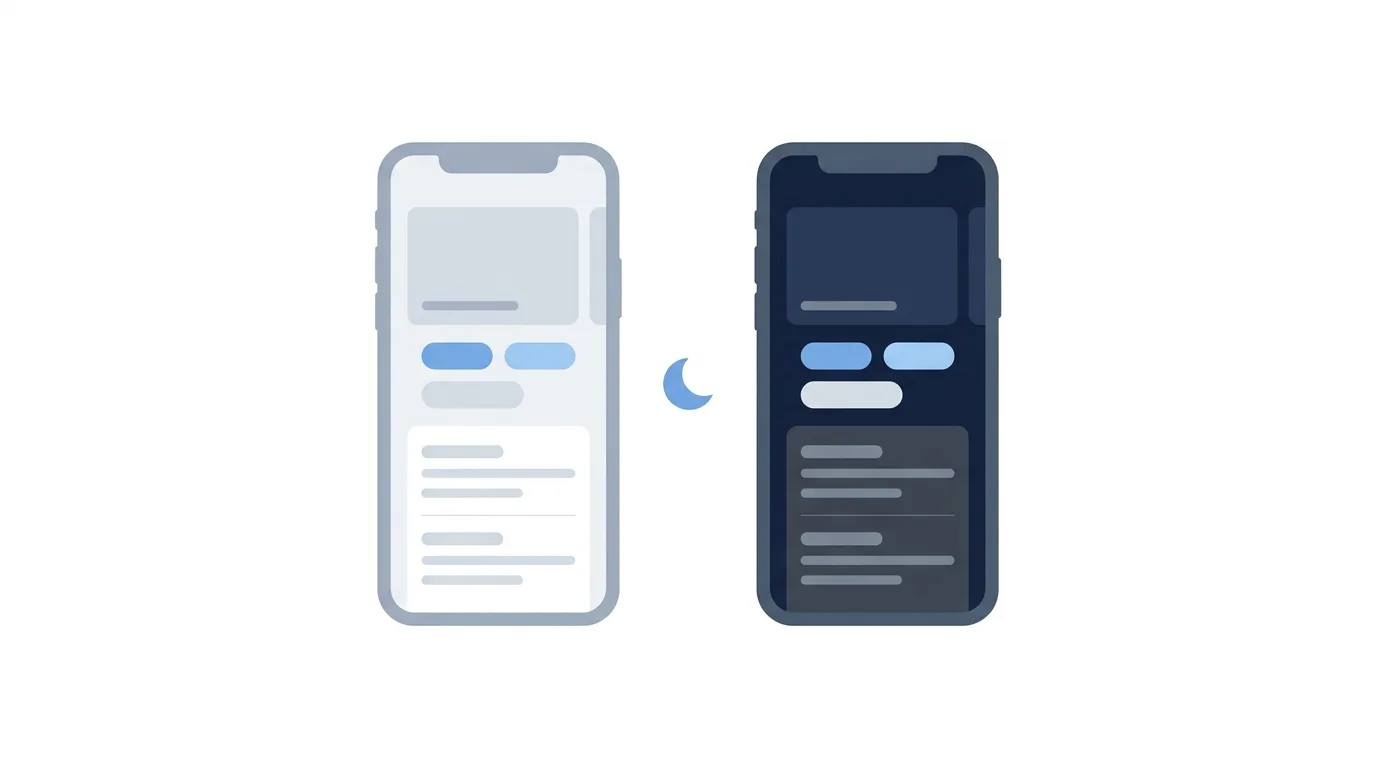
Dark mode changes the colors of the app, not your content.
The white background becomes dark gray or black, and text and icons become light.
It applies to your News Feed, profile, Messenger chats inside the app, menus, and settings.
Other people see your posts exactly the same way as before.
The change only affects how Facebook looks on your own screen.
Some content, such as photos, videos, and pages from other websites, may still look bright because it comes from outside Facebook.
Why Use Dark Mode on Facebook?
Many people switch for comfort.
A bright white screen can feel harsh in a dark room, so a darker theme can reduce glare.
On phones with OLED or AMOLED screens, dark pixels use less power, so you may also save a little battery.
Some people simply like the look.
Dark mode is free, and every user can turn it on.
What Do You Need Before You Start?
Have these ready:
- The latest version of the Facebook app, or a web browser.
- Your Facebook account logged in.
Updating the app first is a good idea, because older versions may have a different menu.
Menu names can change slightly between versions, so look for the words Dark mode if your screen looks different.
How to Turn On Dark Mode on Facebook for iPhone and Android
Follow these steps on your phone.
- Open the Facebook app.
- Tap the menu icon (three lines) to open the main menu. On iPhone it sits at the bottom right, and on Android it sits at the top right.
- Scroll down and tap Settings and privacy.
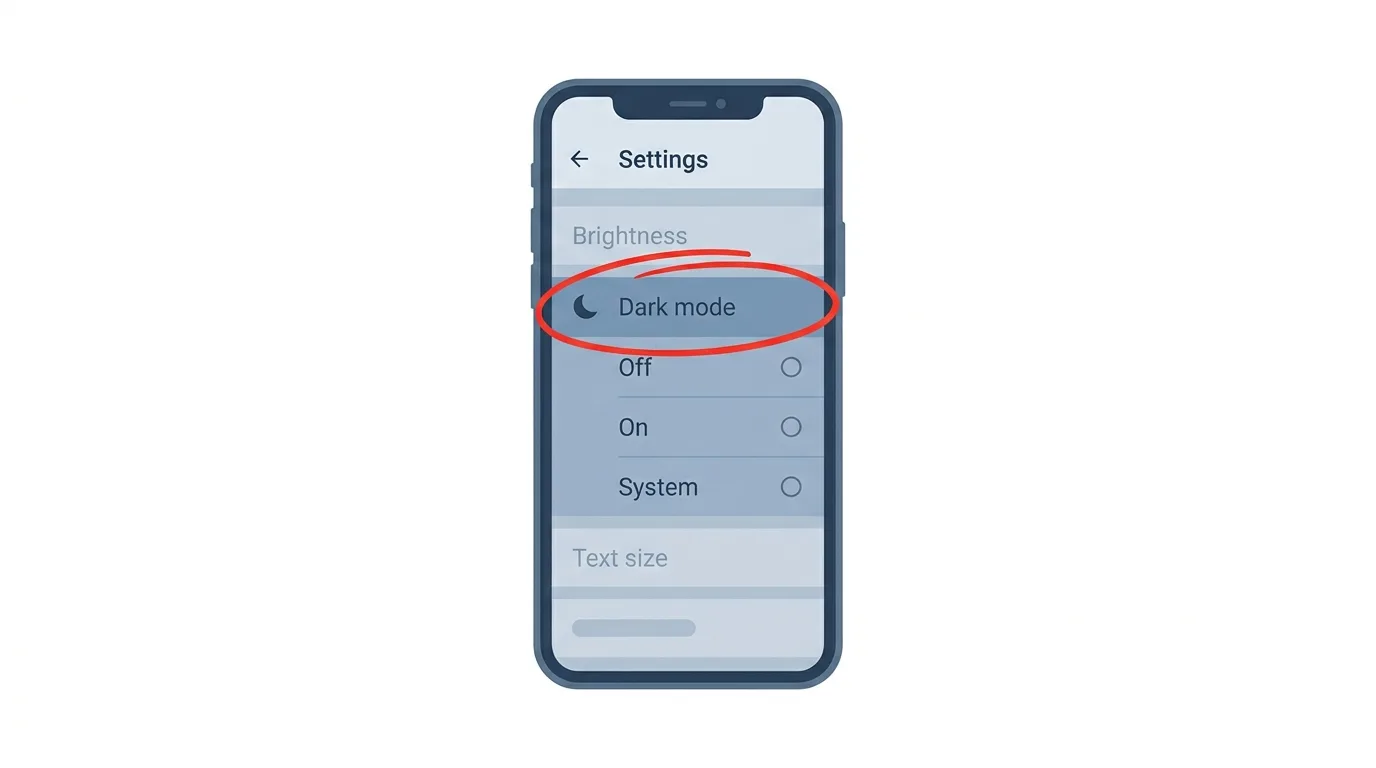
- Tap Dark mode.
- Choose On to keep Facebook dark all the time.
The app changes right away, with no restart needed.
You will usually see three choices on this screen.
Off keeps Facebook bright.
On keeps Facebook dark.
Use system settings follows your phone’s own light or dark setting.
How to Turn On Dark Mode on Facebook Desktop
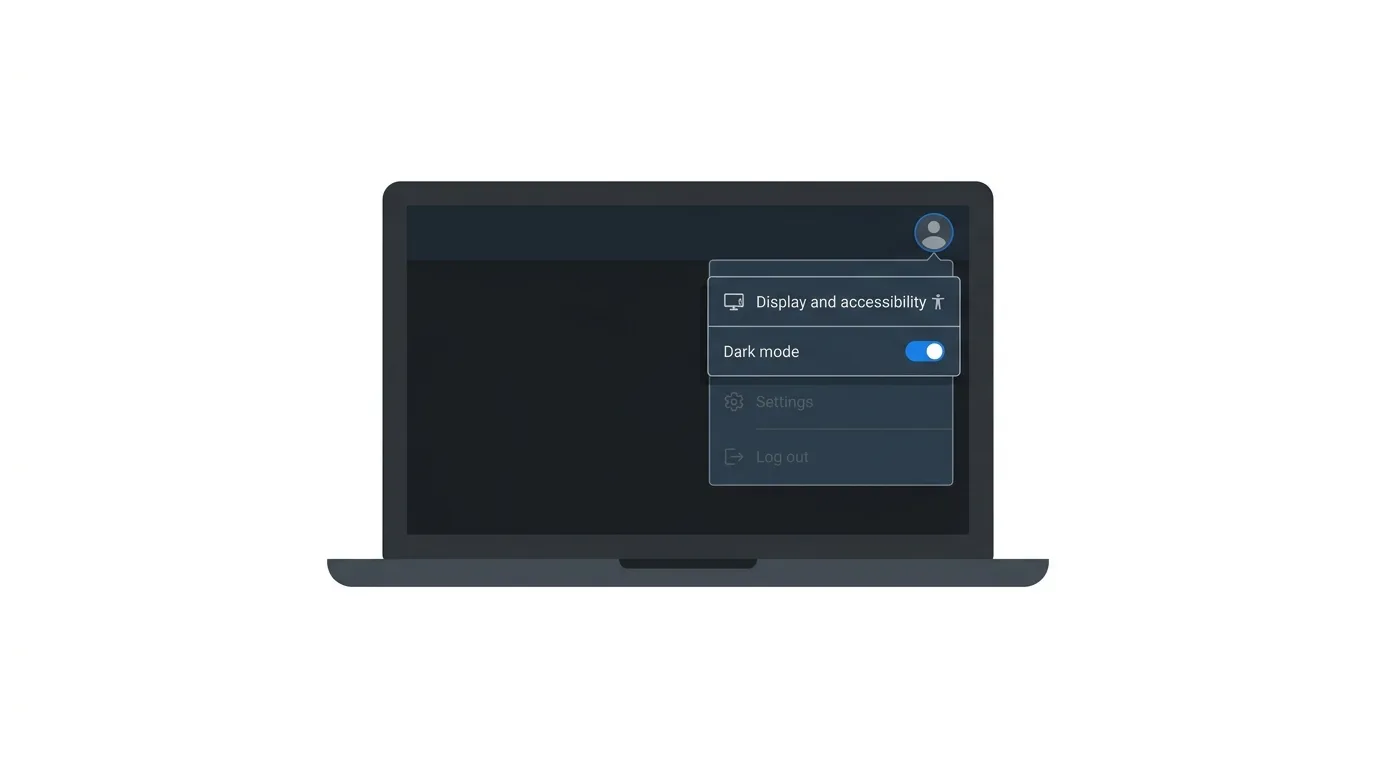
You can also use dark mode in your browser.
- Go to facebook.com and log in.
- Click your profile picture at the top right of the page.
- Click Display and accessibility.
- Click Dark mode.
- Choose On, or choose Automatic to match your computer.
The page turns dark immediately.
Your choice is saved to your account, so you may not need to repeat it, though it can vary by device.
How to Make Facebook Switch Automatically
If you would rather not change the theme by hand, let your device do it.
On the phone, choose Use system settings in the Dark mode menu.
On desktop, choose Automatic.
Facebook will then match your device and switch whenever your phone or computer changes theme.
You can set your phone to switch themes on a schedule.
On iPhone, open Settings, then Display and Brightness, and turn on Automatic.
On Android, look for a Schedule option inside your dark theme settings.
With both in place, Facebook turns dark in the evening and light again in the morning.
How to Turn On Dark Mode on Messenger
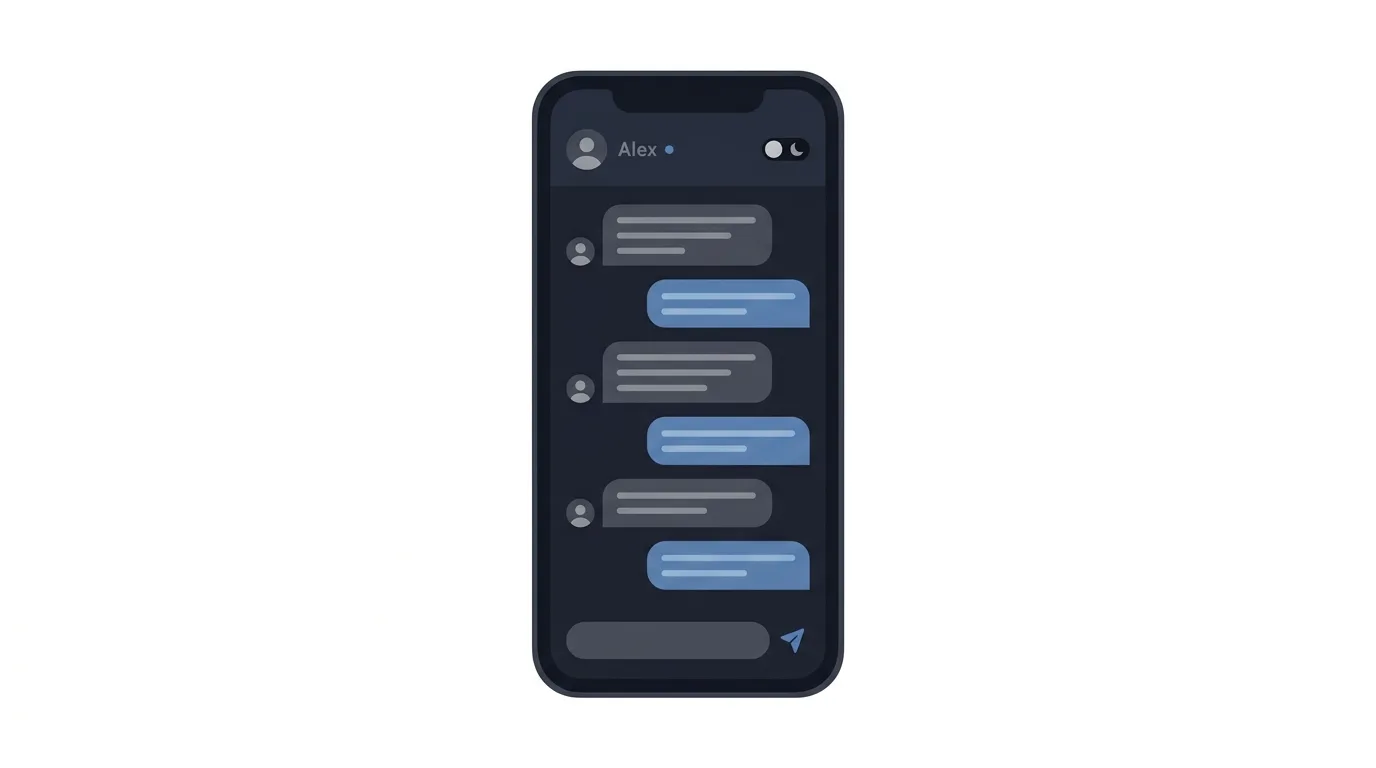
Messenger has its own appearance setting.
Open Messenger, tap your profile picture, and look for Dark mode or Appearance.
Choose On, Off, or System.
If you use Messenger on the web, open the menu and look for the same option.
Remember that Facebook’s dark mode and Messenger’s dark mode may be separate switches, so check both.
Does Dark Mode Save Battery?
Sometimes, but the savings are usually small.
On OLED and AMOLED screens, black pixels are turned off, so the screen uses less power.
On older LCD screens, the backlight stays on whatever the theme, so the difference is tiny.
Your screen brightness matters much more than your theme.
If battery life is your goal, lower the brightness as well as turning on dark mode.
Is Dark Mode Better for Your Eyes?
Many people find dark mode more comfortable in dim light.
However, research on whether it truly protects your eyes is mixed.
Dark mode reduces glare, but it does not prevent eye strain on its own.
Long scrolling sessions can tire your eyes in any theme.
Take breaks, keep your brightness at a comfortable level, and use whichever theme feels better to you.
How to Switch Back to Light Mode
Changed your mind? Switching back is just as simple.
On the phone, open Settings and privacy, tap Dark mode, and choose Off.
On desktop, click your profile picture, then Display and accessibility, then Dark mode, and choose Off.
Tips for Page Owners and Creators
If you manage a Facebook Page or create content, remember that your followers may use either theme.
Check that your logo, cover photo, and text graphics look good on both light and dark backgrounds.
Avoid dark text on a transparent background, because it can vanish in dark mode.
Use clear contrast, simple colors, and readable fonts.
It helps to view your Page in both themes before you publish an important post.
Troubleshooting: Dark Mode Not Working
If the theme will not change, try these quick fixes:
- Update the app. An older version may not include the Dark mode option.
- Check the system setting. If Use system settings is selected, your phone’s theme controls Facebook.
- Restart Facebook. Close the app completely and open it again.
- Log out and back in. This clears many small display glitches.
- Refresh the page on desktop. Try a different browser if the option is missing.
- Look in another menu. On some versions, the setting sits under Settings or Display and accessibility.
If a few screens still look bright, that is normal.
Web pages, ads, and images load from other sources and may not follow your theme.
Frequently Asked Questions
Does Facebook have a dark mode?
Yes.
Facebook offers a dark theme on its iPhone and Android apps and on the desktop website.
Where is the dark mode setting on Facebook?
On a phone, it is under Settings and privacy, then Dark mode.
On desktop, it is under your profile picture, then Display and accessibility.
Is Facebook dark mode free?
Yes.
Every user can turn it on at no cost.
Can Facebook follow my phone’s dark mode?
Yes.
Choose Use system settings on the phone or Automatic on desktop.
Will dark mode change how my posts look to others?
No.
It only changes the look of Facebook on your own screen.
Does dark mode work in Messenger?
Messenger has its own setting, so open Messenger and choose Dark mode there as well.
Why does Facebook keep switching back to light mode?
Your setting may be on Use system settings, so your device is in control.
Choose On to keep Facebook dark all the time.
Bluesky Adds Profile Links and iPad Beta Support (2026 News)
Final Thoughts
Turning on dark mode on Facebook takes only a few taps and makes late-night scrolling more comfortable. Choose On to keep it dark, or the system option to let your device decide. If you do not see the setting, update the app and check the menu again
