Your Telegram account is protected by more than just a password.
By default, anyone who gets your SMS verification code can log into your account from a new device. That’s all it takes.
Two-step verification closes that gap. It adds a second password that only you know, and no SIM swap or intercepted text message can bypass it.
This guide shows you exactly how to turn on two-step verification on Telegram, step by step, on both mobile and desktop.
Why Telegram’s Default Login Isn’t Enough
Telegram normally logs you in using a code sent by SMS or by a message from the official Telegram account on another device you’re logged into.
That’s convenient, but it has a weak point.
If someone steals your phone number through a SIM swap, or if they get temporary access to your messages another way, they can request that code and walk straight into your account.
Two-step verification adds a password requirement on top of that code. Even with your SMS code in hand, an attacker can’t get in without also knowing your password.
How to Turn On Two-Step Verification on Telegram (Android)
Step 1. Open the Telegram app.
Step 2. Tap the three horizontal lines in the top left corner to open the menu.
Step 3. Tap Settings.
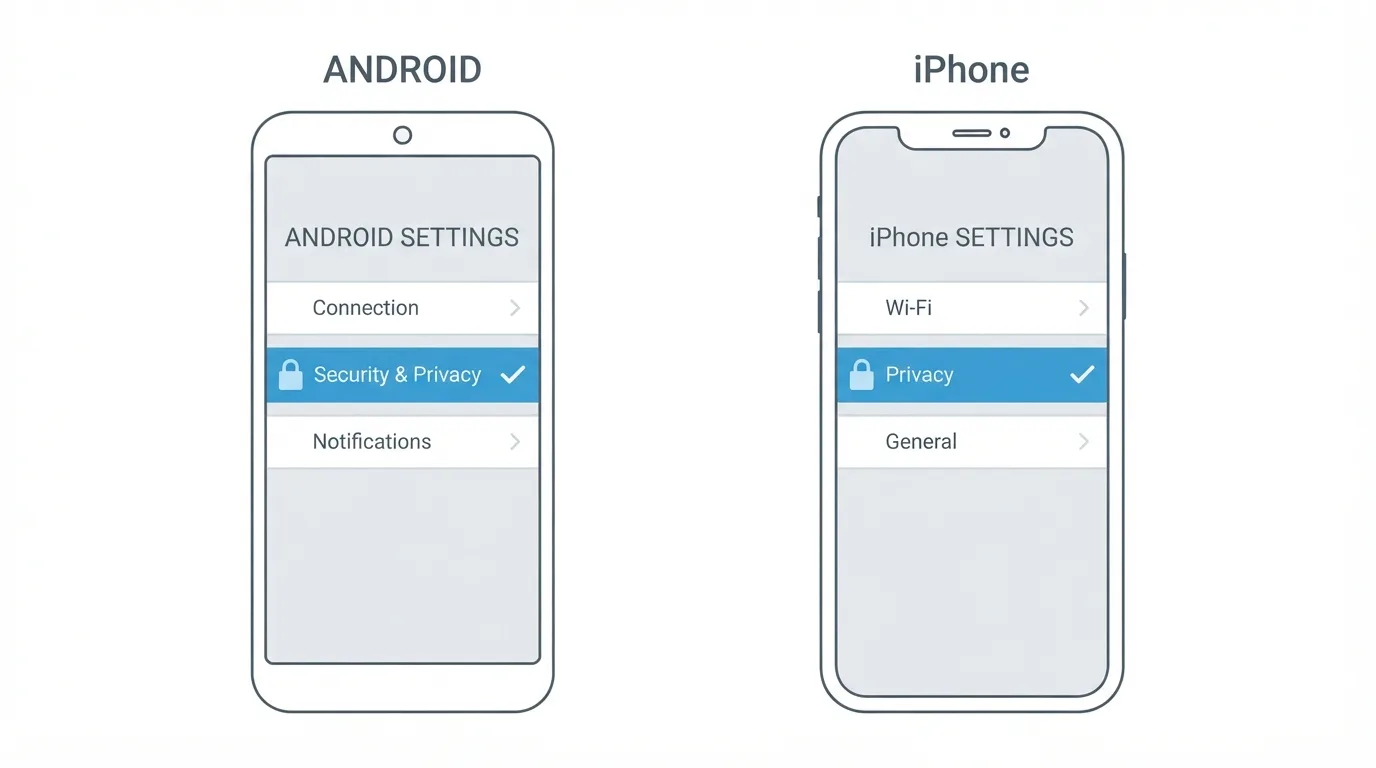
Step 4. Tap Privacy and Security.
Step 5. Scroll down and tap Two-Step Verification.
Step 6. Tap Set Password.
Step 7. Enter a password, then enter it again to confirm.
Step 8. Add a recovery email address when prompted, then confirm it with the code Telegram sends.
Once the email is confirmed, two-step verification is active on your account.
How to Turn On Two-Step Verification on Telegram (iPhone)
Step 1. Open Telegram on your iPhone.
Step 2. Tap Settings in the bottom right corner.
Step 3. Tap Privacy and Security.
Step 4. Tap Two-Step Verification.
Step 5. Tap Set Password.
Step 6. Type your password twice to confirm it.
Step 7. Enter a recovery email and confirm it using the code Telegram emails you.
The steps and menu wording are nearly identical to Android, since Telegram keeps its settings consistent across platforms.
How to Turn On Two-Step Verification on Telegram Desktop
Step 1. Open Telegram Desktop on your computer.
Step 2. Click the three-line menu icon in the top left corner.
Step 3. Click Settings.
Step 4. Click Privacy and Security in the left sidebar.
Step 5. Click Two-Step Verification.
Step 6. Click Set Additional Password and follow the same password and email confirmation steps as mobile.
This setting is tied to your account, not your device. Once it’s set, it applies everywhere you log into Telegram, on any phone or computer.
Choosing a Strong Password
Telegram lets you use any combination of letters, numbers, and symbols for this password.
Avoid reusing your email password or any password tied to another important account.
A good approach is a random passphrase of at least four unrelated words, or a password generated by a password manager.
Since this password is the only thing standing between an attacker and your account once they have your SMS code, treat it the same way you’d treat a banking password.
Why the Recovery Email Matters
Telegram will ask for a recovery email when you set your two-step password. Don’t skip this.
If you ever forget your two-step password, the recovery email is the only official way to reset it.
Without a confirmed recovery email, forgetting your password can mean losing access to your account permanently, since Telegram has no customer support line that can manually reset it for you.
Make sure the recovery email itself is secured with a strong password and its own two-factor authentication.

Adding a Hint (Optional but Useful)
After you set your password, Telegram gives you the option to add a hint.
This hint is shown to you, not to anyone trying to log in, so it’s meant to jog your memory if you forget the password months later.
Keep the hint vague enough that a stranger couldn’t guess your password from it, but specific enough that it means something to you.
You can skip this step entirely if you’re confident you’ll remember your password or if you’re using a password manager to store it.
What Happens the Next Time You Log In
Once two-step verification is active, logging into Telegram on a new device works differently.
Telegram still sends the usual login code by SMS or through the app.
After you enter that code, Telegram will now also ask for your two-step password before letting you in.
Only after both the code and the password are entered correctly will the login succeed.
Changing or Removing Your Password Later
You can update your two-step password at any time.
Go back to Settings → Privacy and Security → Two-Step Verification, then choose Change Password.
You’ll need to enter your current password first before setting a new one.
If you ever want to turn the feature off completely, the same menu has a Turn Password Off option, though this is not recommended if you value account security.
Troubleshooting: Forgot Your Password
If you forget your two-step password and have a confirmed recovery email, tap Forgot Password on the login screen.
Telegram will send a reset link to that email.
If you never set a recovery email and you forget the password, Telegram gives you the option to reset your account after a waiting period, but this permanently deletes your existing chats, contacts, and settings.
This is exactly why setting a recovery email at the start is so important.
YouTube Introduces AI-Generated Chapters for Every Video in 2026
Final Thoughts
Two-step verification takes about two minutes to set up and closes one of the biggest security gaps in messaging apps: SMS interception.
Once it’s on, your Telegram account needs both something you have, your phone, and something you know, your password, before anyone can log in.
Set a strong password, confirm your recovery email, and you’ve meaningfully raised the bar against anyone trying to get into your account.
