Sent something to the wrong chat, spotted a typo that changes the meaning, or simply want to retract a message? WhatsApp lets you remove it from everyone’s view, not just your own.
This guide walks through exactly how to delete a message for everyone on WhatsApp in 2026.
Step 1: Open the Conversation
- Open WhatsApp and go to the chat containing the message you want to delete.
Step 2: Select the Message
- Press and hold the specific message you want to delete.
- A menu or toolbar will appear with several options.
Step 3: Choose Delete
- Tap the trash/delete icon or select Delete from the menu.
- You’ll be presented with options depending on the message and timing.
Step 4: Select “Delete for Everyone”
- Choose Delete for Everyone from the available options.
- Confirm the action.
The message will be removed from the chat for all participants, replaced with a notice indicating a message was deleted.
Understanding the Time Limit for This Feature
“Delete for Everyone” isn’t available indefinitely after sending a message.
Action step: Act quickly if you need to delete a message for everyone, since WhatsApp imposes a time limit (typically around 2 days, though this has been adjusted over time) after which this option is no longer available, leaving you only the “Delete for Me” option instead.
Deleting Media Messages Specifically
Photos, videos, and voice messages follow the same deletion process as text messages, though it’s worth understanding a few nuances specific to media.
Action step: Delete media messages just as promptly as text if you need to retract them, since the same time window restrictions apply, and media content — particularly photos or videos — often carries more sensitivity than a simple text message might.
Deleting Multiple Messages at Once
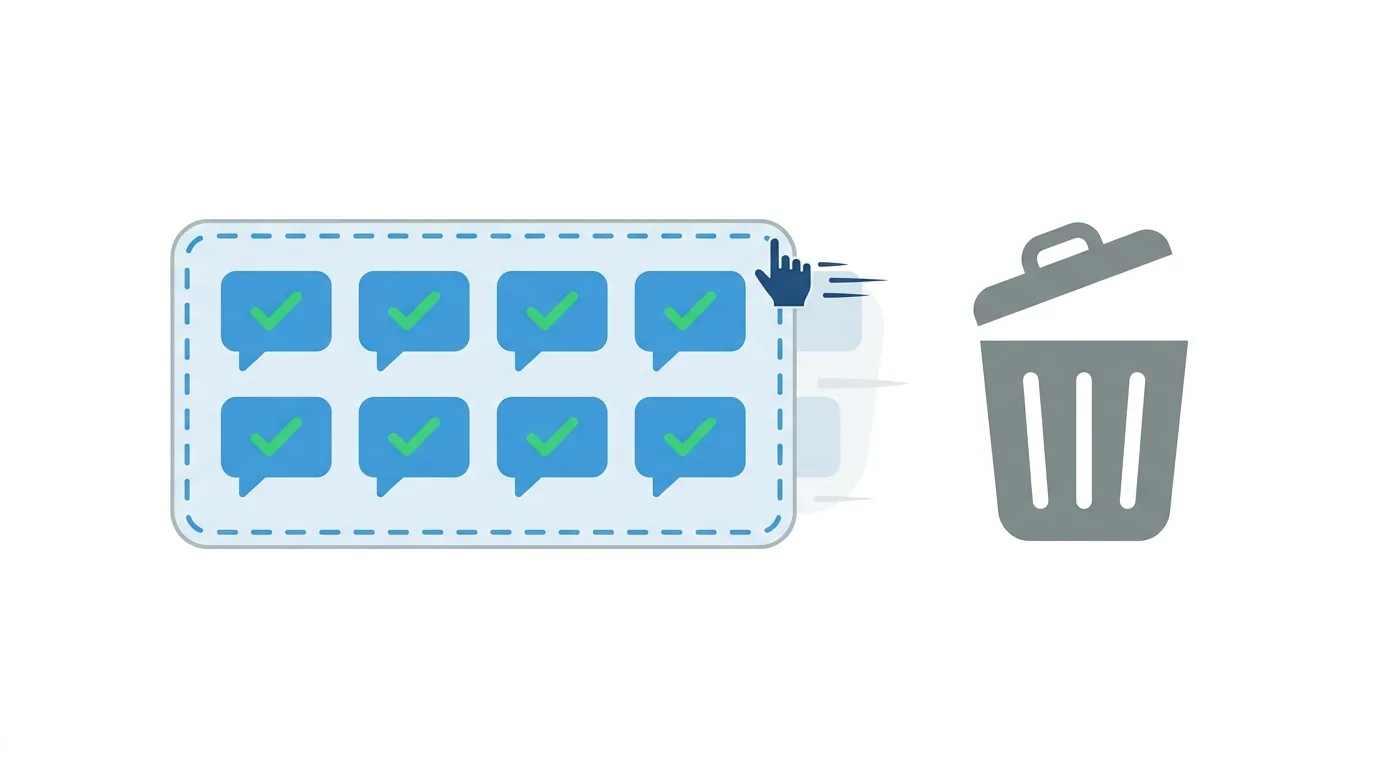
If you need to remove several messages simultaneously, WhatsApp supports bulk selection rather than requiring you to delete each one individually.
Action step: Press and hold your first message, then tap additional messages to select multiple at once before choosing your delete option, since this saves considerable time compared to repeating the single-message deletion process for each item you want to remove.
How This Feature Works on WhatsApp Business Accounts
Business accounts follow the same deletion rules and time limits as standard personal accounts, without additional extended windows for business use.
Action step: Businesses should be especially mindful of the time-limited deletion window, since customer-facing messages sent in error need prompt correction, and the same standard time restrictions apply regardless of account type.
Delete for Everyone vs. Delete for Me

WhatsApp offers two distinct deletion options, serving different purposes.
Delete for Everyone removes the message from all participants’ devices, within the applicable time window.
Delete for Me only removes the message from your own device, while it remains visible to everyone else in the conversation.
Action step: Choose “Delete for Everyone” specifically when you want the message gone from the entire conversation, and “Delete for Me” only when you’re simply cleaning up your own chat view without needing to affect what others see.
Does the Other Person Know You Deleted a Message?
Yes, when you use “Delete for Everyone,” the recipient sees a placeholder notice indicating that a message was deleted, even though they can’t see the original content.
Action step: Understand that deletion isn’t invisible — the other person will know something was removed, even if they can’t see what it originally said, so this feature doesn’t provide completely undetectable message removal.
What Happens If Someone Already Saw the Message?
If the recipient already read the message before you delete it, the deletion still removes it from their chat view, but they may have already seen the content.
Action step: Understand that “Delete for Everyone” prevents future visibility but can’t un-see content someone has already read — this feature works best for catching mistakes quickly, not as a guaranteed way to prevent someone from having seen something already.
Can You Delete Messages in Group Chats the Same Way?
Yes, “Delete for Everyone” works within group chats using the same process, removing the message for all group members.
Action step: Be aware that in larger groups, more people will see the “message deleted” placeholder, which can sometimes draw more attention to the fact something was removed compared to a smaller one-on-one conversation.
Can You Delete a Message After the Time Limit Expires?
Once the time window for “Delete for Everyone” has passed, your only remaining option is “Delete for Me,” which doesn’t remove the message from other participants’ devices.
Action step: If you’ve missed the window and the message contains genuinely sensitive information, consider directly asking the recipient to delete it on their end as well, since WhatsApp doesn’t offer a way to force removal from someone else’s device after the deletion window has closed.
Common Issues When Deleting Messages
“Delete for Everyone” option not appearing?
Check whether you’re still within the time limit — this option automatically disappears from the menu once too much time has passed since sending.
Message still showing on the recipient’s device after deletion?
There can be a brief delay in syncing the deletion, particularly if the recipient’s device was offline when you initiated the delete — it should update once their app reconnects and syncs.
Accidentally deleted the wrong message?
Unfortunately, WhatsApp doesn’t offer an undo feature for deleted messages — double-check you’ve selected the correct message before confirming deletion.
Instagram Adds AI-Powered Auto-Dubbing for Reels in 2026
Final Thoughts
Deleting a message for everyone on WhatsApp takes just a few taps, but remember it’s time-limited and doesn’t guarantee the recipient hasn’t already seen the content if they were quick to read it. Act promptly if you need to retract something, and understand that the other person will still see a notice that a message was deleted, even without visibility into the original content.
