
Whether a group no longer interests you, has become too noisy, or you’re simply cleaning up your notifications, leaving a Facebook Group takes just a few taps.
This guide walks through exactly how to leave a Facebook group in 2026.
Step 1: Go to the Group
- Open the Facebook app and navigate to the specific Group you want to leave.
Step 2: Access Group Options
- Tap the three-dot menu near the top of the group page.
- Look for Leave Group or Group settings among the options.
Step 3: Confirm You Want to Leave
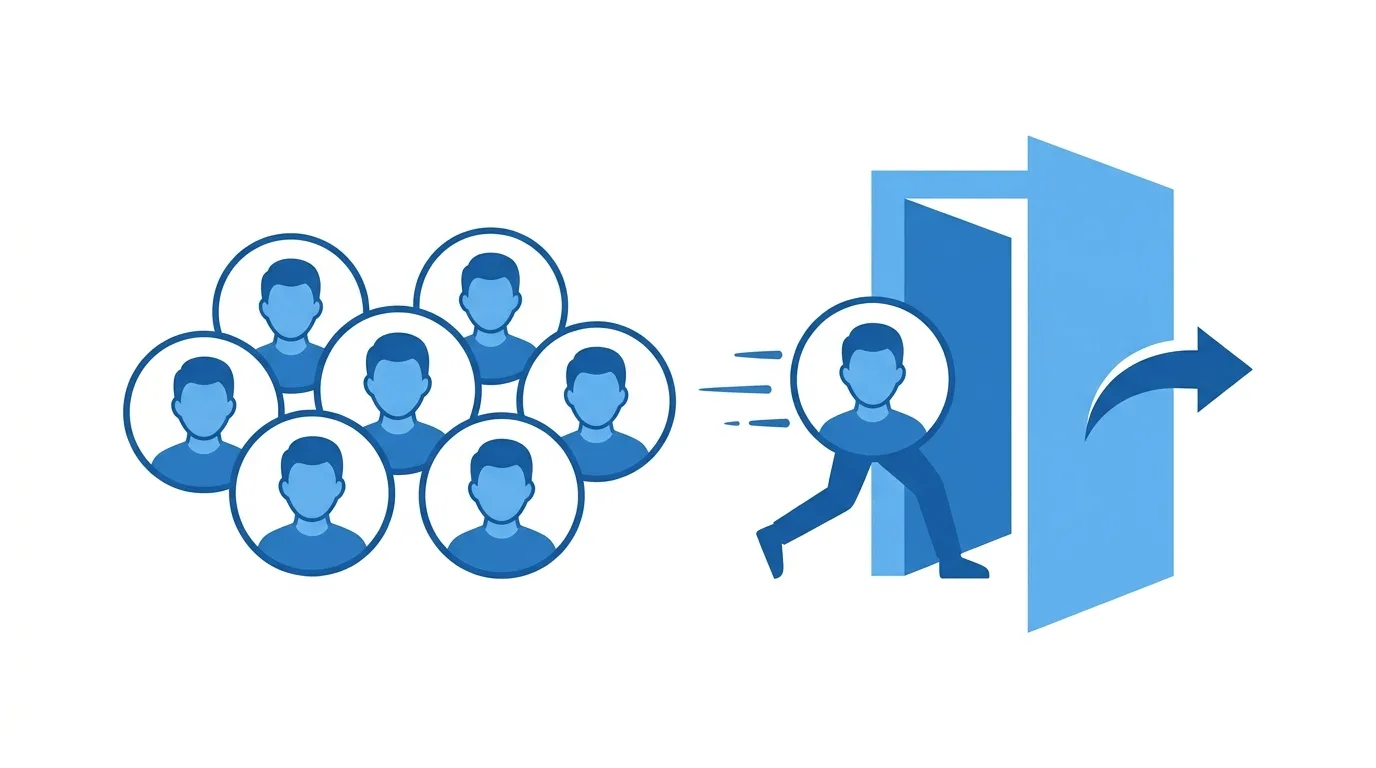
- Tap Leave Group.
- Facebook will typically ask you to confirm this action.
- Confirm to complete the process.
Once confirmed, you’re immediately removed from the group and will no longer see its posts in your feed.
Leaving Multiple Groups Efficiently
If you’re doing a broader cleanup and want to leave several groups at once, Facebook doesn’t offer a native bulk-leave feature, requiring some manual effort.
Action step: Use your Account Center or main Groups tab to review your full list of joined groups systematically, working through them one at a time rather than trying to locate and leave each group individually from scattered points across the app.
Considering Why You’re Leaving Before Deciding
Understanding your actual motivation can help determine whether leaving, muting, or adjusting notification settings better serves your needs.
Action step: If your frustration is specifically about notification volume rather than the group’s content itself, adjusting notification settings for that specific group might solve the underlying problem without requiring you to fully disconnect from a community you might still value for its actual content.
How This Affects Groups You’ve Been Removed From vs. Groups You Leave Voluntarily
It’s worth distinguishing between voluntarily leaving and being removed by an admin, since these have different implications for potential future access.
Action step: Understand that voluntarily leaving generally preserves your ability to rejoin later (subject to the group’s privacy settings), while being removed by an admin may come with restrictions on rejoining, depending on how that specific admin action was configured.
How to Leave a Group on Desktop
Prefer using a browser? Here’s the process:
- Go to Facebook.com and navigate to the specific Group.
- Click the three-dot menu near the group’s cover photo.
- Select Leave Group and confirm.
Does Leaving a Group Notify Other Members?
No, Facebook doesn’t send a notification to other group members or admins specifically announcing that you’ve left.
Action step: Understand that leaving is a discreet action — while your name will simply no longer appear in the member list, there’s no explicit “so-and-so left the group” announcement broadcast to the remaining members.
What Happens to Your Past Posts and Comments in the Group?
Leaving a group doesn’t automatically delete content you’ve previously posted or commented on within that group.
Action step: If you want your specific posts or comments removed, delete them individually before leaving, since your past contributions typically remain visible to current group members even after you’ve left, unless you’ve removed them yourself beforehand.
Can You Rejoin a Group After Leaving?
Yes, in most cases you can rejoin a group later, though the process depends on the group’s privacy settings.
Action step: For public groups, rejoining is usually as simple as clicking “Join Group” again — for private or closed groups, you may need to submit a new join request and wait for admin approval, similar to the original joining process.
How to Leave a Group Without Members Noticing (Privacy Considerations)
Some users specifically want to leave discreetly, particularly for sensitive groups (support groups, groups tied to a past relationship or life situation).
Action step: Since Facebook doesn’t broadcast departures, simply following the standard leave process described above already provides reasonable discretion — there’s no additional “stealth mode” required, as departures aren’t announced by default regardless of how you leave.
Leaving vs. Muting a Group
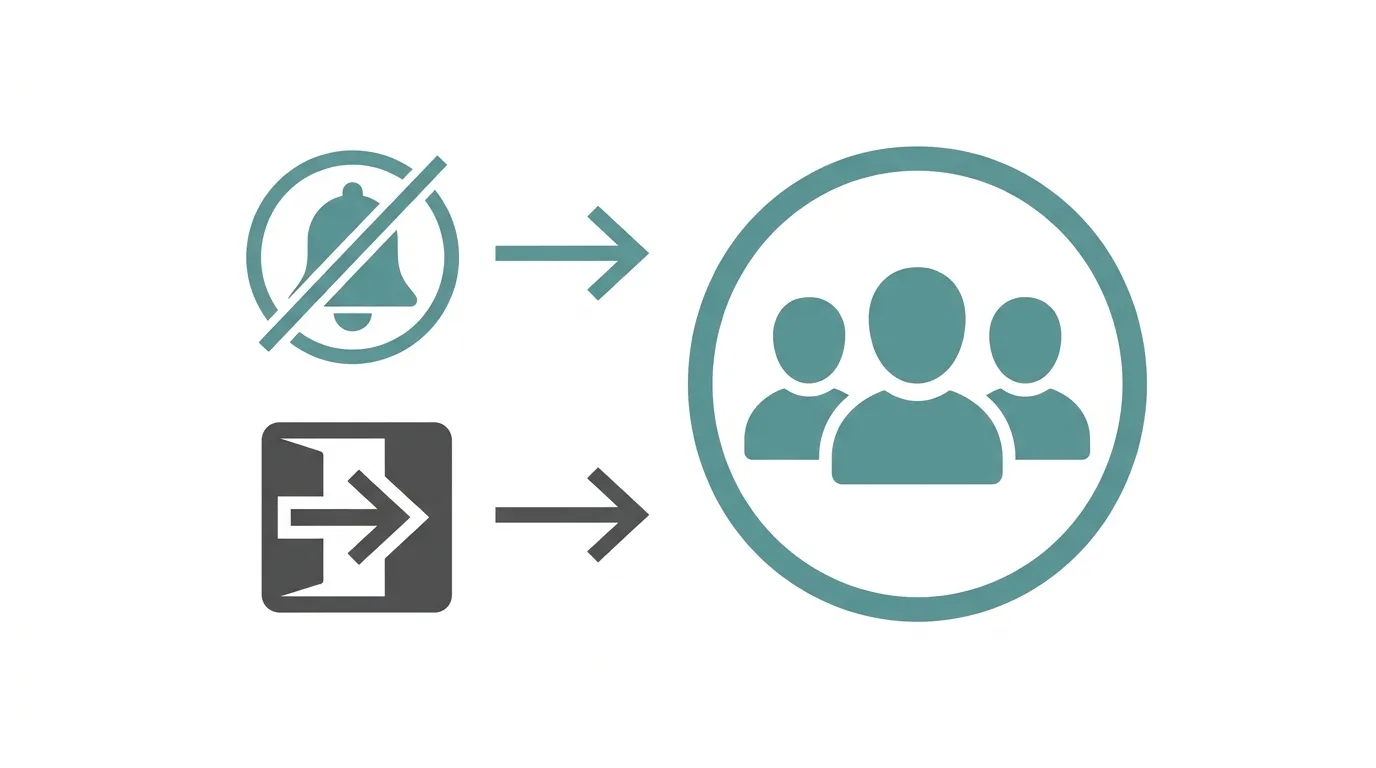
If you’re not entirely sure about leaving permanently, muting offers a reversible alternative.
Action step: Consider muting notifications for a group first if you’re unsure about leaving entirely — this reduces the group’s presence in your notifications and feed without fully severing your membership, giving you a way to reassess before committing to leaving.
What If You’re an Admin of the Group You Want to Leave?
If you administer a group, you’ll typically need to assign another admin before you’re able to leave entirely.
Action step: If you’re the sole admin, go to Group settings → Members and promote another trusted member to admin status first, since Facebook generally requires at least one active admin for a group to continue functioning properly after your departure.
Common Issues When Leaving a Group
Leave option not appearing?
Make sure you’re looking within the specific group’s three-dot menu, not your general Facebook settings, since this option is located contextually within each individual group.
Still receiving notifications after leaving?
Force close and reopen the app, since notification settings occasionally take a moment to fully update following your departure.
Can’t leave because you’re the only admin?
Assign a new admin first, as described above, since sole admins typically cannot leave without transferring this responsibility to ensure group continuity.
How To Turn Off Autoplay Videos on TikTok (2026 Guide)
Final Thoughts
Leaving a Facebook Group takes just a few taps and happens discreetly, without notifying other members. If you’re unsure about leaving permanently, muting offers a reversible middle ground, and if you’re an admin, remember to assign another admin first before you’re able to complete your departure.
