
Whether you are dealing with spam, unwanted messages, or someone you simply no longer want to hear from, blocking a person on Telegram takes just a few taps.
This guide walks through exactly how to block someone on Telegram in 2026.
What Happens When You Block Someone on Telegram?
Before you block anyone, it helps to know what the feature actually does.
When you block a person:
- They can no longer send you messages in a private chat.
- They can no longer call you on Telegram.
- They cannot see your last seen status in most cases.
- Telegram does not send them a notification that you blocked them.
Your old messages stay in the chat unless you delete them.
Blocking only affects private chats, so you may still see each other in shared groups.
Step 1: Open the Chat With the Person
- Open the Telegram app on your iPhone or Android phone.
- Tap the chat with the person you want to block.
If you do not have a chat with them yet, search for their username or name and open the profile.
Step 2: Open Their Profile
- Tap their name or profile picture at the top of the chat.
- Their profile page opens.
You will see their photo, username, and shared media here.
Step 3: Block the User
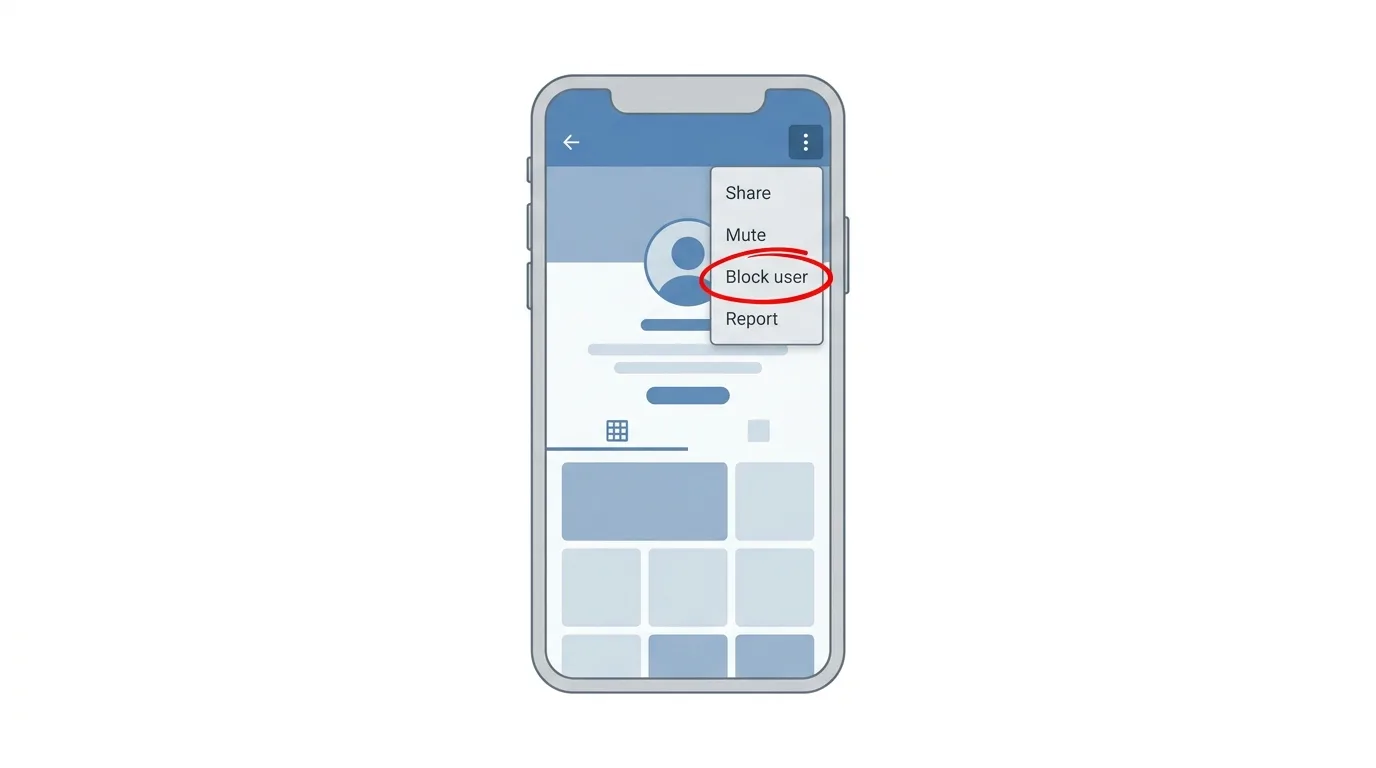
On iPhone:
- Tap More or the three-dot menu on their profile.
- Tap Block User.
- Confirm by tapping Block again.
On Android:
- Tap the three-dot menu at the top right of their profile.
- Tap Block user.
- Confirm your choice when asked.
Menu names can change slightly between app versions.
If your screen looks different, look for the word Block.
How to Block Someone Using Privacy Settings
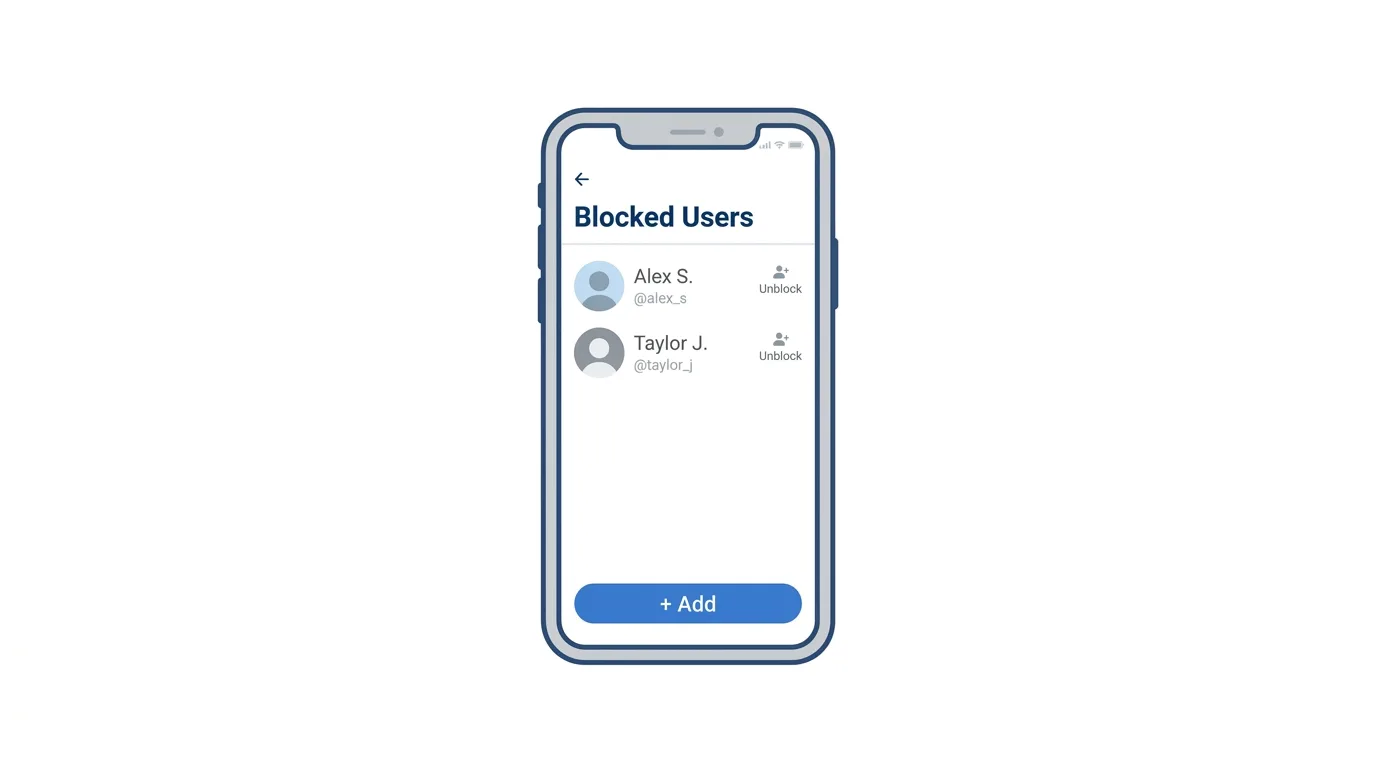
You can also block people from your settings.
This is handy if the person is not in your chat list.
- Open Settings in Telegram.
- Tap Privacy and Security.
- Tap Blocked Users.
- Tap Block User or the add button.
- Choose the person from your chat list or contacts.
How to Block Someone on Telegram Desktop
Prefer using your computer? Here’s the process:
- Open Telegram Desktop and log in.
- Open the chat with the person.
- Click their name at the top to open their profile.
- Click the three-dot menu, then Block user.
- Confirm when asked.
You can also go to Settings, then Privacy and Security, then Blocked Users to add someone from there.
How to Report and Block a Spammer
If the person is sending spam or scams, you can report them at the same time.
Action step: When a new unknown person messages you, look for the Report spam option at the top of the chat, or in the three-dot menu. Choose it, and Telegram usually offers to block the account as well. This also helps Telegram detect harmful accounts.
How to Block Someone Who Is Not in Your Contacts
You do not need to save someone’s number to block them.
Action step: Open the chat from an unknown number or username, tap their name to open their profile, and use the Block option. You can also block them from Settings, Privacy and Security, Blocked Users.
How to See Everyone You Have Blocked
It is easy to forget who you blocked.
Action step: Go to Settings, then Privacy and Security, then Blocked Users. You will see a full list of every person you have blocked on your account.
How to Unblock Someone on Telegram
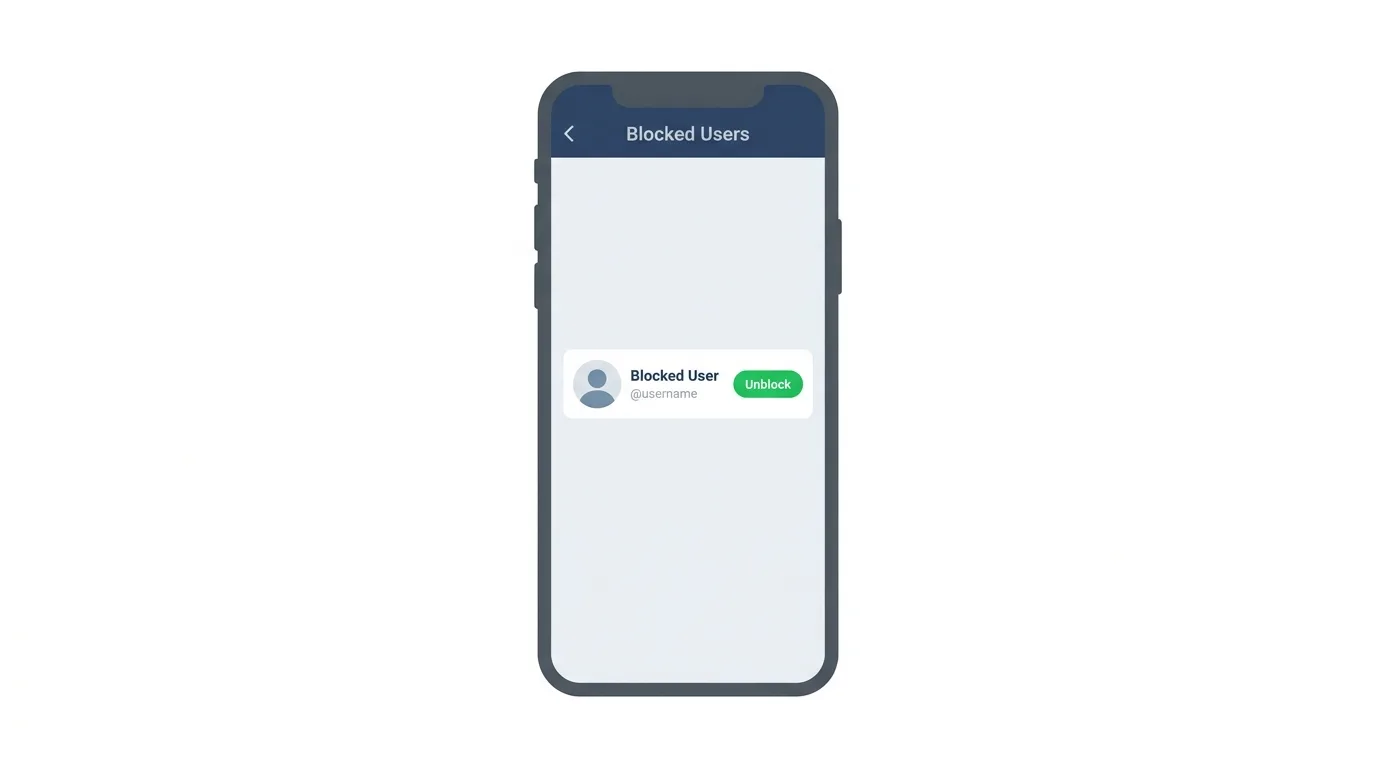
Changed your mind? Unblocking is just as simple.
- Open Settings, then Privacy and Security.
- Tap Blocked Users.
- Find the person in the list.
- Tap their name and choose Unblock (on some versions, swipe or tap the remove option).
After you unblock someone, they can message you again.
Does Blocking Delete the Chat?
No.
Action step: If you want to remove the conversation as well, open the chat list, press and hold the chat or swipe it, and choose Delete chat. Do this after blocking if you want a clean start, and remember that deleting your side does not delete it for the other person.
What Does the Blocked Person See?
Telegram keeps this quiet.
Action step: Know that the person is not told you blocked them. They may notice that their messages do not seem to be read, and that your last seen and profile photo may stop updating for them. If you want even more control, review your Last Seen and Profile Photo privacy settings under Privacy and Security.
Blocking Someone in a Group Chat
Blocking works differently in groups.
Action step: If a person bothers you in a group, blocking them stops private messages, but you may still see their messages in the group. Ask a group admin to remove or restrict them, or leave the group if the problem continues.
Other Ways to Limit Unwanted Contact
Blocking is not the only tool.
Action step: Open Settings, then Privacy and Security, and review who can message you, call you, add you to groups, and see your phone number. Setting these to My Contacts can stop many unwanted messages before they start.
Common Issues When Blocking Someone
Cannot find the Block option?
Open the person’s profile, then check the three-dot menu or the More button. Update the app if it is still missing.
Blocked person still messaging you?
They may be messaging you from a different account. Block and report the new account too.
Cannot block someone in a group?
Group blocking is separate from private blocking. Ask an admin for help.
Blocked user list not showing?
Check Privacy and Security again and restart the app.
Blocked the wrong person?
Go to Blocked Users and unblock them right away.
How To Download Your Data From Telegram (2026 Guide)
Final Thoughts
Blocking someone on Telegram takes just a few taps and stops their messages and calls straight away. Remember that blocking only affects private chats, so use group admin tools and your privacy settings for extra protection, and report spammers so Telegram can act on them.
