Whether you chat late at night, play games in a dim room, or simply prefer a darker look, turning on dark mode on Discord takes just a few taps.
This guide walks through exactly how to turn on dark mode on Discord in 2026.
Why Use Dark Mode on Discord?
Discord is used for gaming, study groups, communities, and work chats.
Many people spend hours on it, often in the evening.
A bright white screen can feel harsh in a dark room.
Dark mode can help because it:
- Reduces glare and eye strain in low light.
- Makes text and colors easier to read at night.
- Can save battery on phones with OLED or AMOLED screens.
- Simply looks better to many people.
Dark mode is free, and you do not need Discord Nitro to use it.
Before You Start
Have these ready before you begin:
- The latest version of Discord on your phone or computer.
- Your Discord account logged in.
Discord often uses dark mode by default on new installs.
If your screen is bright, follow the steps below to switch.
Step 1: Open User Settings on Mobile
On iPhone and Android:
- Open the Discord app.
- Tap your profile picture at the bottom right.
This opens your User Settings page.
Step 2: Open Appearance Settings
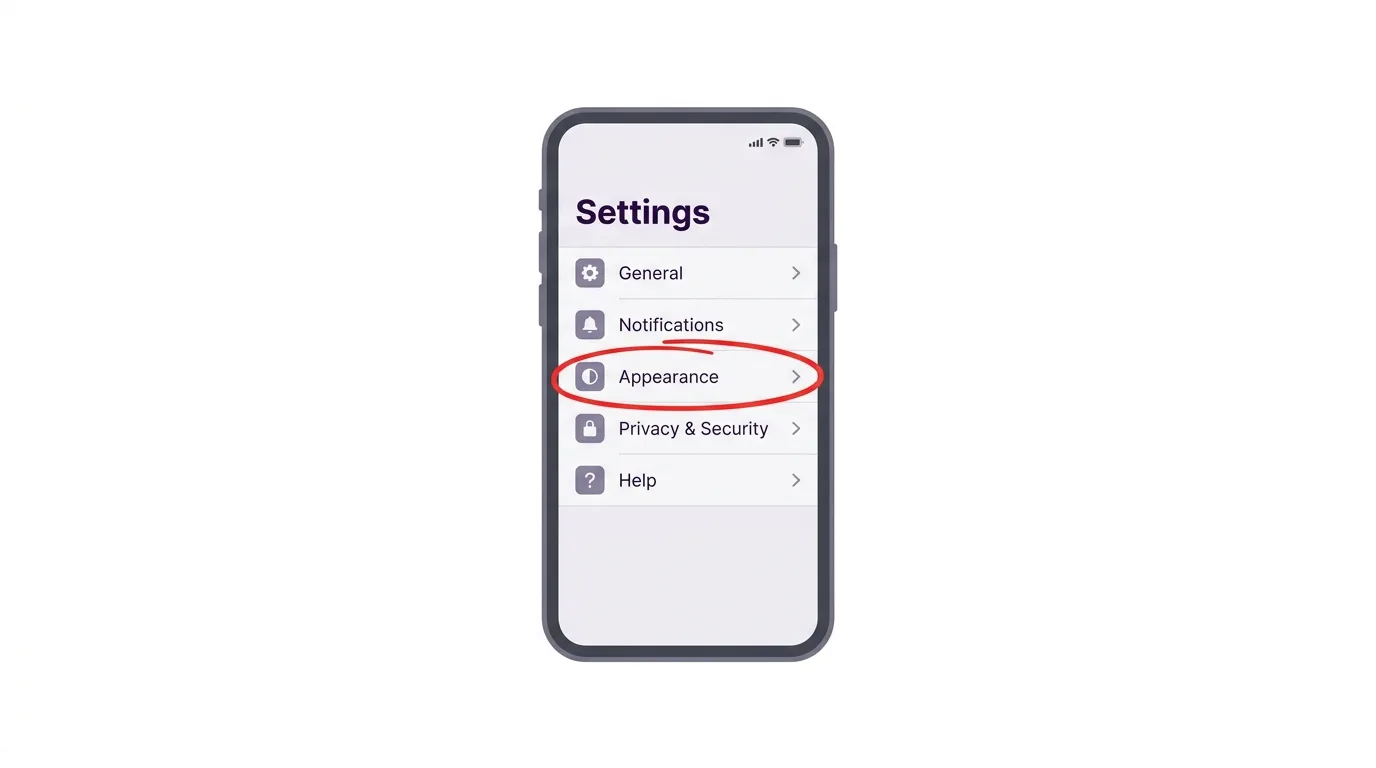
- Scroll down to the App Settings section.
- Tap Appearance.
Menu names can change slightly between app versions.
If your screen looks different, look for the word Appearance.
Step 3: Choose Your Theme
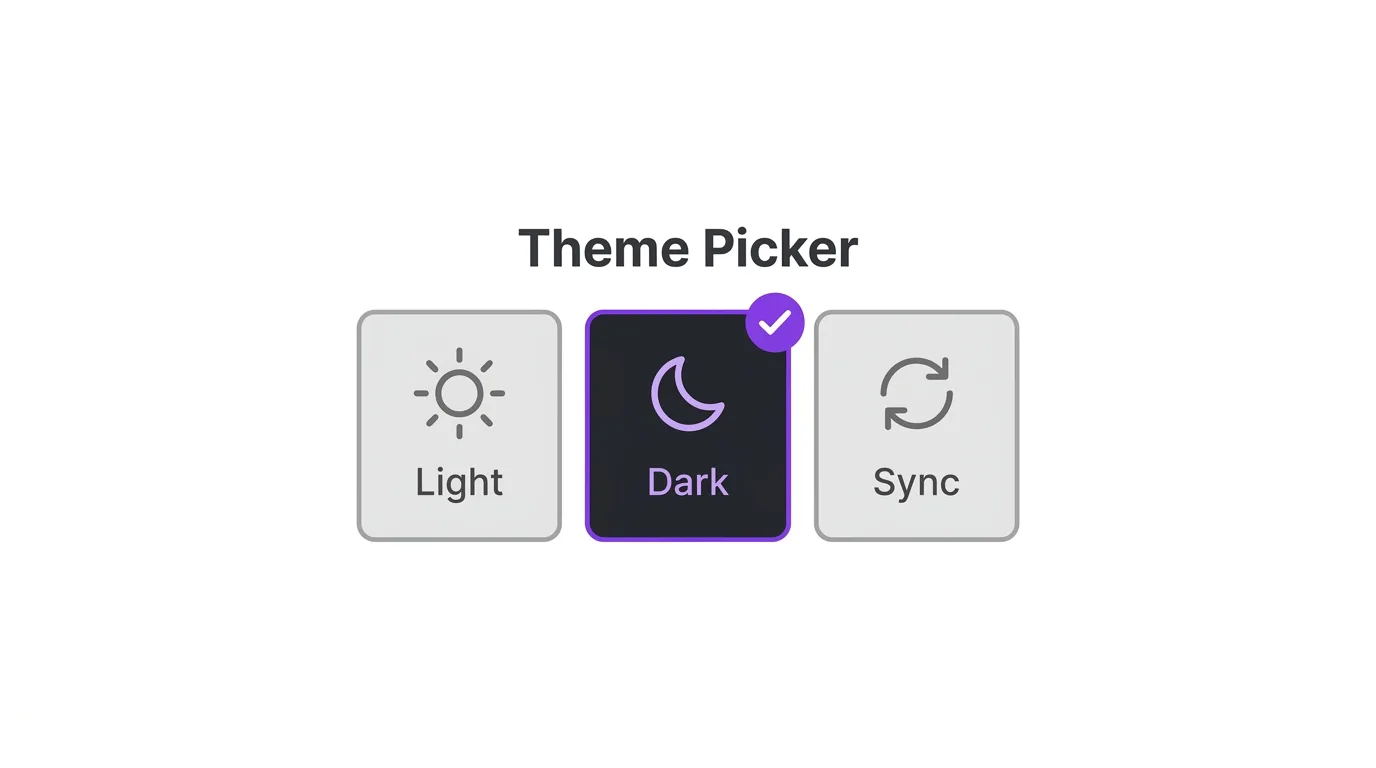
- Tap Theme.
- Choose Dark.
The app turns dark right away, without needing a restart.
On some versions, you will also see these options:
- Light: the bright white theme.
- Dark: the standard dark gray theme.
- Midnight or AMOLED: a deeper black theme that can look better on OLED screens.
- Sync with system: matches your phone’s own light or dark setting.
How to Turn On Dark Mode on Discord Desktop
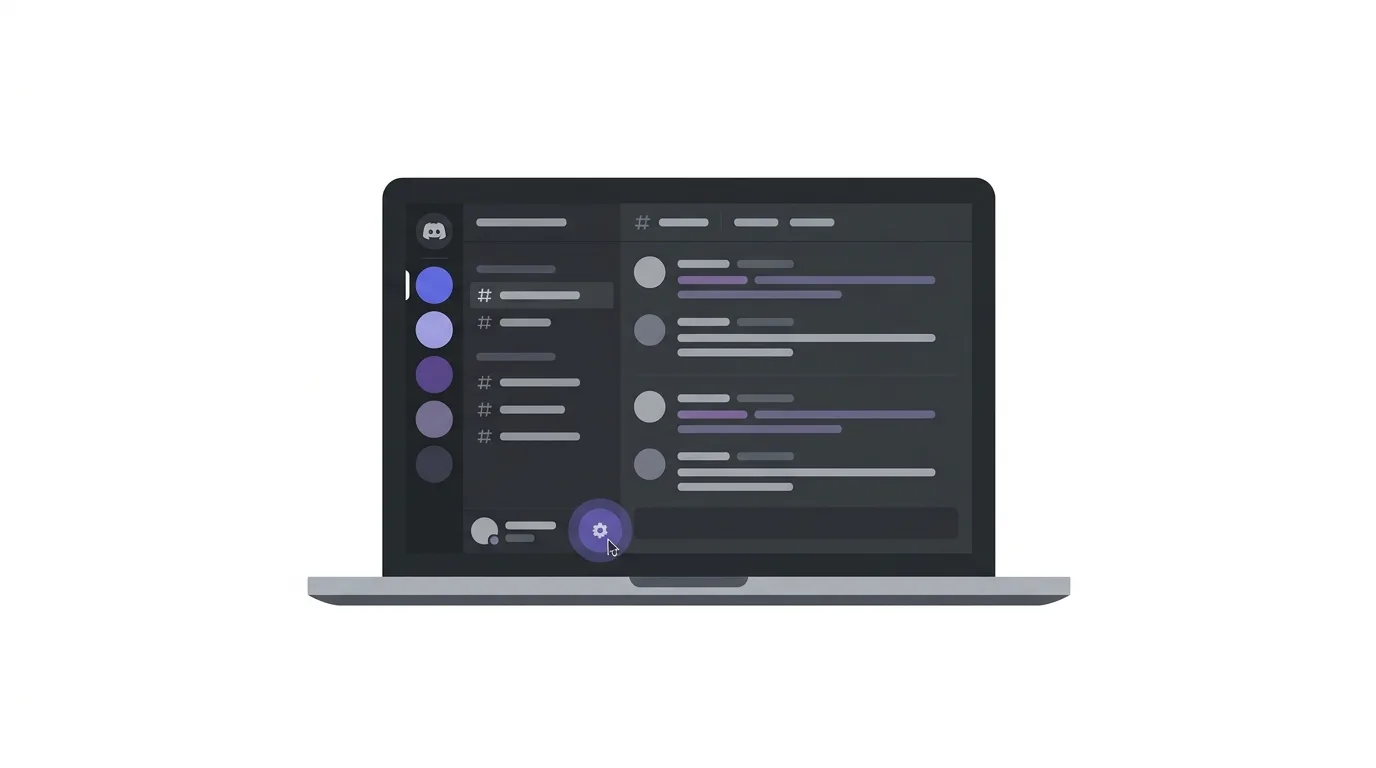
Prefer using your computer? Here’s the process:
- Open the Discord app or go to discord.com and log in.
- Click the gear icon next to your username at the bottom left.
- Under App Settings, click Appearance.
- Under Theme, choose Dark.
You can close the settings window by clicking the X or pressing Esc.
How to Make Discord Match Your Device Automatically
If you switch between light and dark mode on your device, Discord can follow along.
Action step: In Appearance, choose Sync with computer on desktop or Sync with system on mobile, depending on your version. Discord will then switch automatically whenever your device changes theme, so you do not have to change it by hand.
How to Use Your Phone’s Own Dark Mode
Your phone has its own dark mode setting, which affects many apps at once.
Action step: On iPhone, open Settings, then Display and Brightness, and choose Dark. On Android, open Settings, then Display, and turn on Dark theme. If Discord is set to sync with your system, it will follow this setting.
How to Schedule Dark Mode at Night
You can set your device to switch themes at certain times.
Action step: On iPhone, go to Display and Brightness and turn on Automatic, then choose sunset to sunrise or a custom time. On Android, look for a Schedule option inside your dark theme settings. Combine this with Discord’s sync setting for a fully hands-off setup.
Does Dark Mode Save Battery on Discord?
It depends on your screen.
Action step: If your phone has an OLED or AMOLED display, a darker theme can use less power because black pixels are switched off. On older LCD screens, the difference is small. If battery life matters to you, try the deepest dark option your version offers.
How to Make Discord Easier to Read
Dark mode is only one part of a comfortable setup.
Action step: While you are in Appearance, check the other options on that page, such as chat font scaling, zoom, and message spacing. Adjusting text size can make long chats much easier to read in a dark theme.
How to Turn On Dark Mode Using Accessibility Settings
Some people need extra contrast or reduced motion.
Action step: Open User Settings, then look for Accessibility. You may find options for color contrast, reduced motion, and saturation. Try them if the default dark theme still feels uncomfortable.
How to Switch Back to Light Mode
Changed your mind? Switching back is just as simple.
- Open User Settings.
- Go to Appearance.
- Choose Light under Theme.
Your choice is saved on that device.
Does Dark Mode Sync Across Devices?
You may wonder if your choice follows you everywhere.
Action step: Check the theme on each device you use Discord on, including phone, tablet, and computer. Some versions save the theme per device, so you may need to set it again after logging in somewhere new.
Common Issues When Turning On Dark Mode
Cannot find the Theme option?
Open User Settings, then Appearance. Update the app if it is still missing, since an older version may have a different layout.
Theme keeps switching back?
Check whether Sync with system or Sync with computer is turned on. If it is, your device setting controls the theme.
Some parts of the app are still bright?
Close and reopen Discord, or log out and back in. Embedded websites or images may stay bright because they come from other sources.
Theme not applying on desktop?
Fully quit Discord from the system tray, then open it again.
Dark mode looks too gray?
If your version offers a darker option such as Midnight or AMOLED, choose that instead.
How To Block Someone on Telegram (2026 Guide)
Final Thoughts
Turning on dark mode on Discord takes just a few taps and makes late-night chatting much easier on the eyes. Remember you can match your device automatically with the sync option, and try a deeper black theme if your screen is OLED.
