If you want to know how to change your profile picture on Telegram, you will find it is quick and easy.
It takes only a few taps, and your new photo shows up in chats, groups, and your contacts’ lists.
Your profile picture is how friends, family, and customers recognize you among hundreds of chats.
A clear, friendly photo makes you easier to spot and helps new contacts trust that your account is real.
This guide shows you exactly how to change your Telegram profile picture on phone and computer, how to control who sees it, and what to do if something goes wrong.
Why Your Telegram Profile Picture Matters

Telegram shows your photo as a small circle in your chats, next to your messages in groups, and in search results.
Because the circle is tiny, a simple image works best.
If you run a channel, a group, or a business account, your photo is part of your brand.
A consistent image across Telegram, WhatsApp, Instagram, and your website makes you easier to find.
For private users, a good photo also helps friends confirm they are talking to the right person.
What Do You Need Before You Start?
Have these ready:
- The latest version of Telegram.
- Your Telegram account logged in.
- The photo you want to use, saved on your phone or computer.
If you want a new photo, take it in good light and keep the background simple.
A square picture with your face in the center works best, because Telegram crops profile pictures into a circle.
How to Change Your Profile Picture on Telegram for iPhone
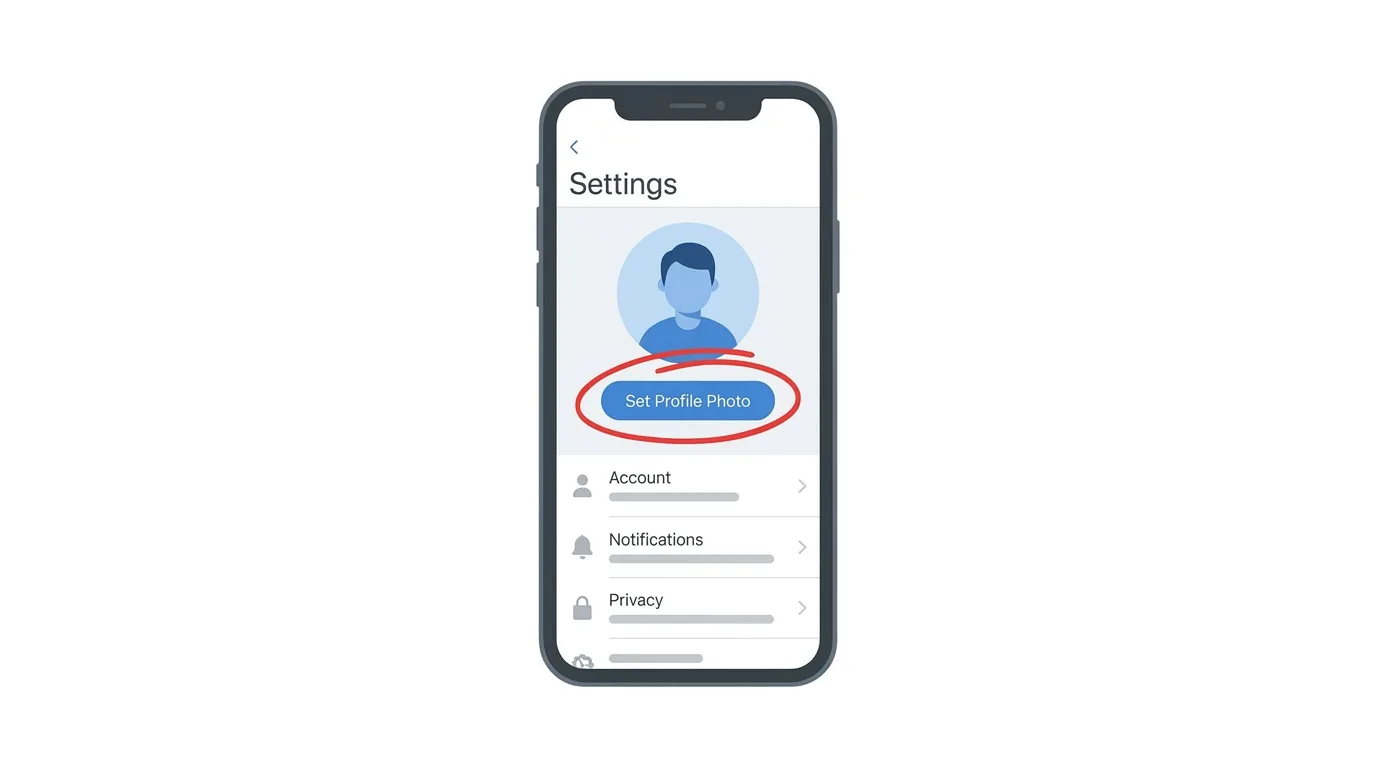
Menu names can change slightly between app versions, so look for your photo or the words Set Profile Photo if your screen looks different.
- Open Telegram and tap Settings at the bottom right.
- Tap Set Profile Photo, or tap Edit and then Set New Photo.
- Choose a picture from your gallery, take a new one with the camera, or search the web for one.
- Move and zoom the image so your face sits in the middle of the circle.
- Tap Choose or Done.
Your new picture appears right away.
You may need to reopen a chat to see it refreshed in some places.
How to Change Your Profile Picture on Telegram for Android
The steps on Android are similar.
- Open Telegram.
- Tap the three-line menu at the top left, then tap Settings.
- Tap the camera icon near the top, beside your name.
- Choose a picture from your gallery, or take a new one with the camera.
- Adjust the crop so your face is centered in the circle.
- Tap the check mark to save.
Your new photo is now your main profile picture.
How to Change Your Profile Picture on Telegram Desktop
You can also change your photo from a computer.
- Open Telegram Desktop and log in.
- Click the three-line menu at the top left, then click Settings.
- Click Edit profile, or click your current profile picture.
- Click Set profile photo and choose a picture from your computer.
- Adjust the crop and click Save or Apply.
The change is saved to your account, so it also appears on your phone.
Can You Have More Than One Profile Photo?

Yes.
Telegram lets you keep several profile photos.
Your newest photo becomes the main one, and the older ones stay in your profile gallery.
People who open your profile can swipe through them.
You can add more photos using the same menu, and you can choose which one is your main picture.
If you want to remove an old photo, open your profile photos, select the one you want to delete, and look for Delete.
Can You Use a Video as Your Profile Picture?
Yes.
Telegram supports short video profile pictures.
In the photo picker, look for the option to record or choose a video.
The video plays in a loop on your profile, and a still frame appears in chat lists.
Videos can make your profile more lively, but a simple still photo is easier to recognize at a glance.
How to Control Who Can See Your Profile Picture
Telegram lets you choose who sees your photo.
Open Settings, then Privacy and Security, and tap Profile Photos.
You can choose Everybody, My Contacts, or Nobody.
You can also add exceptions, such as always sharing with a specific person or never sharing with another.
If you hide your photo from some people, you can set a public photo that they will see instead.
This is a good way to keep a casual image for friends and a professional one for strangers.
What Makes a Good Telegram Profile Picture?
A strong picture is clear, simple, and easy to recognize at a very small size.
Use a close-up of your face, or a clean logo if you represent a brand.
Pick good lighting, so your features are easy to see.
Keep the background plain, because busy backgrounds make small images hard to read.
Avoid group photos, because people will not know which person is you.
Avoid heavy filters, text, and very dark images.
Larger, sharper images look better, so choose a high quality original when you can.
Ideas for Channels, Groups and Businesses
Different accounts need different photos.
Personal accounts do best with a friendly, clear face.
Business accounts usually work best with a simple logo on a solid color.
Channels and groups can use a recognizable logo or icon that matches their topic.
For channels and groups, you set the photo from the channel or group settings, if you are an admin with the right permissions.
How to Remove Your Profile Picture
If you want to remove your photo, open your profile photos and choose Delete.
Telegram will then show your initials or a colored circle.
Accounts without a photo can look less trustworthy, so it is better to choose a neutral photo than to leave it empty.
Troubleshooting: Profile Picture Not Changing
If your new photo does not appear, try these quick fixes:
- Wait a few minutes. Updates can take a moment to show everywhere.
- Reopen Telegram. Close the app completely and open it again.
- Check your connection. A weak signal can stop the upload.
- Try a smaller image. Very large files may fail to upload.
- Use a JPG or PNG. Common formats upload most reliably.
- Update the app. An older version may have a different layout.
- Allow photo access. If you cannot choose a photo, open your phone’s settings and allow Telegram to access your photos.
- Check your privacy settings. Other people may not see your photo if you set it to Nobody.
Frequently Asked Questions
How do I change my profile picture on Telegram?
Open Settings, tap your photo or Set Profile Photo, choose a new image, adjust the crop, and save.
Can I change my Telegram profile picture on a computer?
Yes.
Open Telegram Desktop, go to Settings, choose Edit profile, and set a new photo.
Can I keep more than one profile photo?
Yes.
Your newest photo becomes the main one, and older photos stay in your profile gallery.
Can I use a video as my profile picture?
Yes.
Telegram supports short video profile pictures.
Who can see my Telegram profile picture?
You choose. Go to Privacy and Security, then Profile Photos.
Will my contacts be notified when I change it?
Telegram does not usually send a separate announcement, but people will see the new image when they open your chat or profile.
Does changing my photo affect my chats?
No.
Your chats, contacts, and messages stay exactly the same.
WhatsApp Guest Calling Lets People Join Calls Without an Account (2026 News)
Final Thoughts
Changing your profile picture on Telegram takes only a minute and instantly refreshes how your account looks. Choose a clear, simple photo, and use the privacy setting to decide who sees it. If the new picture does not appear right away, reopen the app and check your connection.
