
Your Facebook cover photo is one of the first things visitors notice, whether they’re checking out your personal profile or your business Page.
This guide walks through exactly how to change your cover photo on Facebook in 2026.
Step 1: Go to Your Profile
- Open the Facebook app and tap your profile picture.
- This takes you to your profile page, where your current cover photo is displayed.
Step 2: Tap Your Cover Photo
- Tap directly on your current cover photo.
- A menu will appear with editing options.
Step 3: Choose a New Photo
- Select Update Cover Photo or the camera icon.
- Choose to upload a new photo from your gallery, take a new one, or select from photos you’ve already posted to Facebook.
Action step: Choose a wide, landscape-oriented image, since Facebook’s cover photo display area is significantly wider than it is tall, and portrait-oriented photos often get cropped in ways that cut off important content.
Step 4: Adjust the Positioning
- Facebook will let you drag and reposition the image within the cover photo frame.
- Adjust until the most important part of your image is properly visible within the frame.
- Tap Save or Save Changes to confirm.
Action step: Pay particular attention to how your photo looks on both mobile and desktop views, since Facebook’s cover photo area displays slightly differently across devices, and content positioned near the edges may be cropped differently depending on the viewing screen size.
How to Change Your Cover Photo on Desktop
Prefer using a browser? Here’s the process:
- Go to Facebook.com and navigate to your profile.
- Hover over your cover photo and click Edit Cover Photo.
- Upload a new image, adjust positioning, and click Save Changes.
Using AI Tools to Create a Cover Photo

If you don’t have an existing wide-format photo that suits your profile, AI design tools can help generate one.
Action step: Consider using a tool like Canva’s Magic Design or a dedicated AI image generator to create a cover photo specifically formatted for Facebook’s dimensions, rather than trying to awkwardly crop an image that wasn’t originally shot in a wide, landscape format.
How Often Should You Update Your Cover Photo?
For personal profiles, this is largely a matter of personal preference and how often your life or interests visibly change.
Action step: For business Pages specifically, consider updating your cover photo seasonally or around major promotions and announcements, since this space offers a low-effort way to keep your Page feeling current and aligned with what’s actively happening in your business.
Privacy Considerations for Cover Photos
Unlike some other profile elements, cover photos are generally visible to anyone who can view your profile, including the public on business Pages.
Action step: Avoid including personally sensitive information within your cover photo itself, such as identifiable location details or private information, since this image is typically among the most publicly visible content on your entire profile.
How to Change a Business Page’s Cover Photo
If you manage a Facebook Business Page, the process is similar but accessed slightly differently.
- Go to your Page and click your current cover photo.
- Select Update Cover Photo, upload your new image, and adjust positioning.
- Save your changes.
Action step: For business Pages specifically, consider using your cover photo space for current promotions, seasonal branding, or key messaging, since this prominent visual space offers valuable, easily updated marketing real estate.
Recommended Cover Photo Dimensions
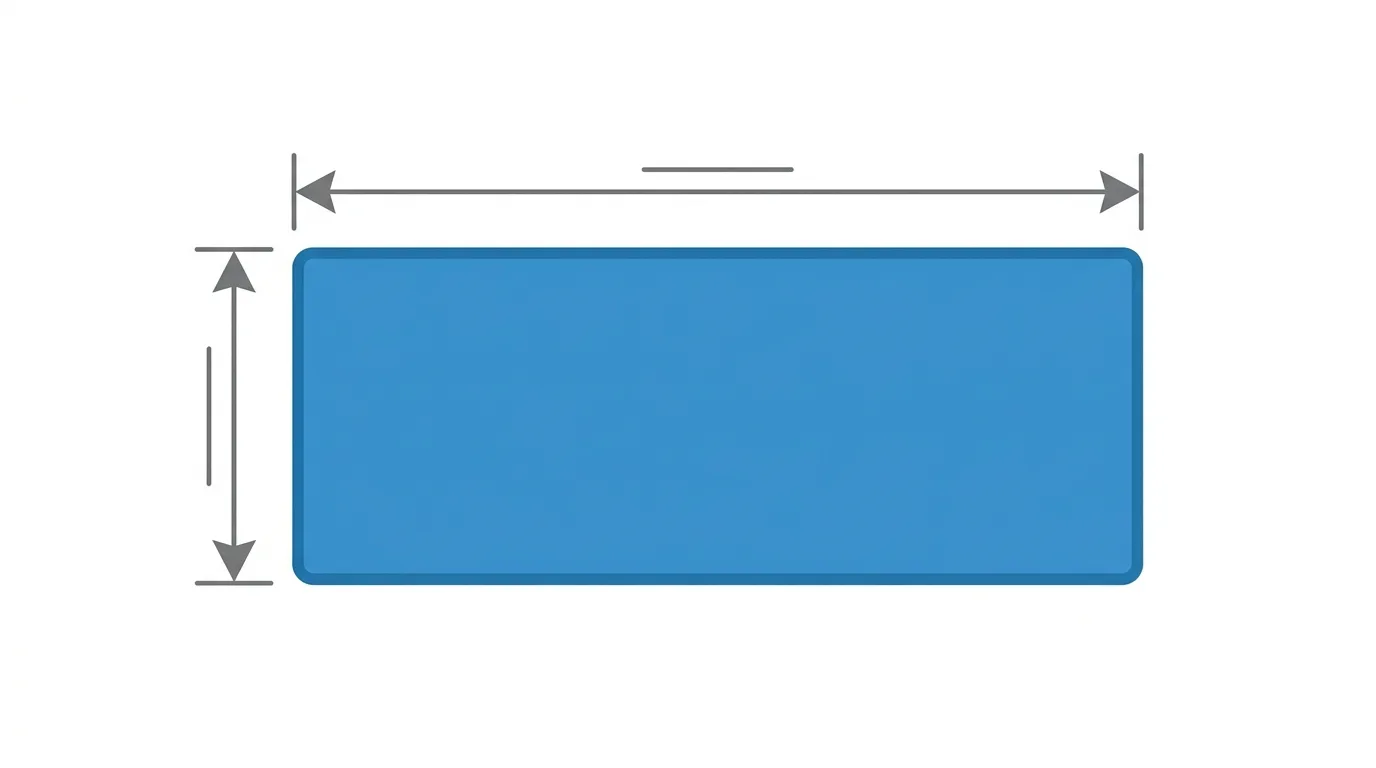
Facebook’s recommended cover photo specifications:
- Desktop display: 820 pixels wide by 312 pixels tall
- Mobile display: 640 pixels wide by 360 pixels tall
- Minimum recommended width: 400 pixels
Action step: Design or select images with these dimensions in mind, or at least a similar wide aspect ratio, since images not matching this general shape often result in awkward cropping regardless of how you adjust positioning afterward.
Can You Use a Video as Your Cover Photo?
Yes, Facebook allows video cover photos in addition to static images, offering a more dynamic profile presentation.
Action step: If choosing a video cover, keep it relatively short and visually clear even without sound, since videos autoplay silently by default and many visitors won’t manually enable audio.
Common Issues When Changing Your Cover Photo
New photo appears blurry after uploading?
Use a higher-resolution image, since Facebook compresses photos during upload, and lower-resolution starting images can appear noticeably degraded after this process.
Important content getting cropped out?
Reposition the image more centrally within the frame, or choose a different photo with your key content less close to the edges, since Facebook’s cover photo frame doesn’t display the full original image dimensions.
Changes not saving?
Force close and reopen the app, then try again — this usually resolves temporary sync issues during the save process.
How To Hide Your Story From Specific People on Instagram (2026 Guide)
Final Thoughts
Changing your Facebook cover photo takes just a few taps, whether for your personal profile or a business Page. Choose a wide, landscape-oriented image matching Facebook’s recommended dimensions, consider AI design tools if you don’t have a suitable existing photo, and double-check how it displays across both mobile and desktop views before finalizing, since cropping can behave differently depending on the viewing device.
