Whether you want time to think before replying, need a little more privacy, or simply don’t like the pressure of the blue ticks, turning off read receipts on WhatsApp takes just a few taps.
This guide walks through exactly how to turn off read receipts on WhatsApp in 2026.
What Are Read Receipts on WhatsApp?
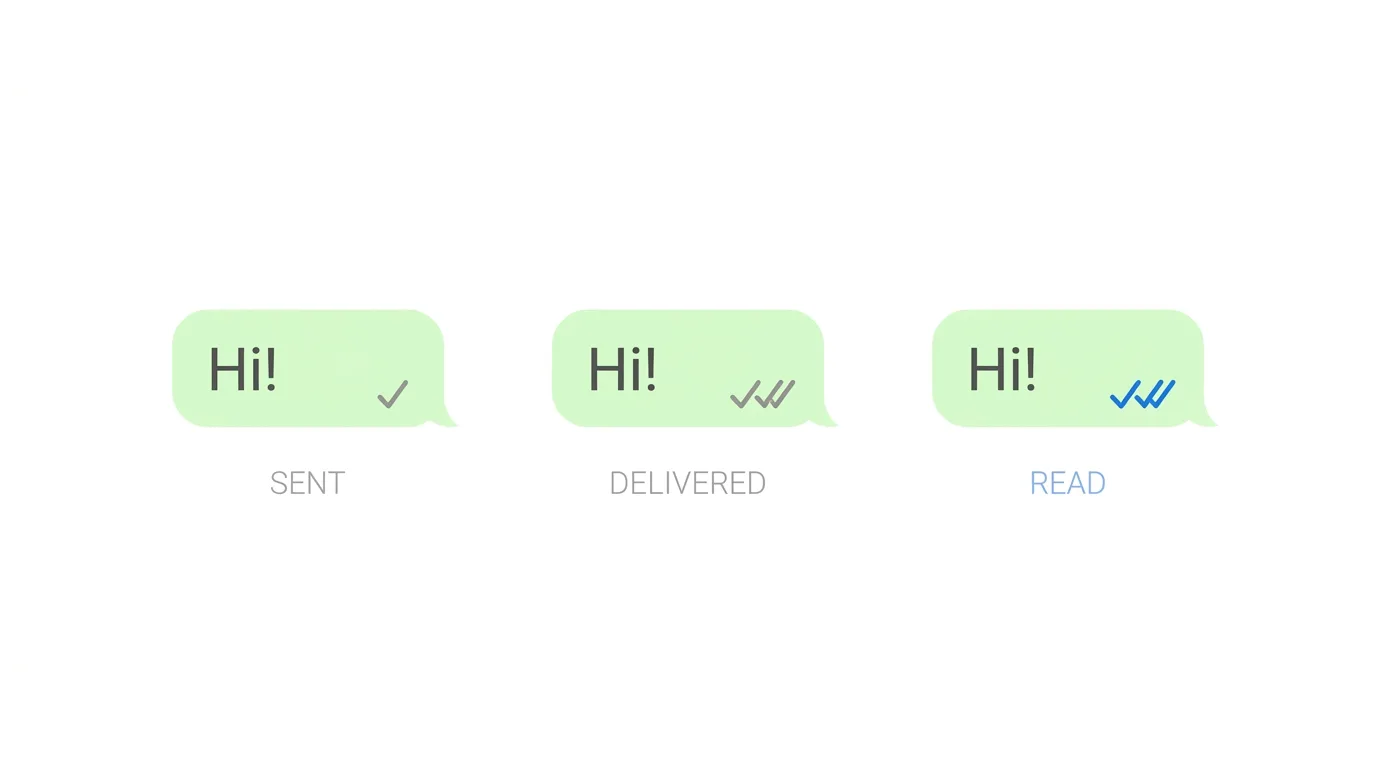
Read receipts are the little tick marks you see beside your messages.
They tell you what has happened to a message after you send it.
- One gray tick: the message was sent.
- Two gray ticks: the message was delivered to the other person’s phone.
- Two blue ticks: the other person has opened and read the message.
The blue ticks are the read receipts.
When you turn them off, people no longer see blue ticks when you read their messages.
Why Turn Off Read Receipts?
There are plenty of good reasons:
- You want to read a message first and reply when you are ready.
- You want to avoid the pressure to answer right away.
- You want more privacy over your chat habits.
- You use WhatsApp for work and want clear boundaries.
- You simply don’t want others to know when you saw their message.
Before You Start
Keep these points in mind before you switch the setting:
- Turning off read receipts is a two-way street.
- You will also stop seeing blue ticks on messages you send to other people.
- The setting applies to your whole account, not just one chat.
You can turn it back on any time.
Step 1: Open WhatsApp Settings
On iPhone:
- Open WhatsApp.
- Tap Settings at the bottom right.
On Android:
- Open WhatsApp.
- Tap the three-dot menu at the top right.
- Tap Settings.
Step 2: Open Privacy Settings
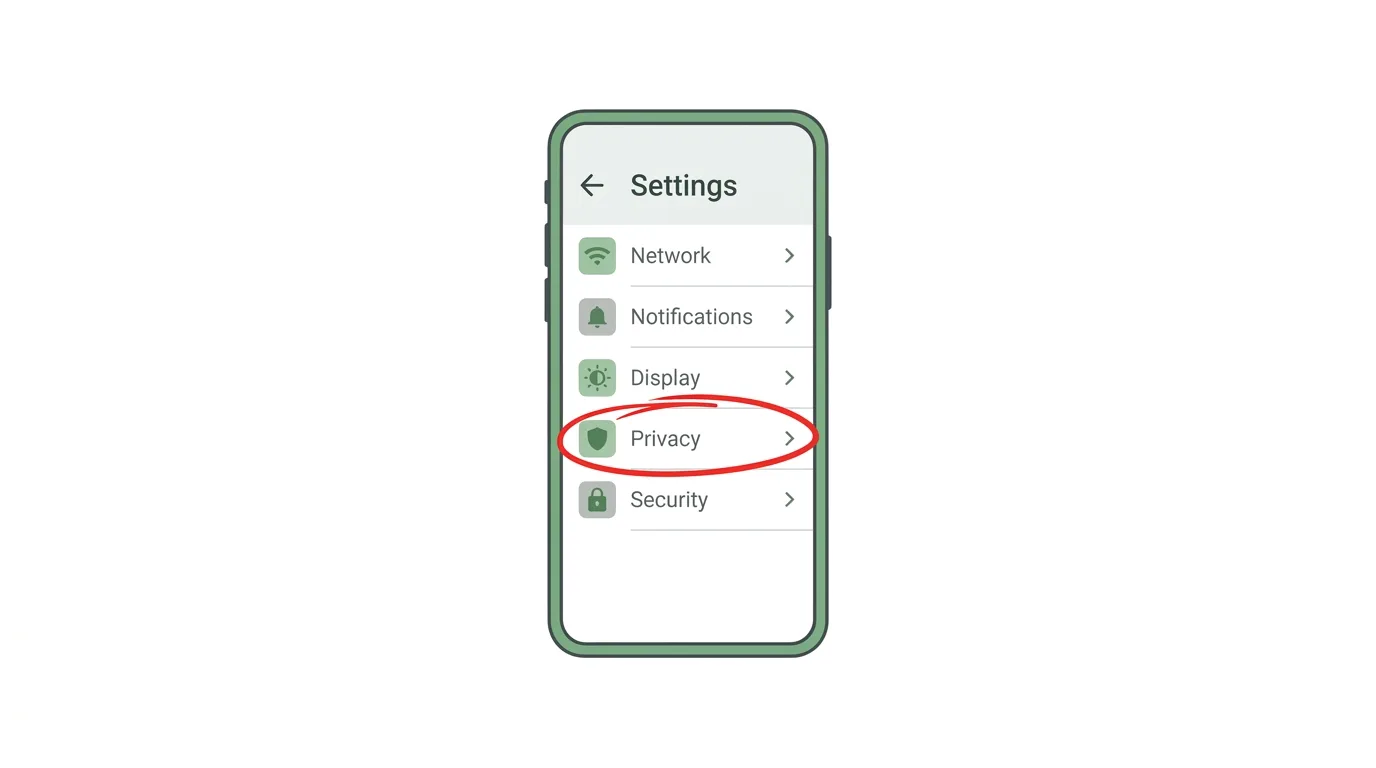
- Tap Privacy.
- Scroll down until you see Read receipts.
Menu names can change slightly between app versions.
If your screen looks different, look for the words Read receipts.
Step 3: Turn Off Read Receipts
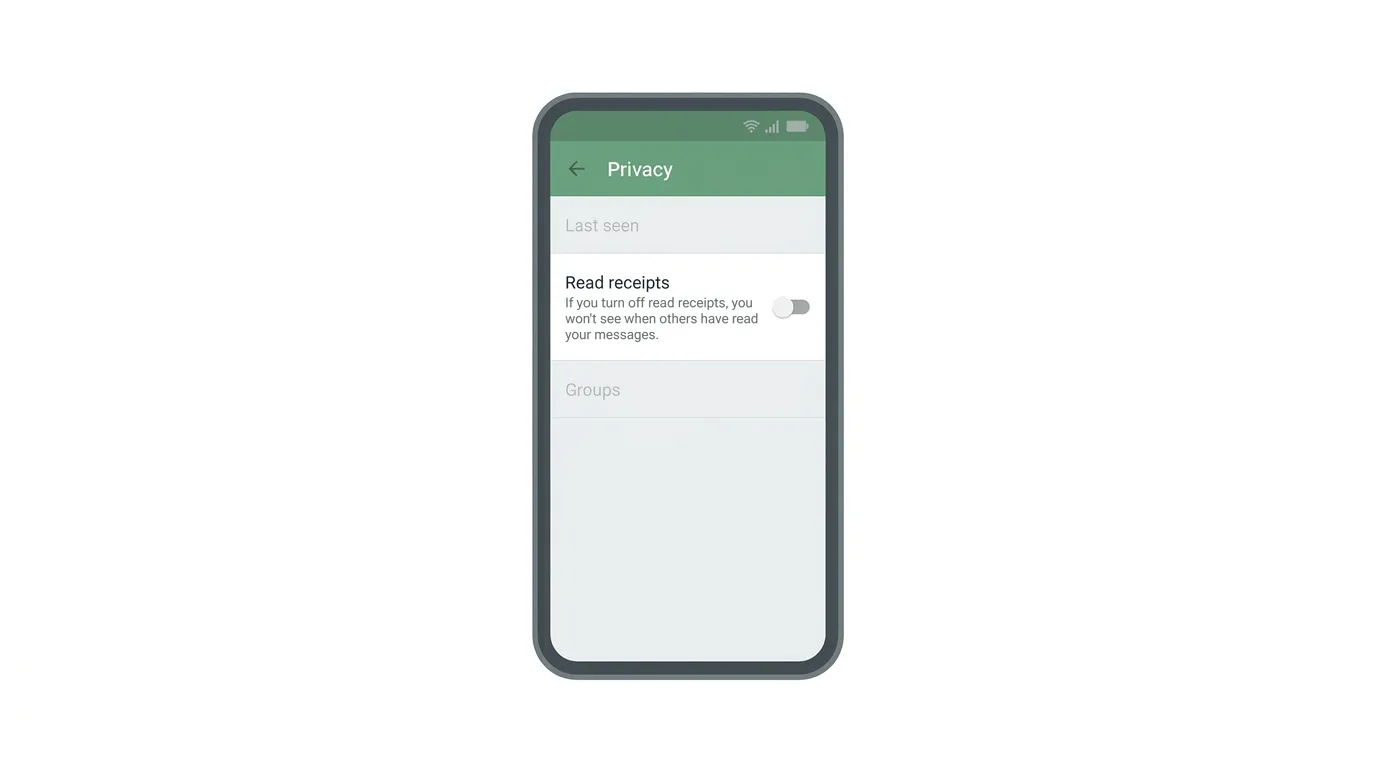
- Find the Read receipts toggle.
- Tap it so it switches off.
The switch usually changes from green to gray.
The change takes effect straight away, without needing a restart.
How to Turn Off Read Receipts on WhatsApp Web and Desktop
Prefer using your computer? Here’s the process:
- Open WhatsApp Web or the WhatsApp desktop app and log in.
- Click the Settings icon, which looks like a gear or sits at the bottom left.
- Click Privacy.
- Find Read receipts and switch it off.
Because the setting belongs to your account, it also applies to your phone.
Do Read Receipts Still Work in Group Chats?

This surprises many people.
Action step: Know that read receipts for group chats generally keep working even when you turn the setting off. People in the group may still be able to see when you have read a message there. If you want more privacy in groups, consider muting the group and reading it less often.
What About Voice Messages?
Voice messages follow slightly different rules.
Action step: Be aware that the sender may still see that you played a voice message, shown by a blue microphone icon, even if your read receipts are turned off. If you need to avoid this, check WhatsApp’s current help pages, since this behavior can change between versions.
What About Status Updates?
Status updates have their own privacy controls.
Action step: When you turn off read receipts, people usually can’t see that you viewed their status, and you can’t see who viewed yours. If you want to keep seeing who views your own status, think about whether switching read receipts off is the right choice for you.
How to Read a Message Without Showing Blue Ticks
If you don’t want to switch off the setting entirely, there are small tricks.
Action step: Read a short preview from your lock screen notification, which shows the start of a message without opening the chat. You can also long-press the chat in your chat list on some versions to preview recent messages. Remember that opening the chat itself will still send a read receipt if your setting is on.
How to Hide Message Previews
Previews on your lock screen can be seen by other people.
Action step: Open your phone’s notification settings for WhatsApp and choose whether to show message previews. Hiding previews adds privacy if others can see your screen. Showing previews lets you read without opening the chat.
How to Turn Read Receipts Back On
Changed your mind? Switching it back is just as simple.
- Open Settings, then Privacy.
- Find Read receipts.
- Tap the toggle so it switches on.
Blue ticks will work again for both you and the people you chat with.
Other WhatsApp Privacy Settings Worth Checking
Read receipts are only one part of your privacy.
Action step: While you are in Privacy, review who can see your last seen and online status, your profile photo, your About text, and who can add you to groups. Setting these to My contacts is a simple way to cut down on unwanted attention.
Does Turning Off Read Receipts Hide Your Online Status?
No.
Action step: Know that read receipts and last seen or online status are separate settings. If you want to hide when you were last active, change the last seen option in the same Privacy menu.
Common Issues When Turning Off Read Receipts
Cannot find Read receipts?
Open Settings, then Privacy, and scroll down. Update WhatsApp if it is still missing, since an older version may have a different layout.
Blue ticks still showing?
The other person may be in a group chat, or they may have read the message before you changed the setting. Check that the toggle is actually off.
Not seeing blue ticks on your own messages?
This is normal. When you switch off read receipts, you also stop seeing them from others.
Setting keeps turning back on?
Make sure you are logged in to the same account, then check the toggle again. Update the app if it keeps resetting.
Different on another phone?
The setting belongs to your account, but give the app a few minutes to refresh. Restart WhatsApp if it does not update.
How To Change Your Username on Pinterest (2026 Guide)
Final Thoughts
Turning off read receipts on WhatsApp takes just a few taps and gives you more control over when you reply. Remember that the setting works both ways, that group chats and voice messages may still behave differently, and that you can switch it back on whenever you like.
