Not every song you play needs to show up on your profile, your friends’ activity feed, or your own listening history.
Maybe you’re testing out a genre you’re embarrassed about, listening to the same song on repeat, or just want a break from your algorithm-shaping habits being visible to others.
Spotify’s Private Session feature solves this by temporarily hiding your listening activity from everyone else on the platform.
This guide covers exactly how to turn on Private Session on Spotify, what it actually hides, and what it doesn’t affect.
What Private Session Actually Does
When Private Session is turned on, your current listening activity stops appearing to your Spotify friends.
It also stops showing up on your public profile if you have one, and it won’t appear in the Friend Activity sidebar that other users might check.
Importantly, songs played during a private session generally won’t influence your personalized recommendations, like Discover Weekly or your Daily Mixes, the way normal listening does.
This makes it a useful tool if you’re exploring something outside your usual taste and don’t want it skewing your future recommendations.
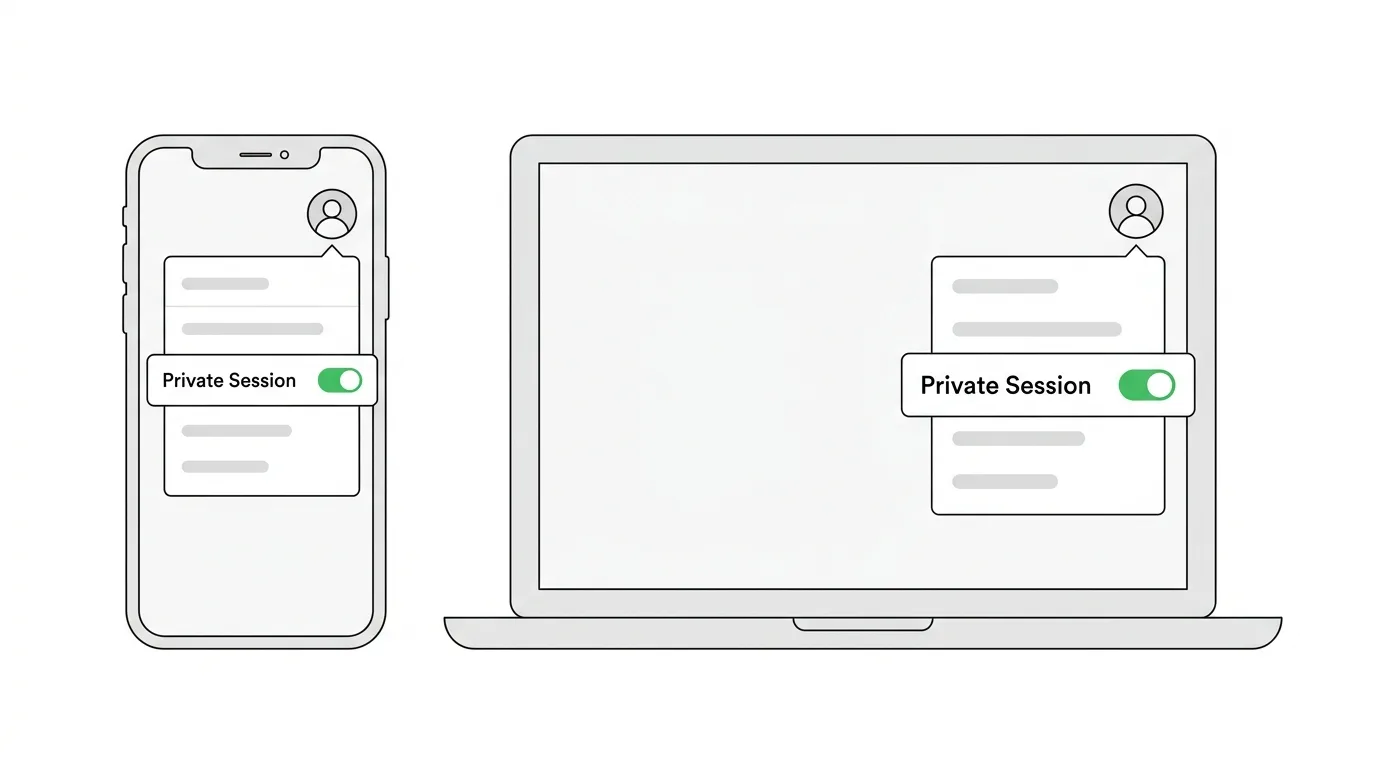
How to Turn On Private Session on Spotify (Mobile App)
Step 1. Open the Spotify app on your phone.
Step 2. Tap your profile icon or Home to access the main menu.
Step 3. Tap the gear icon to open Settings.
Step 4. Scroll down to Social.
Step 5. Find Private Session and tap the toggle to turn it on.
Once activated, a small icon usually appears somewhere in the app interface confirming that Private Session is active.
How to Turn On Private Session on Spotify (Desktop)
Step 1. Open the Spotify desktop app on your computer.
Step 2. Click your profile name or picture in the top right corner.
Step 3. Click Private session from the dropdown menu.
That’s the entire process on desktop. There’s no deeper settings menu to dig through since the option is available directly from the top-level profile menu.
How Long Private Session Lasts
Private Session doesn’t stay on indefinitely by default.
On most versions of the app, it automatically turns off after roughly six hours of inactivity, or once you close and reopen the app after a period of time.
If you want it active again after it’s expired, you’ll need to turn it back on manually using the same steps.
Some users choose to turn it on every time they open the app if they consistently want their listening kept private.
Does Private Session Affect All Devices
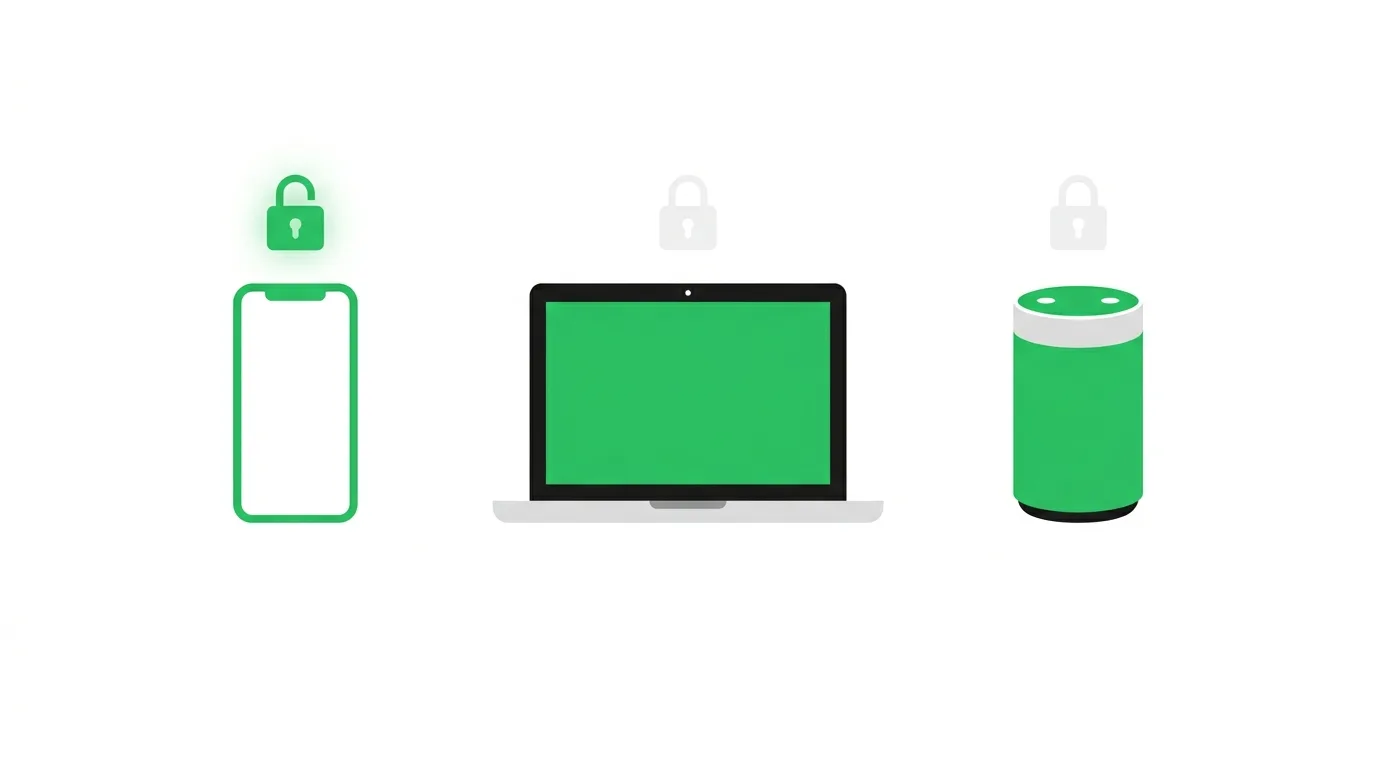
Private Session is generally tied to the specific device and app session where you turned it on, not your entire Spotify account across every device simultaneously.
If you’re logged into Spotify on both your phone and a smart speaker, for example, turning on Private Session on your phone typically won’t automatically apply to listening happening through the speaker.
For full privacy across multiple devices, you may need to enable Private Session separately wherever you’re actively listening.
What Private Session Doesn’t Hide
It’s worth being clear about the limits of this feature.
Private Session hides your activity from other users and from showing up in Friend Activity, but it doesn’t make you anonymous to Spotify itself. The company can still see and log your listening for its own internal purposes, such as royalty payments to artists.
It also won’t retroactively hide anything you listened to before turning the feature on. It only applies going forward from the moment you activate it.
If you’ve already added certain playlists to your public profile, those remain visible regardless of Private Session being active, since the setting only affects real-time listening activity, not your existing public playlists.
Turning Off Private Session
Turning it off works the same way as turning it on.
On mobile, go back to Settings → Social → Private Session and switch the toggle off.
On desktop, click your profile name and select Private session again to disable it.
Once off, your listening activity resumes showing up normally to friends and contributes to your listening history and personalized recommendations again.
Troubleshooting: Private Session Not Working
If your activity still seems visible after turning on Private Session, try these steps.
Confirm the toggle actually activated. Some versions show a brief confirmation message or icon change. If you didn’t see one, try toggling it again.
Check that it hasn’t expired. Remember, Private Session typically turns off automatically after several hours, so it may have simply timed out.
Make sure you’re checking the right device. If you’re listening across multiple devices, remember the setting may only be active on the one where you turned it on.
Update your Spotify app. An outdated app version can occasionally have bugs affecting how settings apply.
How To Change Your Email Address on Reddit
Final Thoughts
Private Session gives you a quick way to listen without it showing up to friends or shaping your recommendations, and it takes just a couple of taps to turn on.
Remember that it’s temporary by default, tied to the device you’re using, and doesn’t apply retroactively to anything you’ve already listened to or added to public playlists.
If private listening is something you want regularly, it’s worth building the habit of checking whether it’s still active each time you open the app.
