Pinterest boards are public by default, which means anyone browsing the platform can stumble across your pins, boards, and activity, even if you never intended for strangers to see them.
Unlike some social platforms, Pinterest doesn’t offer a single full-account privacy toggle. Instead, it gives you a set of individual privacy controls that together let you decide exactly what stays visible and to whom.
This guide walks through every privacy option Pinterest offers, so you can lock down your account as much as the platform allows.
Why Pinterest Doesn’t Have One Simple Private Toggle
Pinterest was built around public discovery from the start. Its whole search and recommendation system relies on pins and boards being visible so people can find ideas.
Because of that, Pinterest doesn’t let you flip a single switch to make your entire account invisible to non-followers, the way some other platforms do.
Instead, privacy on Pinterest works board by board, along with a handful of account-wide settings that limit how easily you can be found or contacted.
Understanding this upfront helps set the right expectations before you start adjusting settings.
How to Make an Individual Board Private on Pinterest
This is the closest thing Pinterest has to true privacy, and it works per board rather than for your whole account.
Step 1. Open the Pinterest app or website and go to your profile.
Step 2. Open the board you want to make private.
Step 3. Tap or click the edit icon, usually shown as a pencil.
Step 4. Find the Visibility or Secret toggle and switch it on.
Step 5. Save your changes.
Once a board is set to secret, only you and anyone you specifically invite as a collaborator can see it. It won’t show up in search, on your profile, or in anyone else’s feed.
How to Hide Your Full Profile From Search Engines
While you can’t hide your entire Pinterest profile from other Pinterest users, you can stop it from showing up in outside search engines like Google.
Step 1. Go to Settings from your profile menu.
Step 2. Tap or click Social permissions or Account settings, depending on your app version.
Step 3. Find Search privacy.
Step 4. Turn on the option that hides your profile from search engines.
This won’t make you invisible on Pinterest itself, but it does stop your profile from appearing when someone searches your name on Google or another external search engine.
Limiting Who Can Message You
Pinterest lets you control who’s allowed to send you direct messages, which is a meaningful privacy layer on its own.
Step 1. Go to Settings.
Step 2. Tap Social permissions.
Step 3. Find the messaging settings.
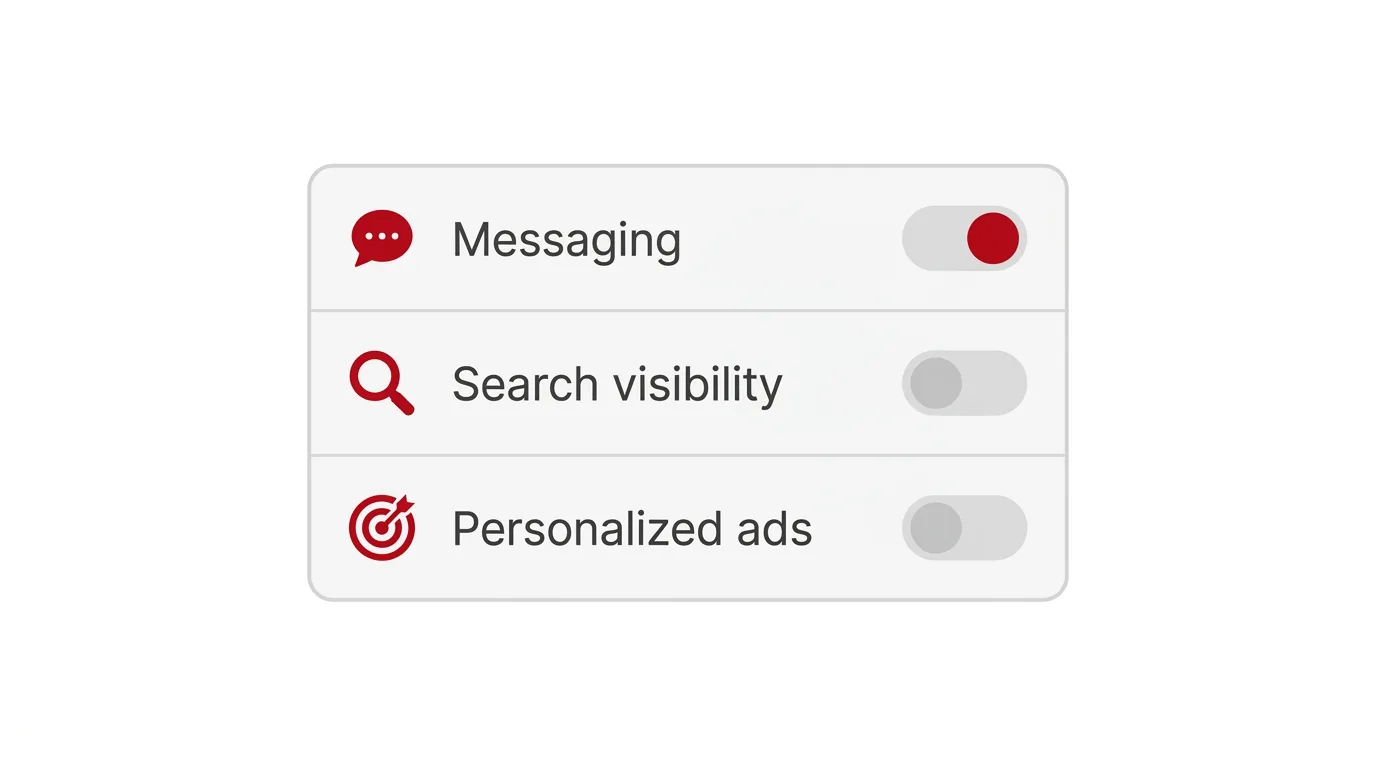
Step 4. Choose between allowing messages from everyone, only people you follow, or nobody at all.
Restricting messages to people you already follow cuts down significantly on unwanted contact from strangers.
Controlling Who Can See Your Activity
Beyond boards and messages, Pinterest also lets you limit visibility around your broader activity on the platform.
Hiding Your Recent Pins from Search
Inside Settings → Social permissions, you can control whether your individual pins appear in Pinterest’s own search results, separate from the external search engine setting mentioned earlier.
Personalized Ads and Data Sharing
The same settings area lets you limit how much of your activity is used for ad targeting, which indirectly reduces how much of your behavior is tracked and shared with advertisers, even if it doesn’t affect who can see your public boards.
Making Your Whole Profile Effectively Private
Since Pinterest doesn’t offer one master toggle, getting close to a fully private profile means combining several settings at once.
Set every board you want hidden to secret individually.
Turn on the setting that hides your profile from outside search engines.
Restrict who can message you to just the people you follow.
Review your followers list periodically and remove anyone you don’t want to be seeing shared content from.
Doing all of this together gets you close to a locked-down experience, even without a single unified privacy switch.
What Stays Visible No Matter What
Even with every available privacy setting turned on, a few things remain visible to anyone who finds your profile.
Your username and profile picture stay visible on Pinterest itself, since these are needed for basic platform functionality like following and tagging.
Any board you haven’t specifically marked as secret stays public and searchable.
Comments you leave on other people’s public pins are visible to anyone who can see that pin, regardless of your own account settings.
Troubleshooting: A Board Won’t Switch to Secret
If you’re having trouble making a board secret, check these possibilities.
The board has too many collaborators. Boards with certain group collaboration settings occasionally restrict the secret toggle. Try removing extra collaborators first.
Your app needs updating. Older app versions sometimes place this setting in a slightly different menu or have bugs affecting the toggle.
You’re looking at the wrong menu. Make sure you’re editing the specific board itself, not your account-wide settings, since the secret toggle lives inside each board’s individual settings.
How To Mute Someone on X (Twitter)
Final Thoughts
Pinterest’s approach to privacy is more granular than a single on-off switch, which means real privacy here comes from combining several settings rather than flipping one toggle.
Making individual boards secret, hiding your profile from outside search engines, and limiting who can message you together get you as close to a private account as Pinterest allows.
Review these settings periodically, since new boards you create default back to public unless you set them to secret each time.
