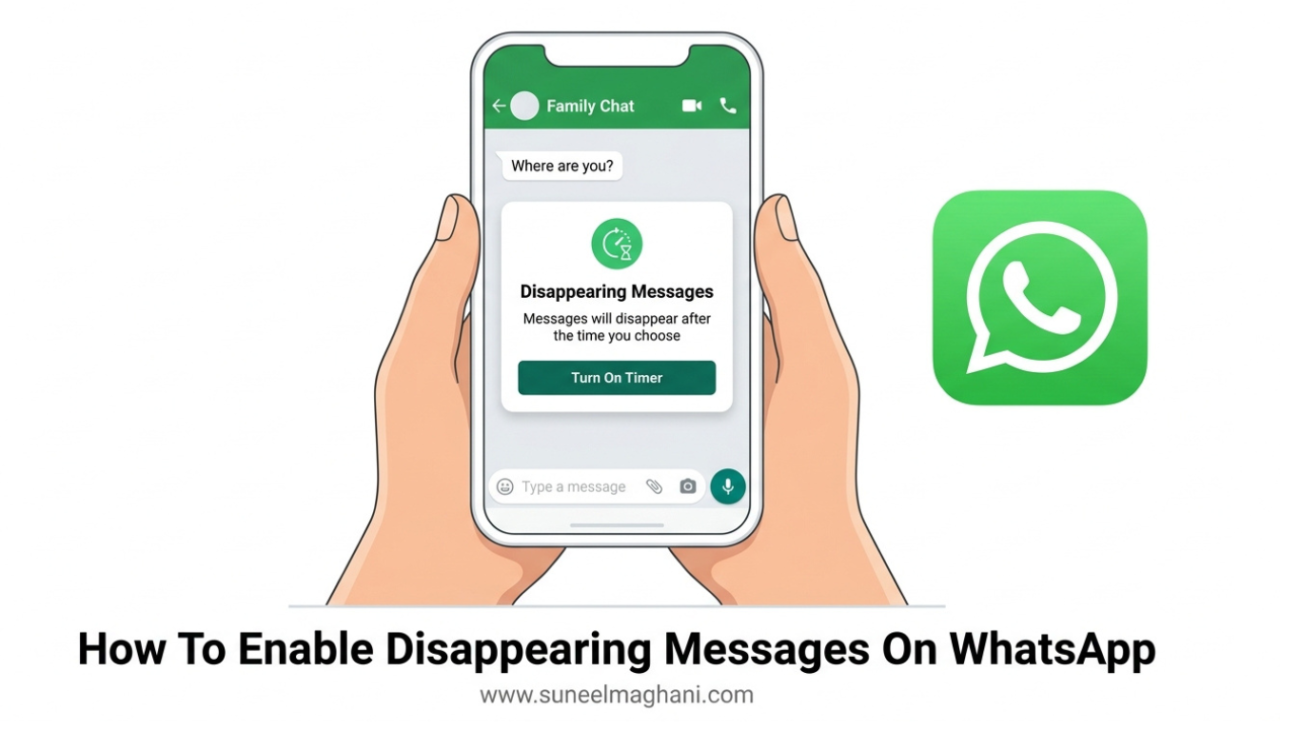
Do you want your WhatsApp chats to clean themselves up automatically instead of piling up forever? WhatsApp’s Disappearing Messages feature does exactly that — it deletes messages on its own after a timer you choose, so you don’t have to manually clear old chats or worry about sensitive messages sitting on your phone indefinitely.
In this guide, I’ll show you how to turn it on for individual chats, group chats, and even set it as the default for every new conversation you start — along with a few things most guides don’t mention.
What Disappearing Messages Actually Does
Once you enable this feature for a chat, only new messages sent after you turn it on will vanish once the timer runs out. Anything sent before that stays exactly where it is. It works the same way on both individual and group chats, and it’s fully synced across your phone, WhatsApp Web, and desktop app.
You can currently choose between these timers:
- 24 hours
- 7 days
- 90 days
- 1 hour or 12 hours (newer, shorter options added in a recent WhatsApp update)
How To Turn On Disappearing Messages In An Individual Chat
- Open WhatsApp and go to the chat you want to change.
- Tap the contact’s name at the top of the screen to open their info.
- Scroll down and tap Disappearing Messages.
- Choose your preferred timer (1 hour, 24 hours, 7 days, or 90 days).
- Tap Done or Continue to confirm.
Both you and the other person will see a small notification inside the chat confirming the feature is now on — and either person can change or turn off the timer later, not just the one who enabled it.
How To Turn On Disappearing Messages In A Group Chat
Group chats work almost the same way, with one important difference: only group admins can enable or change this setting.
- Open the group chat.
- Tap the group name at the top.
- Scroll down and select Disappearing Messages.
- Pick a timer, or select Off to disable it.
- Confirm if prompted.
Everyone in the group gets a notification when this setting is changed, so there’s no confusion about why old messages are missing.
How To Set A Default Timer For All New Chats
If you don’t want to repeat these steps for every single conversation, you can set a default timer that automatically applies to any new chat you start:
- Open WhatsApp and go to Settings.
- Tap Account, then Privacy.
- Select Default Message Timer.
- Choose your preferred duration.
This only applies to chats you start after setting the default — it won’t change timers on conversations you already have open.
Using Disappearing Messages On WhatsApp Web Or Desktop
- Open WhatsApp Web or the desktop app.
- Open the chat you want to update.
- Click the contact or group name at the top.
- Select Disappearing Messages and choose your timer.
The setting works with full feature parity between mobile and desktop, so a chat you set on your phone will show the same timer when you open it on the web.
The “Keep” Feature Most People Miss
If there’s a specific message inside a disappearing chat that you actually want to hold onto, you don’t have to turn the whole feature off. Just press and hold the message, then tap Keep. That single message will stay saved even after the timer expires for everything else around it.
Things To Keep In Mind Before You Turn It On
- Disappearing messages help keep your chats tidy and more private, but they are not a guarantee of total secrecy — the other person can still screenshot, forward, or copy a message before it disappears.
- Media saved to your camera roll or downloads folder isn’t deleted just because the chat message disappeared.
- If you’re using it for a business or work-related group, double check your company’s record-keeping policy first — auto-deleting messages might not be appropriate for every conversation.
FAQs
Does turning on disappearing messages delete my old chat history?
No. It only affects messages sent after you enable the feature.
Can I set a different timer for each chat?
Yes, each chat can have its own timer, separate from your default setting.
Can the other person turn it off without telling me?
They can turn it off or change the timer, but WhatsApp always shows a notification in the chat when this happens.
Does this work the same on iPhone and Android?
Yes, the steps and options are identical on both platforms.
Conclusion
Disappearing Messages is one of the simplest ways to keep your WhatsApp conversations private and clutter-free without deleting anything manually. Whether you use it for a single sensitive conversation or set it as your default for every new chat, it only takes a few taps to set up. If you run into any issues enabling it, feel free to reach out on Telegram or by email.
