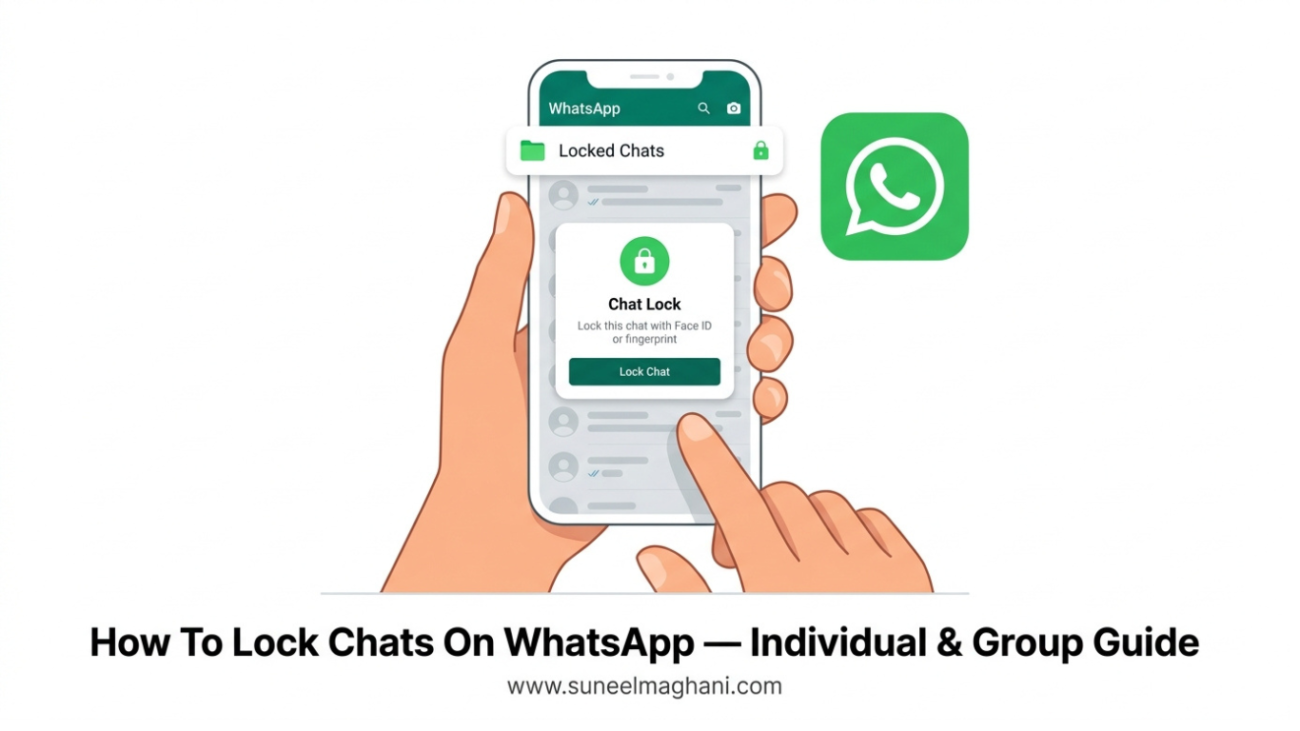
If you share your phone with family, or you just don’t want anyone scrolling through a certain conversation, WhatsApp’s Chat Lock feature is the easiest way to keep specific chats private — no third-party app needed.
In this guide, I’ll cover everything: locking individual chats, locking group chats (which actually works a little differently), finding your locked chats again, setting up a Secret Code, fixing common issues, and a full FAQ section at the end.
What Happens When You Lock A WhatsApp Chat
Before jumping into steps, here’s exactly what changes once a chat is locked:
- It disappears from your main chat list and moves into a hidden Locked Chats folder
- Message previews in notifications are hidden — you’ll only see the sender’s name, not what they said
- Media shared in that chat stops auto-saving to your phone’s gallery
- The chat can only be opened again using your fingerprint, Face ID, or device passcode
Calls are not affected — you’ll still see and receive calls normally, even from a locked chat.
How To Lock An Individual Chat On WhatsApp
On iPhone:
- Open WhatsApp and go to your chat list.
- Swipe left on the chat you want to lock.
- Tap the More (•••) button.
- Select Lock Chat.
- Tap Continue, then confirm with Face ID or your passcode.
On Android:
- Open WhatsApp and long-press the chat you want to secure.
- Tap the three-dot menu in the top-right corner.
- Select Lock Chat.
- Confirm using your fingerprint or PIN.
That’s it — the chat is now hidden from your main list.
Note: WhatsApp doesn’t currently allow locking several chats in one go — you’ll need to repeat this for each chat individually.
How To Lock A Group Chat On WhatsApp
Group chats use a slightly different path, and there’s one key limitation worth knowing upfront: locking a group chat only hides it on your own phone — it doesn’t lock it for other members, and nobody in the group is notified.
- Open the group chat you want to lock.
- Tap the group’s name at the top to open group info.
- Scroll down and tap Chat Lock.
- Toggle it on and confirm with your fingerprint, Face ID, or passcode.
You’ll still get notified when someone messages the group and still receive calls — but the message content stays hidden until you unlock it.
How To Find Your Locked Chats Again
Once a chat is locked, it’s intentionally hidden — here’s how to get back to it.
Method 1: Swipe down Go to your main Chats tab and slowly swipe down from the middle of the screen. A folder called Locked Chats will appear at the top. Tap it and authenticate to view the chats inside.
Method 2: Secret Code (if swiping doesn’t show anything) If you’ve hidden the Locked Chats folder completely (see below), swiping won’t show it. Instead, tap the search bar at the top of WhatsApp and type your Secret Code — the folder will appear in the results.
Once you exit the Locked Chats folder, it automatically re-locks itself immediately — you don’t need to lock it manually again.
Setting Up A Secret Code For Extra Privacy
By default, the Locked Chats folder is visible if someone swipes down on your chat list — even if they can’t open it without your fingerprint. If you want to hide the folder’s existence entirely, set a Secret Code:
- Open your Locked Chats folder.
- Tap the settings icon inside it.
- Select Secret Code.
- Create a code — it can be letters, numbers, or even a single emoji.
- Turn on Hide Locked Chats.
From then on, the folder won’t appear at all until you type that exact code into the WhatsApp search bar.
How To Unlock A Chat On WhatsApp
If you no longer need a chat hidden:
- Open your Locked Chats folder and authenticate.
- Open the specific chat.
- Tap the contact or group name at the top.
- Find Chat Lock and toggle it off.
- Confirm with your fingerprint or Face ID.
The chat will move back to your regular chat list immediately.
Chat Lock vs. Archive: Which Should You Use?
People often mix these two up, but they solve different problems:
| Feature | Chat Lock | Archive |
|---|---|---|
| Main purpose | Privacy/security | Decluttering your chat list |
| How to access | Requires fingerprint/Face ID/passcode | Just swipe down, no authentication |
| Notification preview | Hidden | Shown normally |
| Best for | Sensitive personal or work chats | Old chats you rarely check |
You can actually lock and archive the same chat for extra privacy, though for most people one or the other is enough.
Fixing Common Chat Lock Problems
“Lock Chat” option isn’t showing up at all This usually means one of these: your WhatsApp app is outdated, your phone doesn’t have Face ID/fingerprint/passcode set up, you’re using WhatsApp Business (which doesn’t support this feature the same way), or the feature simply hasn’t rolled out to your region yet. Update WhatsApp from the Play Store/App Store and set a screen lock on your device first.
Locked Chats folder disappeared If you previously set a Secret Code with “Hide Locked Chats” turned on, the folder won’t show by swiping anymore — you have to search your Secret Code instead. If you’re sure you never set one and the folder is truly gone, check if the chat itself was accidentally deleted rather than locked.
Can’t see locked chats on WhatsApp Web/Desktop Locked chats only appear on Web or Desktop if you’ve set up a Secret Code on your phone first. Without one, WhatsApp intentionally keeps locked chats mobile-only for privacy.
FAQs
Does the other person know I locked our chat?
No. Locking a chat is completely private — the other person receives no notification or indication of any kind.
Can I lock a chat without a fingerprint reader?
Yes, you can use Face ID or your regular device passcode/PIN instead — a fingerprint sensor isn’t required.
Does locking a chat hide calls too?
No, only messages are hidden. Calls from that contact or group still ring and show up normally.
Can I lock a group chat for everyone in the group?
No — group Chat Lock is local to your device only. Every member has to lock it individually on their own phone if they want it hidden.
Will locking a chat delete any old messages?
No, nothing is deleted. All existing messages stay exactly as they are, just hidden behind the lock.
What if I forget my Secret Code?
There’s currently no official recovery option for a forgotten Secret Code — you may need to reset it through WhatsApp’s account settings, so choose something memorable but not obvious.
Conclusion
Between individual Chat Lock, group Chat Lock, and the extra Secret Code option, you now have full control over exactly who can see which conversations on your phone. It takes only a few seconds to set up, and it’s one of the simplest privacy upgrades you can make on WhatsApp. If you run into any issue not covered here, feel free to reach out on Telegram or by email.
