Not every account deserves a block, but some definitely deserve to disappear from your timeline.
Muting on X, formerly known as Twitter, lets you quietly stop seeing someone’s posts without unfollowing them, blocking them, or letting them know anything changed on your end.
This guide covers exactly how to mute someone on X, the difference between muting and blocking, and how to manage or undo a mute whenever you’re ready.
What Muting Actually Does on X
Muting is a one-way, silent action.
Once you mute an account, their posts stop showing up in your home timeline.
You’ll also stop seeing their replies to other posts in your feed, and you can optionally mute their retweets and notifications from them separately.
The muted account has no idea it happened. You still follow them, they still follow you, and they can still see and reply to your posts as normal, since muting only changes what you see, not what they can do.

How to Mute Someone on X (From Their Profile)
Step 1. Open the X app and go to the profile of the account you want to mute.
Step 2. Tap the three-dot icon near the top of their profile.
Step 3. Tap Mute @username.
Step 4. Confirm the action if a pop-up appears.
The mute takes effect right away, and their posts will stop appearing in your timeline going forward.
How to Mute Someone on X (From a Post)
You can also mute an account directly from one of their posts, without visiting their profile first.
Step 1. Find a post from the account you want to mute in your timeline.
Step 2. Tap the three-dot icon in the top right corner of that post.
Step 3. Tap Mute @username.
Step 4. Confirm the action.
This is often the fastest route if you’re muting someone specifically because of a post that just showed up in your feed.
How to Mute Someone on X (Desktop)
Step 1. Log into X through a web browser.
Step 2. Go to the profile of the account you want to mute, or find one of their posts.
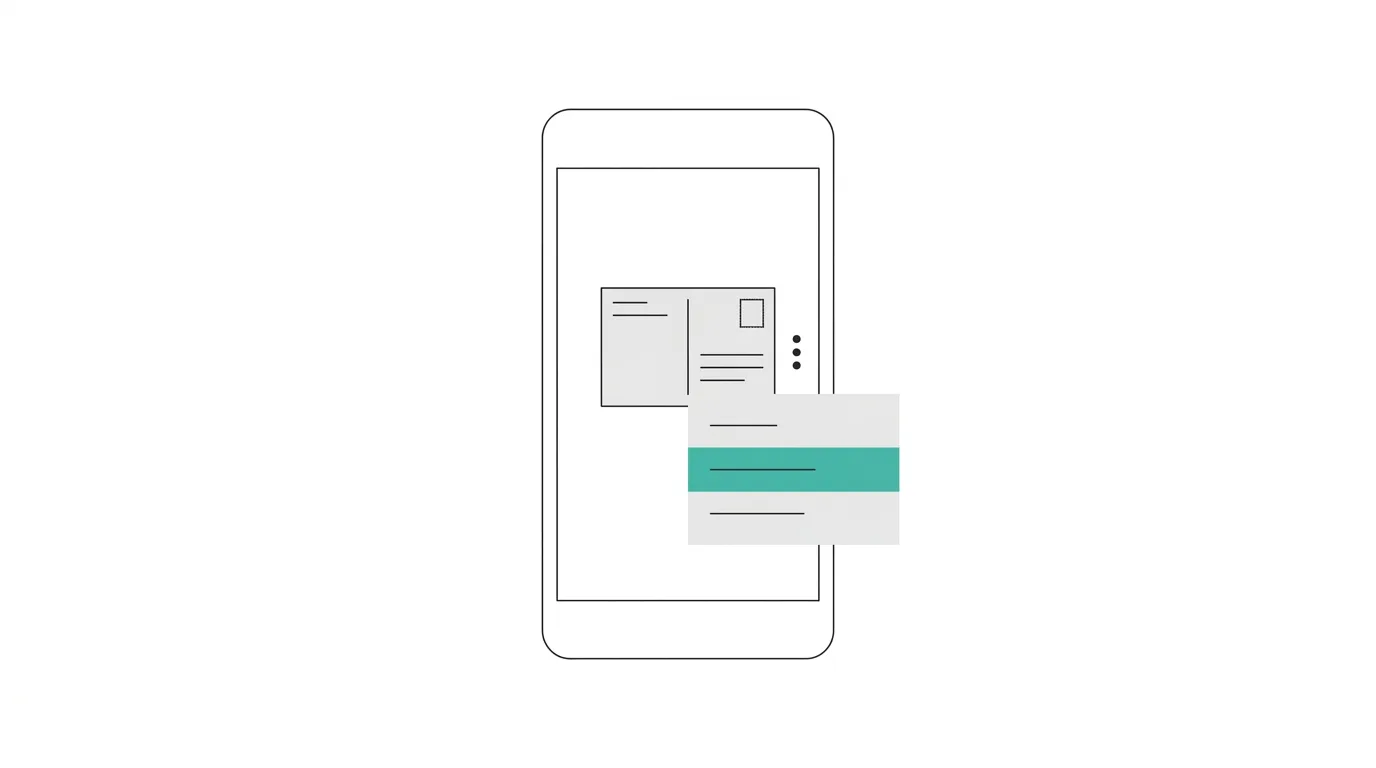
Step 3. Click the three-dot icon near their name or post.
Step 4. Click Mute @username.
Step 5. Confirm if prompted.
The desktop version mirrors the mobile app closely, just with clicks instead of taps.
Muting vs. Blocking: What’s the Difference
These two features often get confused, but they behave very differently.
Muting
A quiet, one-directional filter. You stop seeing their content, but they can still follow you, see your posts, and reply to you. They’re never notified.
Blocking
A full separation. Blocking prevents them from viewing your profile, following you, or interacting with your posts at all, and it may visibly change how your profile appears to them.
If you just want peace and quiet without any confrontation, muting is usually the better choice. If you want someone fully cut off from your account, blocking is the stronger option.
Muting Specific Words or Phrases Instead of an Account
X also lets you mute entire keywords, hashtags, or phrases rather than a specific person, which is useful for filtering out topics rather than individuals.
Step 1. Go to Settings and privacy.
Step 2. Tap Privacy and safety.
Step 3. Tap Mute and block.
Step 4. Tap Muted words.
Step 5. Tap the plus icon and enter the word or phrase you want to mute.
Step 6. Choose whether it applies to your timeline, notifications, or both, and set a duration if you only want it muted temporarily.
This is especially useful during events like elections, sports finals, or spoiler-heavy show premieres, where you want to avoid a specific topic without muting the people posting about it.
Managing Your Muted Accounts List
X keeps a running list of every account you’ve muted, which you can review and edit at any time.
Step 1. Go to Settings and privacy.
Step 2. Tap Privacy and safety.
Step 3. Tap Mute and block.
Step 4. Tap Muted accounts.
From here, you’ll see everyone currently muted, with the option to unmute any of them individually.
How to Unmute Someone on X
If you decide you want to see their posts again, unmuting takes just as little effort.
Step 1. Go to Settings and privacy → Privacy and safety → Mute and block → Muted accounts.
Step 2. Find the account you want to unmute.
Step 3. Tap the mute icon next to their name to reverse it.
Alternatively, you can visit their profile directly, tap the three-dot icon, and select Unmute @username from there.
Troubleshooting: Still Seeing Posts From a Muted Account
If you’re still seeing content from someone you’ve muted, a few things could be going on.
You’re seeing them through someone else’s retweet or quote post. Muting stops their own posts from appearing, but a post they made can still surface if someone you follow retweets or quotes it.
You only muted their posts, not their retweets. X allows you to separate these two settings. Check your mute options again and make sure retweets are included if you want a more complete filter.
The app hasn’t refreshed yet. Close and reopen the app, or refresh your browser, since timeline updates can occasionally lag slightly behind a settings change.
How To Change Your Profile Picture on Weibo
Final Thoughts
Muting on X gives you a quiet, no-confrontation way to clean up your timeline without unfollowing, blocking, or alerting anyone.
If your goal is filtering out a topic rather than a specific person, the muted words feature offers an even more flexible option.
Either way, every mute is fully reversible, so you can always check your muted accounts or muted words list and undo it whenever you’re ready.
