Your Weibo profile picture is the small circular image that shows up next to every post, comment, and reply you make, so it’s often the first visual cue people notice before they even read your username.
Whether you’re refreshing an old photo, switching to a new avatar, or setting one up for the first time, the process on Weibo only takes a minute.
This guide covers exactly how to change your profile picture on Weibo, on both the mobile app and desktop, along with a few formatting tips to make sure your new photo actually looks good once it’s uploaded.
Where Your Profile Picture Appears on Weibo
Before changing it, it helps to know just how visible this image is across the platform.
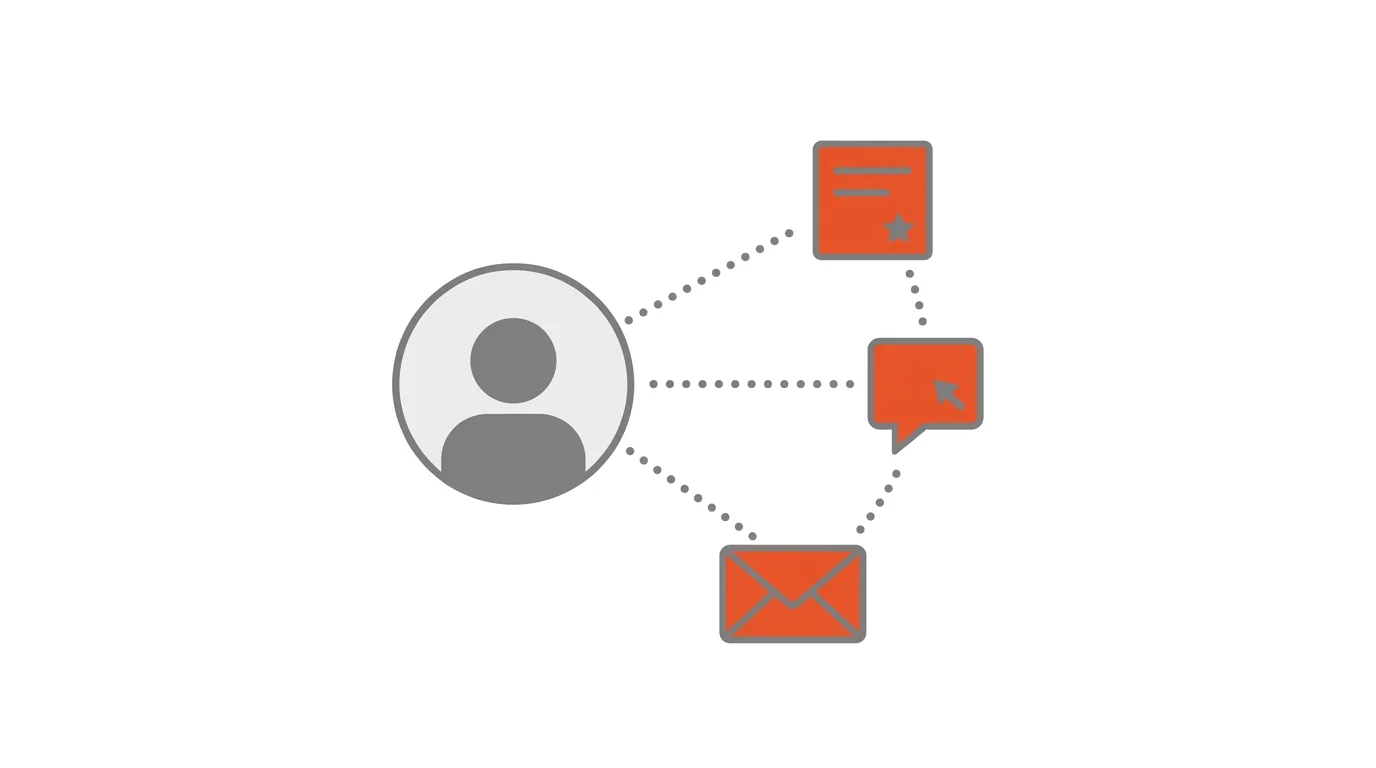
Your profile picture shows next to every post you publish, every comment you leave on someone else’s post, and every private message you send.
It also appears on your full profile page, alongside your cover photo, bio, and follower count.
Because it shows up in so many places at once, a blurry or oddly cropped image tends to stand out more than people expect.
How to Change Your Profile Picture on Weibo (Mobile App)
Step 1. Open the Weibo app and go to your profile page.
Step 2. Tap directly on your current profile picture.
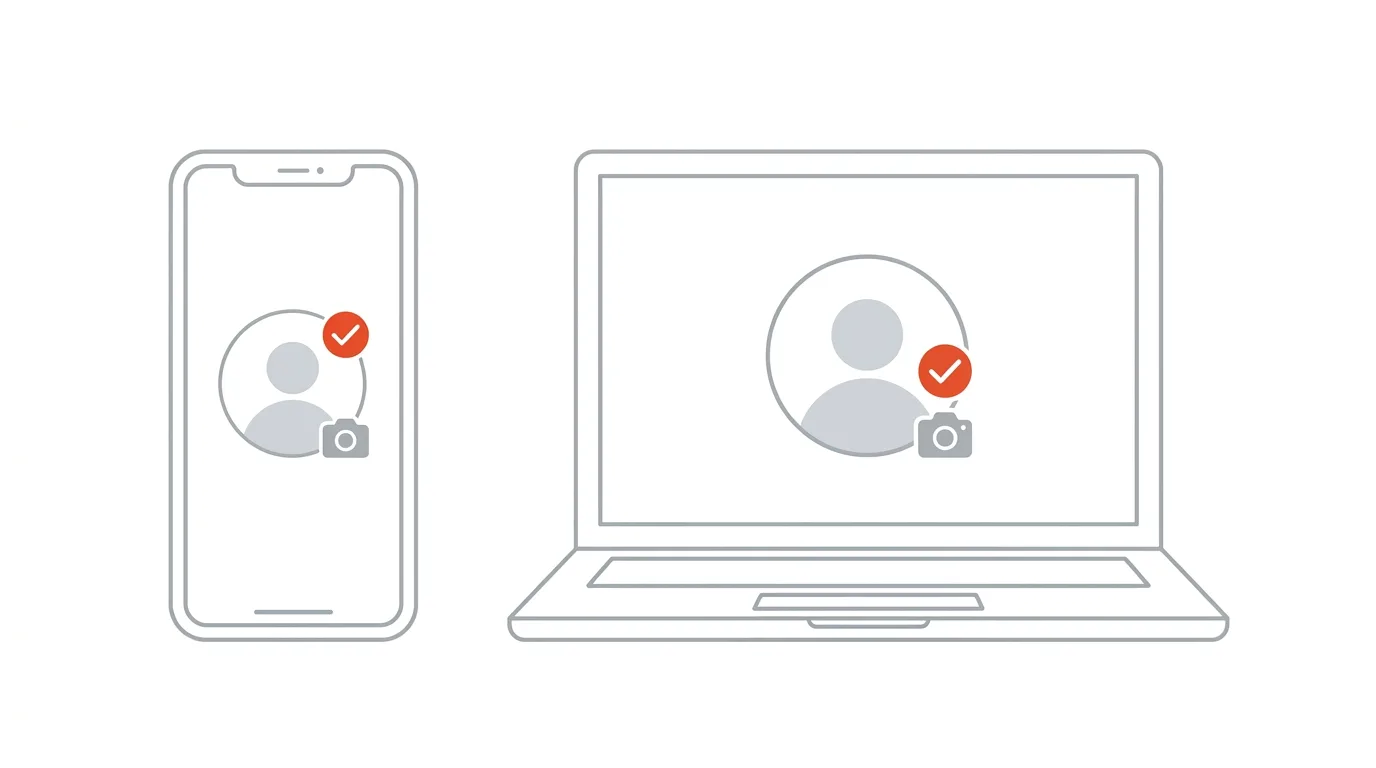
Step 3. Tap Change Avatar or the small camera icon that appears over the image.
Step 4. Choose to take a new photo with your camera or select one from your phone’s gallery.
Step 5. Adjust the crop so the important part of the image is centered inside the circular frame.
Step 6. Tap Confirm or Save to apply the change.
Your new profile picture updates immediately and will appear on any post or comment you make going forward.
How to Change Your Profile Picture on Weibo (Desktop)
Step 1. Log into Weibo through a web browser.
Step 2. Go to your profile page by clicking your current avatar or username.
Step 3. Hover over your profile picture and click the camera or edit icon that appears.
Step 4. Click Upload Photo and select an image file from your computer.
Step 5. Crop the image using the on-screen tool so it fits the circular frame properly.
Step 6. Click Save to finalize the change.
The desktop version gives you a slightly larger preview window, which can make cropping a bit easier than doing it on a small phone screen.
Recommended Image Size and Format
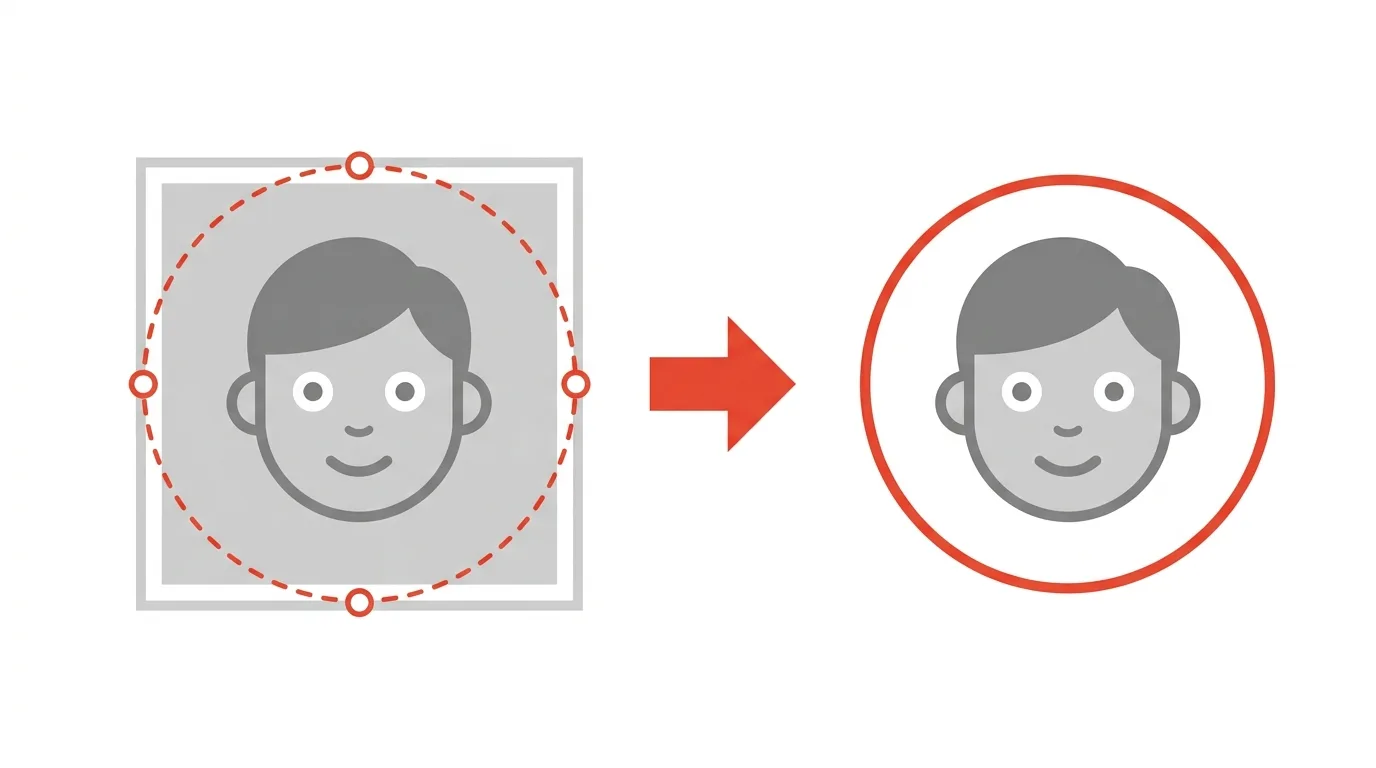
Weibo displays profile pictures in a circular crop, so square images generally work best as your starting point.
A minimum resolution of around 180 by 180 pixels is recommended, though uploading a larger image, such as 500 by 500 pixels or more, will look sharper across different screen sizes and won’t get blurry when viewed at full size on someone else’s profile view of you.
Supported file formats typically include JPG, JPEG, PNG, and GIF, though static images tend to display more reliably across all parts of the platform than animated ones.
Keep the important part of your photo, like a face, centered in the middle of the frame, since the corners of a square image get cropped away in the circular display.
Removing Your Profile Picture
If you’d rather go back to Weibo’s default placeholder image instead of uploading something new, most versions of the app allow this through the same edit menu.
Step 1. Tap or click on your current profile picture.
Step 2. Look for a Remove Photo or Reset to Default option within the edit menu.
Step 3. Confirm the removal if prompted.
Not every version of the app displays this option in the same place, so if you don’t see it immediately, check under your broader profile editing settings instead.
How Long the Change Takes to Show Up
In most cases, your new profile picture updates instantly across your own posts and profile page.
However, it can occasionally take a few minutes for the change to fully reflect on older posts or comments across the platform, especially on comments left before the update, since some cached versions of your avatar may briefly still display.
If your new picture isn’t showing consistently after a few minutes, try closing and reopening the app, or refreshing your browser if you’re on desktop.
Troubleshooting: Upload Not Working
If you’re having trouble uploading a new profile picture, check these common issues.
File size is too large. Very high-resolution images sometimes fail to upload. Try compressing the image or choosing a smaller file before trying again.
Unsupported file format. Stick to standard JPG or PNG files if an upload keeps failing, since some less common formats aren’t supported.
Weak or unstable internet connection. Profile picture uploads require a stable connection to complete, so switching from mobile data to Wi-Fi, or the other way around, can sometimes resolve a stuck upload.
App needs updating. An outdated version of the Weibo app can occasionally have bugs in the photo upload flow. Check your app store for available updates.
How To Change the Language on WeChat
Final Thoughts
Changing your profile picture on Weibo takes only a few taps once you know where the option lives, and it updates almost instantly across your posts and profile.
Stick to a square, high-resolution image with the main subject centered, since the circular crop will trim away the edges of whatever you upload.
If an upload doesn’t seem to be working, checking your file size, format, and internet connection will usually resolve the issue.
