WeChat automatically picks a display language when you first install it, usually based on your phone’s system settings or your location at signup.
That default doesn’t always match what you actually want to read the app in, especially if you travel, share a device, or set up the app somewhere other than your home country.
This guide shows you exactly how to change the language on WeChat, on both iPhone and Android, and what to check if the option doesn’t seem to work right away.
Where the Language Setting Lives on WeChat
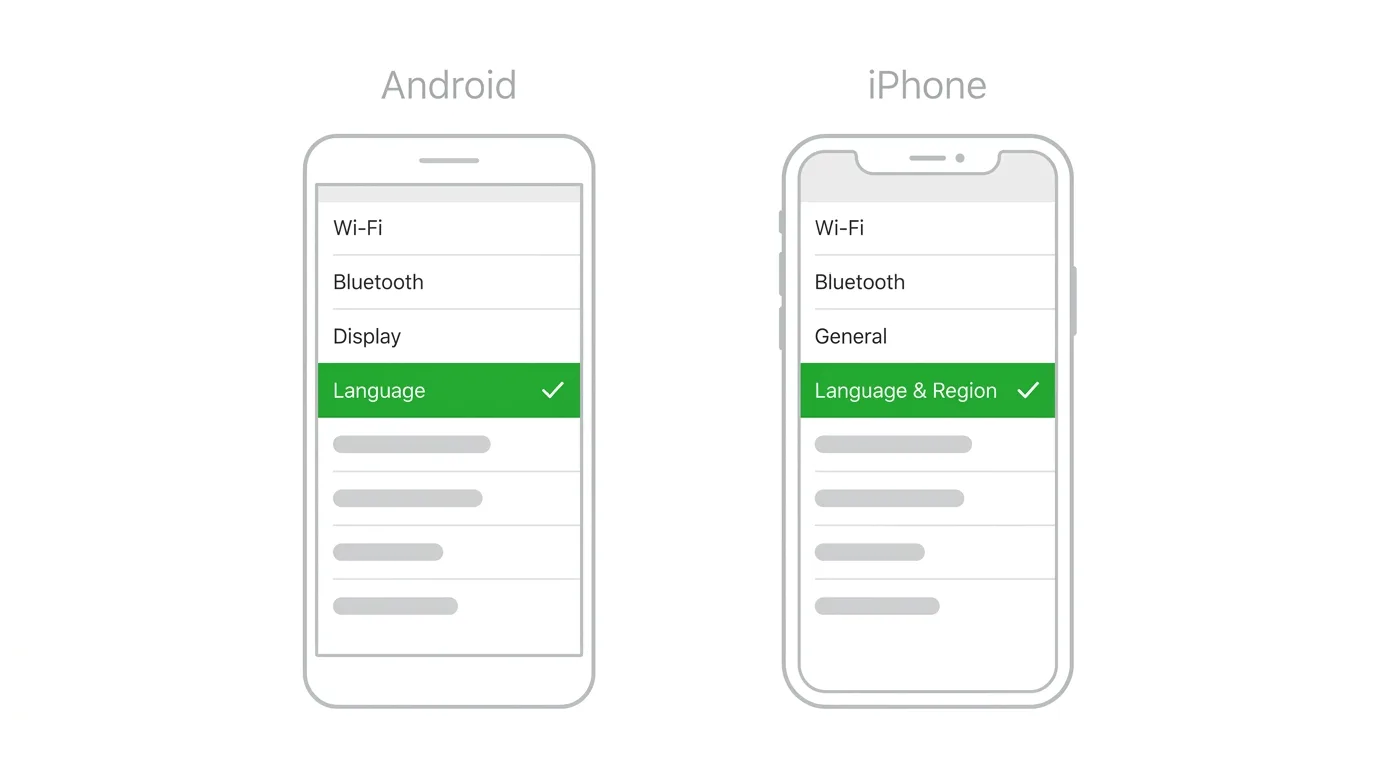
WeChat keeps its language setting inside the general settings menu, separate from your phone’s own system language.
Changing it inside the app only affects how WeChat itself displays text, menus, and buttons. It doesn’t change the language on the rest of your phone.
This also means two people sharing the same phone, or the same person switching between accounts, can technically keep different in-app experiences depending on how each account’s settings are configured.
How to Change the Language on WeChat (Android)
Step 1. Open the WeChat app.
Step 2. Tap Me in the bottom right corner.
Step 3. Tap Settings.
Step 4. Tap General.
Step 5. Tap Language.
Step 6. Select your preferred language from the list.
Step 7. Confirm the change if prompted.
The app will refresh its interface immediately, and every menu, button, and label will switch to the language you selected.
How to Change the Language on WeChat (iPhone)
Step 1. Open WeChat on your iPhone.
Step 2. Tap Me in the bottom right corner.
Step 3. Tap Settings.
Step 4. Tap General.
Step 5. Tap Language.
Step 6. Choose your desired language from the list shown.
Step 7. The app updates automatically once selected.
The steps are nearly identical to Android, since WeChat keeps this menu consistent across both platforms.
Which Languages WeChat Supports
WeChat supports a wide range of languages, reflecting its large international user base.
Commonly available options include English, Simplified Chinese, Traditional Chinese, Spanish, French, German, Japanese, Korean, Russian, Portuguese, Italian, Indonesian, Thai, and Vietnamese, among others.
The exact list can vary slightly depending on your app version, so if a specific language isn’t showing up, updating the app is worth trying first.
Does Changing the App Language Translate Messages
It’s worth being clear about what this setting does and doesn’t do.
Changing your language setting only changes the WeChat interface itself, meaning menus, buttons, and system notifications.
It does not automatically translate the actual messages other people send you. A message written in Chinese will still appear in Chinese even if your interface language is set to English.
How to Translate Individual Messages
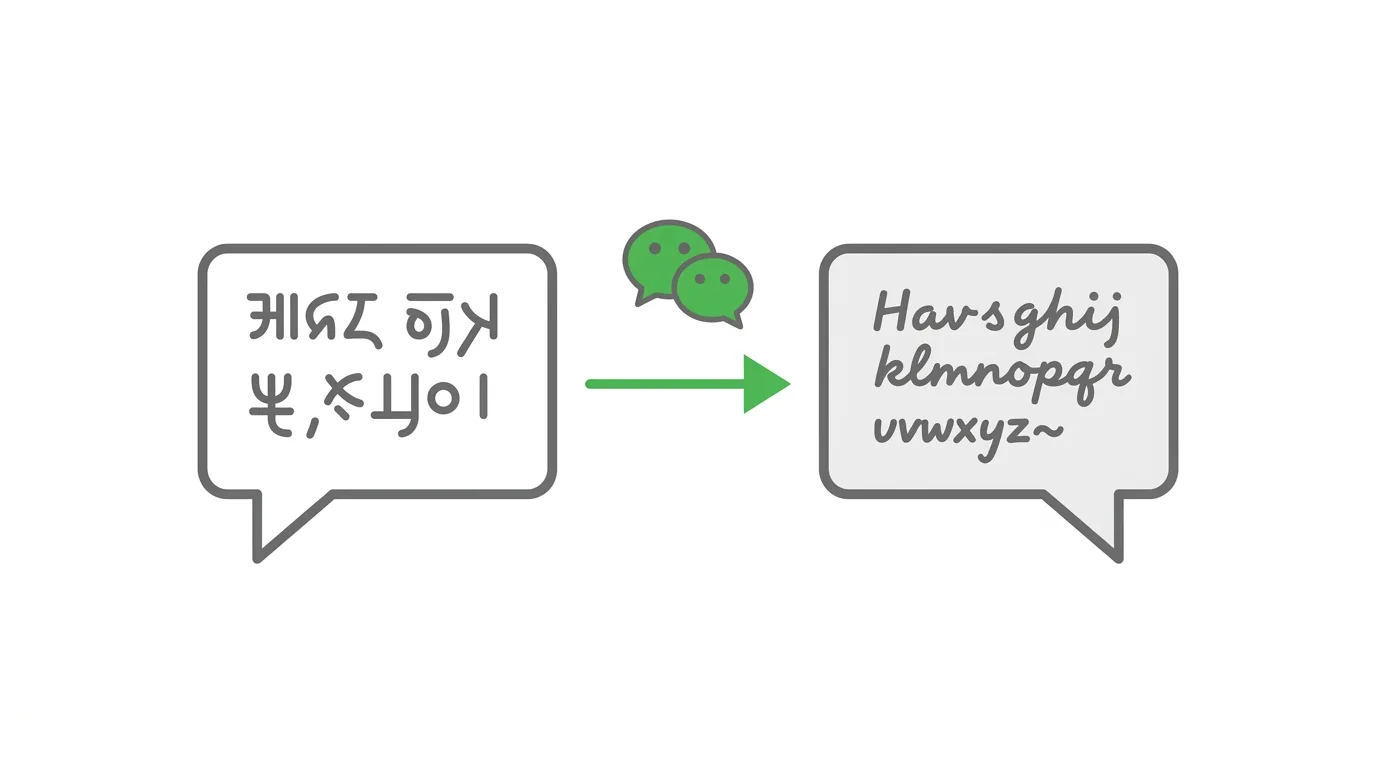
If your goal is actually reading a message in a different language, WeChat has a separate built-in translation feature for that.
Step 1. Press and hold on the message you want to translate.
Step 2. Tap Translate from the menu that appears.
Step 3. WeChat will display a translated version directly beneath the original message.
This works independently of your interface language setting, so you can keep your app set to English while still translating individual messages sent in Chinese, or any other supported language.
Changing the Language Back
If you want to switch back to your original language, or try a different one, the process is exactly the same.
Go to Me → Settings → General → Language, and select whichever language you’d like to switch to.
There’s no limit to how often you can change this setting, so feel free to switch back and forth as needed.
Troubleshooting: Language Option Missing or Not Changing
If you’re having trouble with this setting, check the following.
Update WeChat to the latest version. Older versions sometimes have a shorter list of supported languages or bugs in the settings menu.
Restart the app after changing the setting. While most changes apply instantly, occasionally a full restart resolves a setting that didn’t visually update right away.
Check that you’re changing the in-app setting, not your phone’s system language. These are two separate settings, and changing your phone’s overall language won’t necessarily update WeChat if the app has its own language already selected.
How To Change Your Password on Facebook (2026 Guide)
Final Thoughts
Changing the language on WeChat takes just a few taps, and it’s completely separate from your phone’s system-wide language setting.
Remember that this only changes the app’s interface, not the language other people are messaging you in. For that, WeChat’s built-in message translation feature is the tool you actually want.
Switch languages as often as you like. There’s no cooldown or restriction on how frequently you can change this setting.
