Whether you’re strengthening your account security or just haven’t updated it in a while, changing your Facebook password takes only a minute.
This guide walks through exactly how to change your password on Facebook in 2026.
Step 1: Open Facebook Settings
- Open the Facebook app and tap your profile picture.
- Tap the three-line menu, then Settings & privacy.
- Select Settings.
Step 2: Access Password Settings
- Tap Accounts Center.
- Select Password and security, then tap Change password.
Step 3: Enter Your Current and New Password
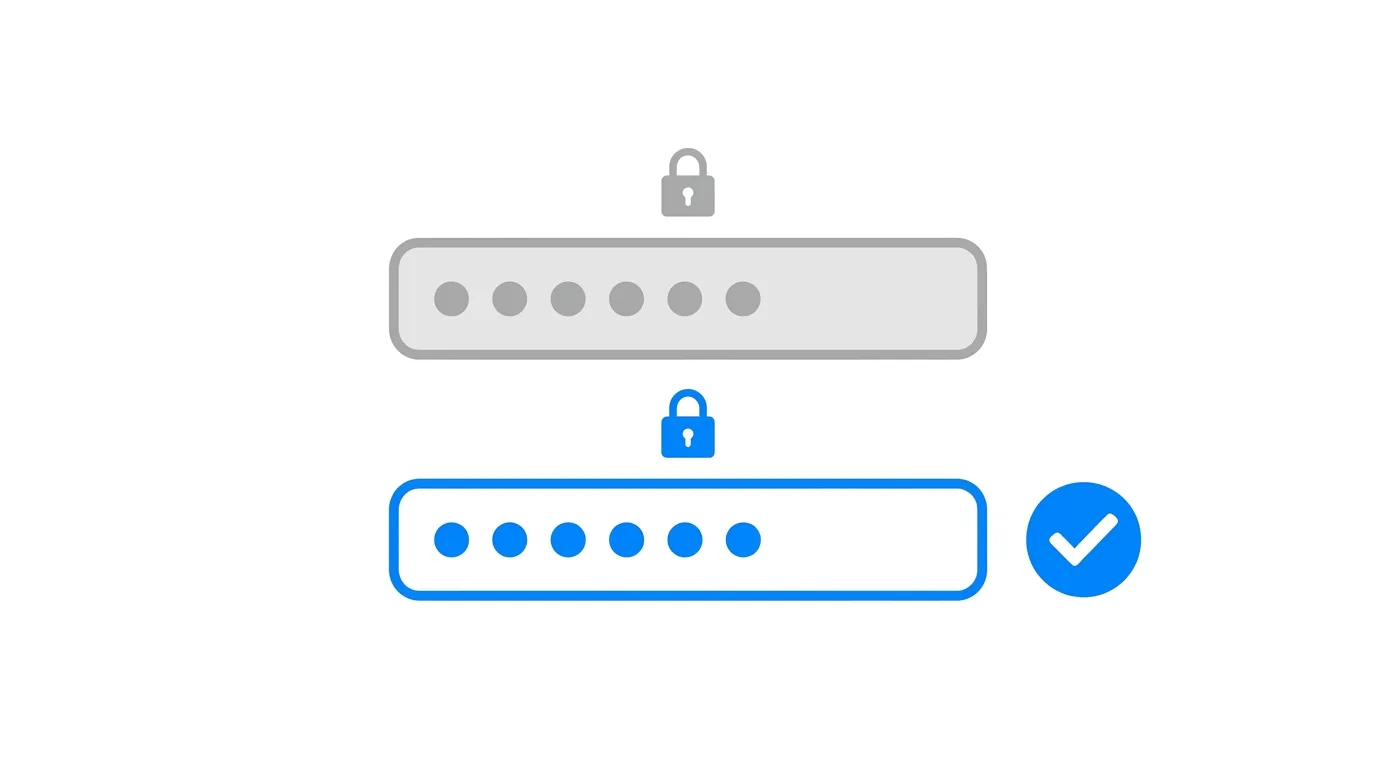
- Enter your current password to verify your identity.
- Enter your new password, then confirm it a second time.
- Tap Save Changes or Change Password to finalize.
Action step: Choose a new password that’s meaningfully different from your current one and not reused from other accounts, since password reuse across platforms significantly increases your risk if any single service experiences a data breach.
What Happens to Saved Login Info on Other Devices?
When you change your password, devices where you’re currently logged in may require you to re-enter credentials.
Action step: Update your saved password in any password manager or browser autofill immediately after changing it on Facebook, since outdated saved passwords can cause confusing login failures on devices where you expect automatic sign-in to still work.
How This Affects Linked Instagram or Other Meta Accounts
If your Facebook account is connected to Instagram or other Meta services through Accounts Center, understand how password changes might interact with these connections.
Action step: Review your Accounts Center settings after changing your Facebook password, since some shared account security settings across Meta’s platforms may be worth double-checking to ensure your other connected accounts remain properly secured.
Security Notifications After a Password Change
Facebook typically sends a confirmation notification or email after a successful password change, serving as a security check.
Action step: If you receive a password change notification you didn’t initiate yourself, treat this as an urgent signal your account may be compromised, and immediately use the account recovery process to regain control and secure your account further.
How to Change Your Password on Desktop
Prefer using a browser? Here’s the process:
- Go to Facebook.com and log in.
- Click your profile icon, then Settings & privacy → Settings.
- Select Accounts Center → Password and security → Change password.
- Enter your current and new password, then save.
What to Do If You Forgot Your Current Password
If you can’t remember your current password, you’ll need the reset process instead of the standard change process.
- On the login screen, tap Forgot password?
- Follow the prompts to reset via your registered email or phone number.
Action step: Use the reset flow specifically if you’re locked out entirely — the standard change password process described above requires knowing your current password first.
How Often Should You Change Your Facebook Password?
There’s no universal rule, but certain situations clearly call for an immediate change.
Change your password immediately if:
- You suspect unauthorized access to your account
- You’ve reused this password on another service that experienced a data breach
- You shared your password temporarily and no longer want that person to have access
Action step: Beyond these specific triggers, changing your password periodically (roughly every 6–12 months) is a reasonable general security habit, though using a strong, unique password matters more than frequency alone.
Creating a Strong New Password
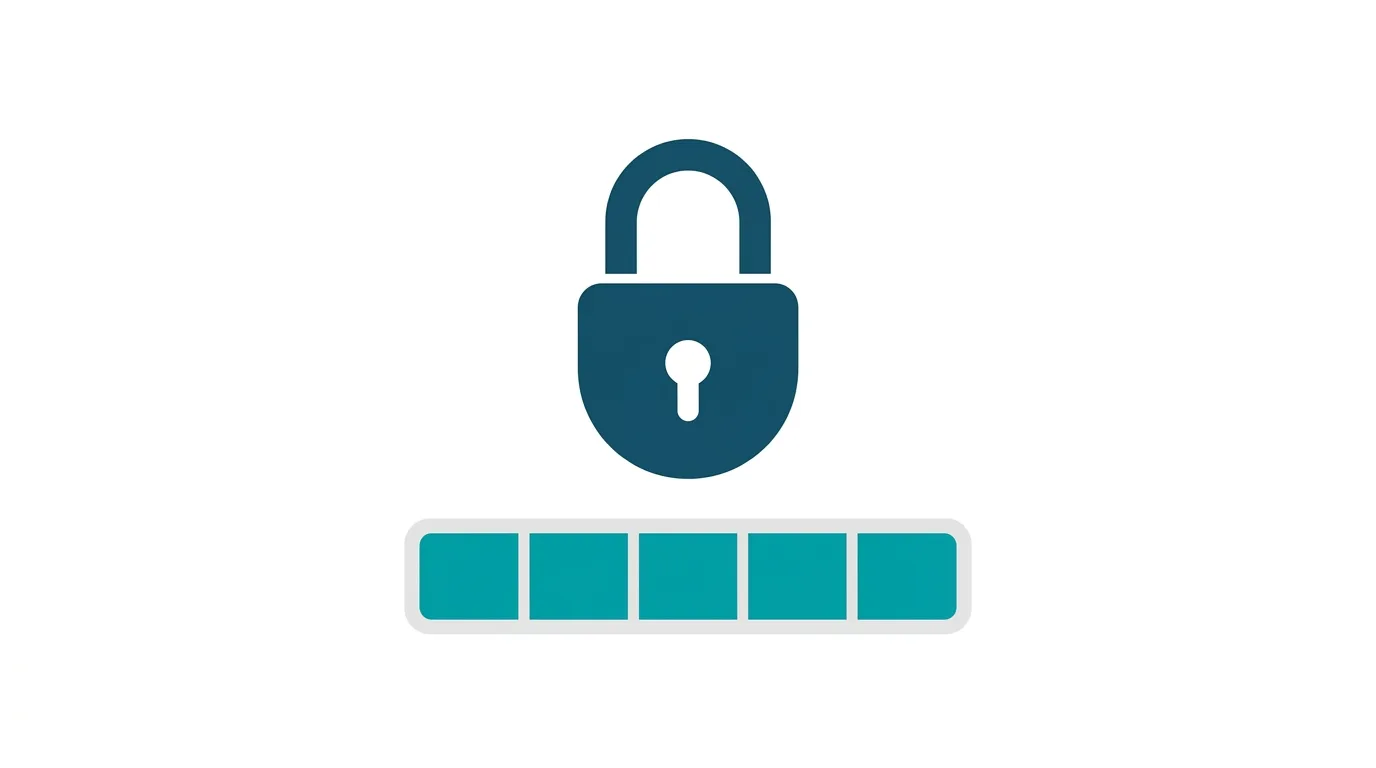
Strong password characteristics:
- At least 12 characters long
- A mix of uppercase, lowercase, numbers, and symbols
- Not based on easily guessable personal information
- Unique to Facebook, not reused elsewhere
Action step: Consider using a password manager to generate and store a strong, unique password, since remembering complex, unique passwords for every account without assistance becomes impractical as you accumulate more online accounts.
Should You Enable Two-Factor Authentication Too?
Changing your password is a good opportunity to also strengthen your account with two-factor authentication if you haven’t already.
Action step: Enable two-factor authentication right after changing your password under the same Password and security section, since this adds a critical additional security layer beyond the password alone.
What Happens to Your Active Sessions After Changing Your Password?
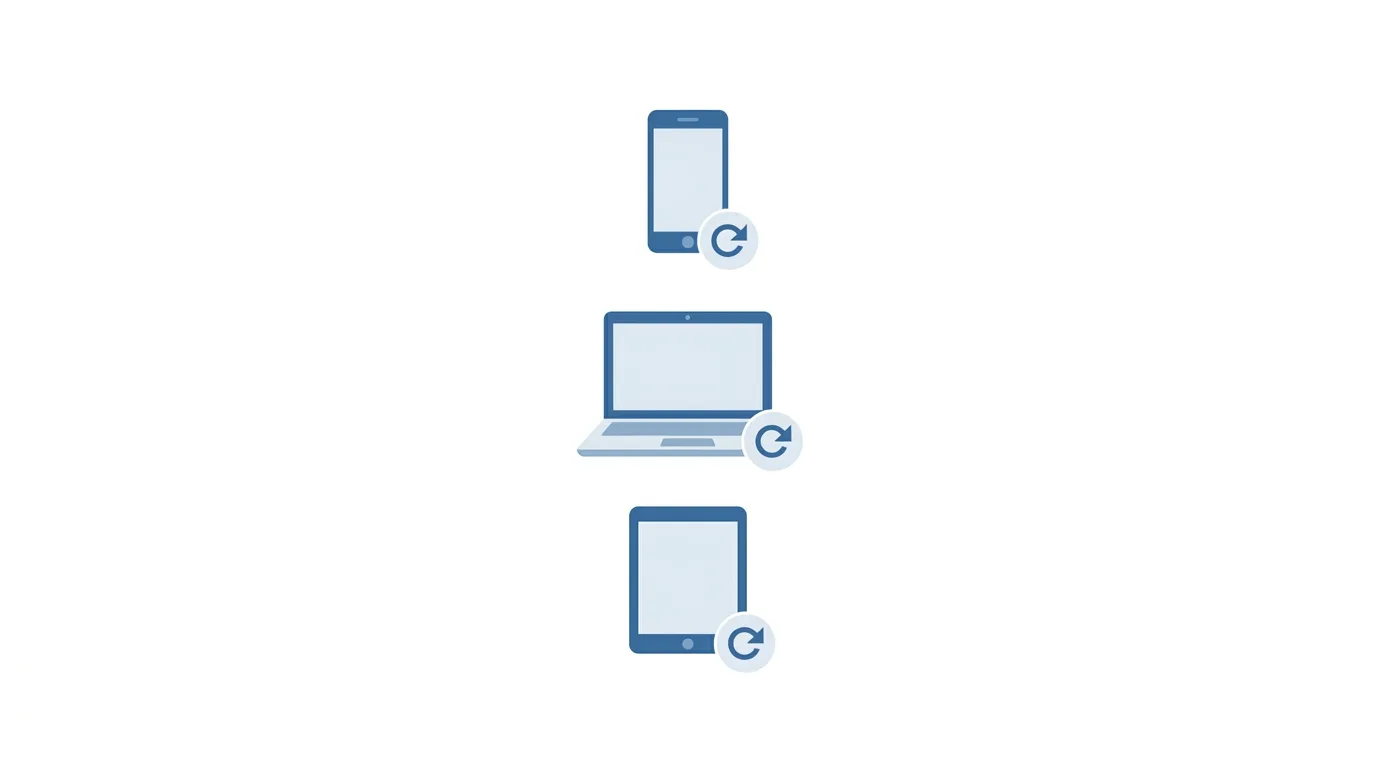
Facebook typically logs out other active sessions on different devices as a security measure when your password changes.
Action step: Expect to need to log back in on any other devices you use — phone, tablet, computer — after changing your password, since this automatic logout is a deliberate security feature protecting your account from any session that may have been compromised.
Common Issues When Changing Your Password
New password not accepted?
Check that it meets Facebook’s minimum requirements, and ensure it doesn’t closely resemble your current password, since some systems reject changes that are too similar to the old one.
Forgot your current password when trying to change it?
Use the “Forgot password?” reset flow instead, since the standard change process requires your existing password for verification.
Getting logged out of linked apps after changing your password?
This is expected — apps using “Log in with Facebook” may require you to re-authenticate after a password change, which is a normal security behavior rather than an error.
How To Change Your Username on Snapchat (2026 Guide)
Final Thoughts
Changing your Facebook password takes just a minute through Settings, provided you remember your current password — otherwise, the “Forgot password?” reset flow handles account recovery instead. Use this as an opportunity to set a strong, unique password and enable two-factor authentication if you haven’t already, since both together offer meaningfully stronger account protection than a password change alone.
